Welcome!
-
-
-
-
-
-
-
- LMS Home
- Core Concepts
- Companies and Departments
- Courses
- Course Status and Visibility
- Sections
- Video Activities
- Reading Activities
- Document Activities
- Enrolling People in a Course
- Bulk Enroll With CSV
- Roles in a Course
- How Progress Is Tracked
- Course Reports
- Knowledge Base Overview
- Libraries and Folders
- Uploading Content Items
- Library Visibility
- AI Agent per Library
- My Courses
- Platform People
-
-
-
-
- Project Structure Template
- Table of Contents (TOC)
- Content Folder
- Introduction to Markdown
- Markdown Basics
- Markdown Lists
- Markdown Links
- Markdown Images
- Markdown Code
- Markdown Tables
- Markdown Equations
- Markdown Videos
- Markdown Embedded HTML
- VS Code Snippets
- Introduction to Styles
- Custom Theme
- Framed Narrations
- Markdown Configuration
- Editor Setup
-
Find your courses
TL;DR; My Courses lists everything you're enrolled in. Filter by delivery type, search by name, and each course tells you at a glance whether you can open it yet.
Before you start
You need to be signed in. If you got here from an invitation email, see Log in from your invitation first.
Steps
Select My Courses from the top navigation, or go there directly after signing in.
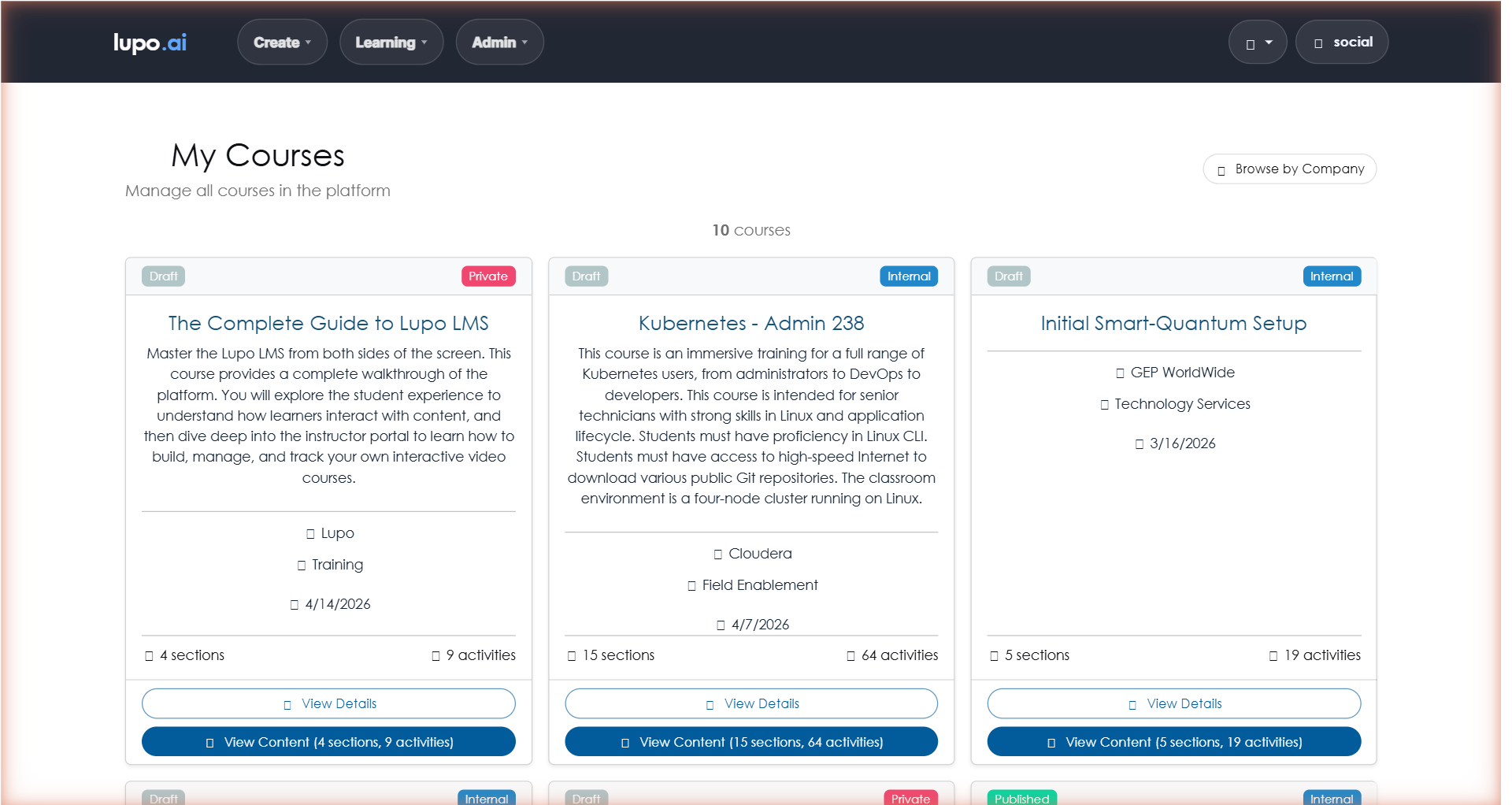
Use the filter row to narrow the list to On-Demand, Self-Paced, or Instructor-Led courses, or leave it on All.
Use the search box to find a course by name, or switch between card and list view. If you're enrolled in courses across more than one company, Group by company splits the list up that way.
Each course tile shows its company and department, how many sections and activities it has, its estimated duration, and when it was last updated. A status chip and a visibility chip show whether the course is still being worked on and who else can see it.
Select the action button on a tile to open it — it reads View Course, View Video, or a delivery-type-specific label (Instructor-Led, Self-Paced Training, On-Demand), depending on the course. If you registered for a class that's full, the tile shows a Waitlisted chip instead, and you can't open the content until a seat frees up.
What this doesn't do
My Courses only shows courses you're already enrolled in. It's not the full catalog of what your company offers — for that, use Browse (see below) or ask your instructor or admin how to self-register into a class.
A course tile with no content yet shows a disabled No content button instead of an action — that's a course still being built, not a broken link.
Common issues
No courses listed at all — if you haven't been enrolled in anything yet, My Courses shows an empty state instead of a blank page, with a Browse button that takes you to the catalog of everything your company offers.
Where to go next
- Take an on-demand course — what happens once you open a course.
- Your schedule — for instructor-led classes you're registered in.