Welcome!
-
-
-
-
-
-
-
- LMS Home
- Core Concepts
- Companies and Departments
- Courses
- Course Status and Visibility
- Sections
- Video Activities
- Reading Activities
- Document Activities
- Enrolling People in a Course
- Bulk Enroll With CSV
- Roles in a Course
- How Progress Is Tracked
- Course Reports
- Knowledge Base Overview
- Libraries and Folders
- Uploading Content Items
- Library Visibility
- AI Agent per Library
- My Courses
- Platform People
-
-
-
-
- Project Structure Template
- Table of Contents (TOC)
- Content Folder
- Introduction to Markdown
- Markdown Basics
- Markdown Lists
- Markdown Links
- Markdown Images
- Markdown Code
- Markdown Tables
- Markdown Equations
- Markdown Videos
- Markdown Embedded HTML
- VS Code Snippets
- Introduction to Styles
- Custom Theme
- Framed Narrations
- Markdown Configuration
- Editor Setup
-
Who can do what
TL;DR; Every person in Lupo holds one or more roles, each granted at a specific scope (a company, a department, a course, or a single knowledge base). What you can do is the sum of every role you hold, at the scope it was granted.
The roles
| Role | Granted at | What it's for |
|---|---|---|
| Super Administrator | Global (every company) | Platform operations — full control across all tenants. |
| Company Administrator | One company | Tenant admin — manages courses, delivery runs, knowledge bases, and the Users and Roles list for their own company. |
| Instructor | One course | Teaches — manages that course's content, structure, and roster; can schedule and edit its delivery runs. |
| Student | One course | Learner — enrolls in and works through that course. |
| Observer | One course | Read-only — sees the course and learner progress without being enrolled. Typical for a manager checking on a report, or an auditor confirming completion. |
| KB Manager | One knowledge base | Full control of that knowledge base — libraries, folders, files, re-indexing. Can add other KB Managers and KB Members. |
| KB Member | One knowledge base | Read-only — browses libraries, downloads files, and chats against that knowledge base's content. |
A Company Administrator or a Super Administrator doesn't need a separate KB grant to manage every knowledge base in their company or across the platform — see the second trap below.
Roles combine — they're not exclusive
The course-side roles (Company Administrator, Instructor, Student, Observer) and the knowledge-base-side roles (KB Manager, KB Member) sit on two different axes. The same person routinely holds one of each at once:
- A Company Administrator can also be made a KB Manager on a specific knowledge base. Their company-wide access already covers the basics — viewing, editing, uploading — but not everything: viewing every user's chat history on that KB, and re-indexing it, are KB Manager-only capabilities. An admin who needs to do either of those on a particular KB gets the explicit grant.
- An Instructor can also be made a KB Manager on the knowledge base that backs their course. Being an Instructor gives no knowledge base access by itself — an instructor who wants to build and organize that library needs the KB Manager grant on top of their course role.
- A Student can also be made a KB Member. Being enrolled in a course gives no knowledge base access by itself either — a student who needs read access to reference material in a knowledge base gets the KB Member grant on top of their Student role.
In short: your course role decides what you can do on courses, your knowledge-base role decides what you can do on that knowledge base, and most people who touch both hold one of each.
How access is resolved
Every role is granted at a scope, and scopes nest: Global → Company → Department → Course. When Lupo checks whether you can do something in a specific course, it checks every level above that course too — a Global grant (Super Administrator) always applies; a Company grant applies to everything inside that company; and so on down to the course itself.
Knowledge bases sit on their own, separate axis. A KB Manager or KB Member grant is tied to one specific knowledge base, independent of the course hierarchy — which is exactly why the traps below exist.
Four things that catch people out
- A role only works where it was granted. Being Company Administrator for one company gives you nothing in another company, even if it's the same person, the same login, the same role name. Each grant is checked against the scope it was made at.
- Course access doesn't include knowledge base access. Being an Instructor or Student on a course does not, by itself, get you into that department's knowledge base. Knowledge base access is a separate grant — KB Manager or KB Member — even for people already on the course.
- Company Administrator is the one exception. Unlike Instructors or Students, a Company Administrator automatically gets full control of every knowledge base in their company — no separate KB Manager grant needed.
- Not everyone can look up their own roles. Company Administrators, Instructors, and KB Managers can see their own grants on a "My Roles" page. Students, Observers, and KB Members don't get that page — they ask whoever administers their company or course instead.
Where you can check your own roles
Select your account menu, then My Roles, to see exactly what you hold — by company, and split into the same three tabs as the top navigation (Knowledge, Learn, Create). An absence is stated plainly rather than left blank, and each tab lists the specific capabilities your roles add up to in that area.
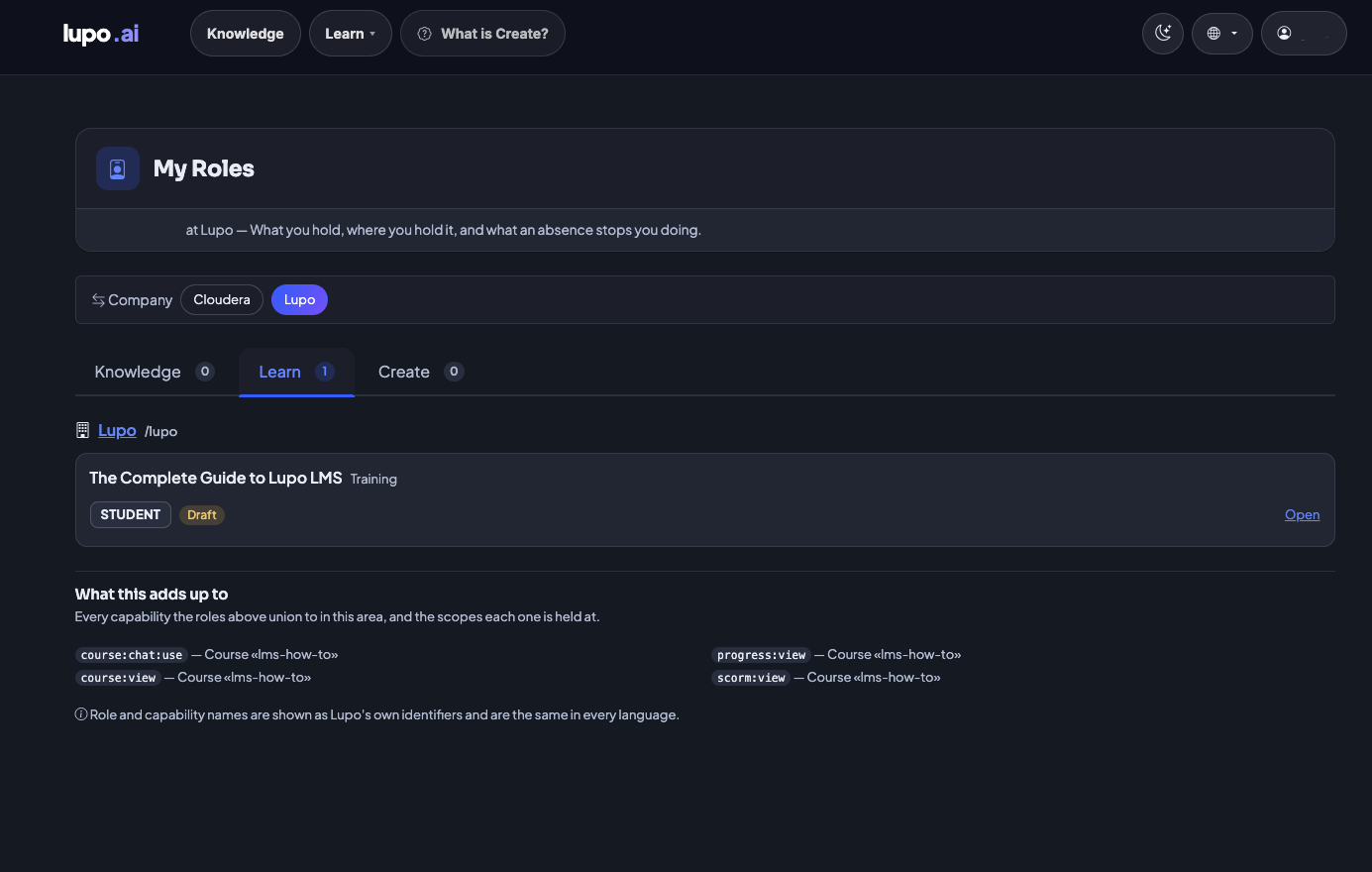
Remember the fourth trap above: this page isn't available to everyone — Students, Observers, and KB Members don't get it.
Where to go next
- Concepts and glossary — the terms used above, defined once.
- Getting your account — how a role actually gets assigned to you.