Welcome!
-
-
-
-
-
-
-
- LMS Home
- Core Concepts
- Companies and Departments
- Courses
- Course Status and Visibility
- Sections
- Video Activities
- Reading Activities
- Document Activities
- Enrolling People in a Course
- Bulk Enroll With CSV
- Roles in a Course
- How Progress Is Tracked
- Course Reports
- Knowledge Base Overview
- Libraries and Folders
- Uploading Content Items
- Library Visibility
- AI Agent per Library
- My Courses
- Platform People
-
-
-
-
- Project Structure Template
- Table of Contents (TOC)
- Content Folder
- Introduction to Markdown
- Markdown Basics
- Markdown Lists
- Markdown Links
- Markdown Images
- Markdown Code
- Markdown Tables
- Markdown Equations
- Markdown Videos
- Markdown Embedded HTML
- VS Code Snippets
- Introduction to Styles
- Custom Theme
- Framed Narrations
- Markdown Configuration
- Editor Setup
-
Log in from your invitation
TL;DR; Open the link in your invitation email, confirm the summary, set a password if you're new to Lupo, and you're signed in — already inside the course you were invited to.
This is for anyone who was invited to a course by their company rather than signing up on their own. You don't need to create an account first — the invitation link does that for you.
Before you start
You need the invitation email Lupo sent you. The link in it is unique to you and works once. If you can't find the email, ask whoever invited you to resend it, or contact support.
Steps
Open the invitation email and select Accept Invitation & Open Course.
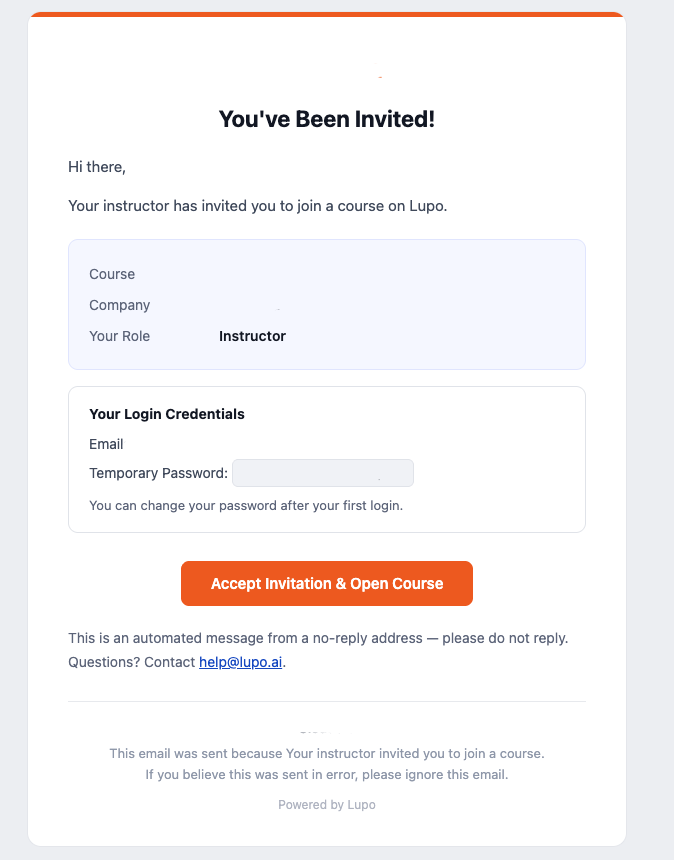
On the page that opens, check the summary: Course, Company, Role, and Email Address. These are fixed by whoever invited you — the email field is read-only, with a note that it was verified from your invitation link.
What you do next depends on whether you already have a Lupo account:
- New to Lupo: enter a password under Create Password and Confirm Password (at least 4 characters — no special characters required), then select Accept Invitation and Create Account.
- Already have a Lupo account: you'll see a note that your account already has a password. Select Accept Invitation and Open Course.
You're signed in automatically and land on the course you were invited to.
The page also lists why the link is safe to use: it's unique to you, it only works once, it has an expiry date shown on the page, and you should never share it with anyone else.
What this doesn't do
Accepting an invitation doesn't let you change the course, company, or role you were invited into — those were set by whoever invited you. If any of them is wrong, ask that person to send a new invitation rather than trying to fix it here.
The link also doesn't work a second time. Selecting it again after you've already accepted sends you to an error page instead of back into the course.
Common issues
"This invitation link was already used. If you already have access, sign in and open My Courses." — You (or someone) already accepted this invitation. Sign in normally instead.
"This invitation link has expired. If your account was already created, you may still find the course in My Courses after signing in." — Ask for a new invitation if signing in doesn't show the course.
"We could not find this invitation. It may have been replaced or removed." — The link is no longer valid; ask for a new one.
"The invitation link is incomplete. Please use the full link from your email." — Part of the link got cut off, usually by an email client. Copy the whole link, or open the email on a different device.
Where to go next
- Getting your account — signing up, signing in, and resetting your password.
- Who can do what — what your assigned role lets you do.