Welcome!
-
-
- Learn Home
- Core Concepts
- Companies and Departments
- Courses
- Course Status and Visibility
- Modules
- Video Activities
- Reading Activities
- Document Activities
- Enrolling People in a Course
- Bulk Enroll With CSV
- Roles in a Course
- How Progress Is Tracked
- Course Reports
- Knowledge Base Overview
- Libraries and Folders
- Uploading Content Items
- Library Visibility
- AI Agent per Library
- My Courses
- Platform People
-
- Project Structure Template
- Table of Contents (TOC)
- Content Folder
- Introduction to Markdown
- Markdown Basics
- Markdown Lists
- Markdown Links
- Markdown Images
- Markdown Code
- Markdown Tables
- Markdown Equations
- Markdown Videos
- Markdown Embedded HTML
- VS Code Snippets
- Introduction to Styles
- Framed Narrations
- Markdown Configuration
- Editor Setup
-
-
-
Using Embedded HTML in Markdown
Although Markdown is designed to be a simple and lightweight markup language, it also allows you to use embedded HTML code. This can be useful if you need to create more complex formatting or add features not supported by Markdown syntax. For example, you can use HTML to create tables or add custom CSS styles to your content.
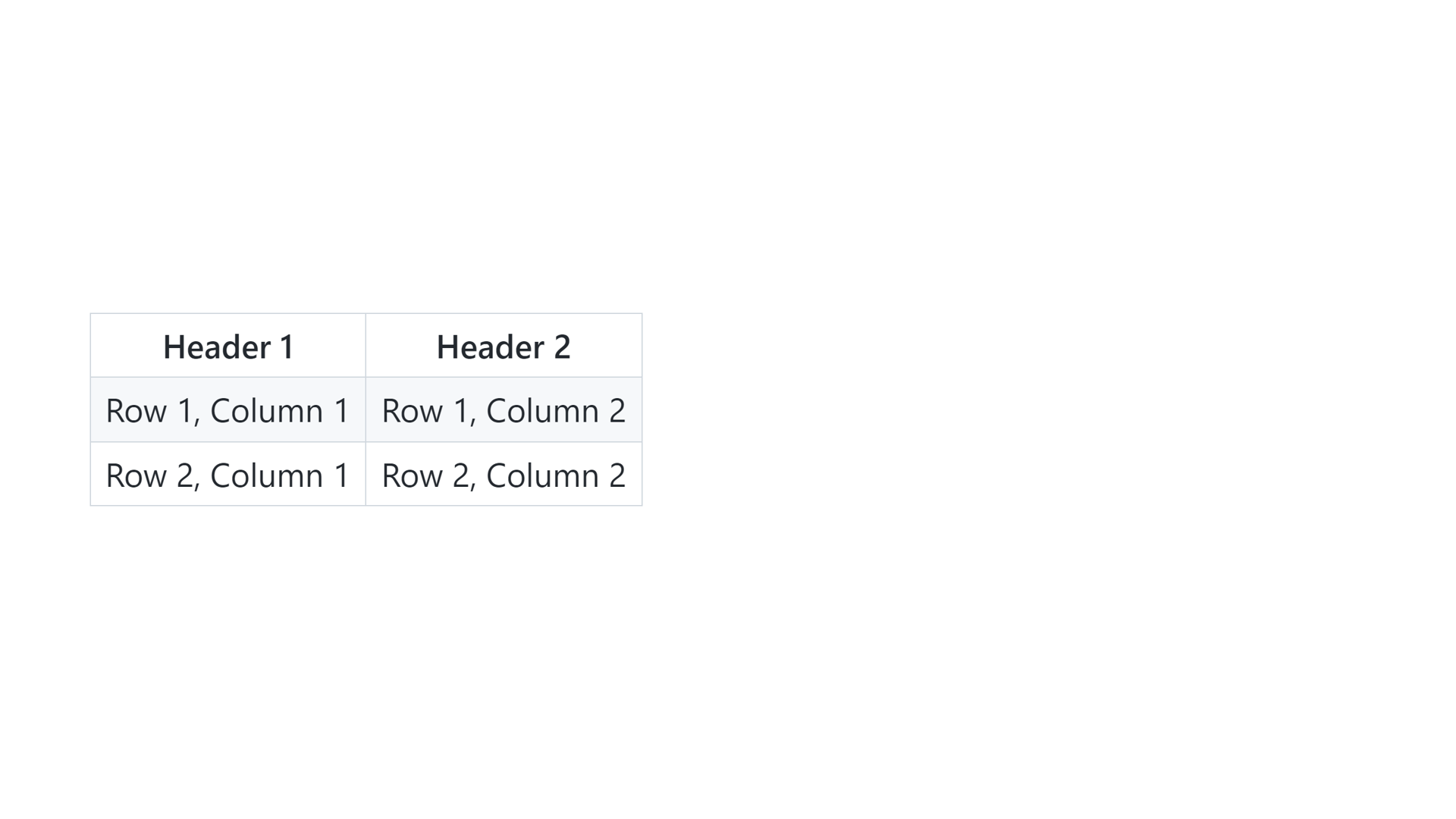
For example, to create a table using HTML in Markdown:
<table>
  <tr>
    <th>Header 1</th>
    <th>Header 2</th>
  </tr>
  <tr>
    <td>Row 1, Column 1</td>
    <td>Row 1, Column 2</td>
  </tr>
  <tr>
    <td>Row 2, Column 1</td>
    <td>Row 2, Column 2</td>
  </tr>
</table>
Two things to know about HTML in a Lupo build:
- HTML comments (
<!-- ... -->) are narration. Lupo reads the lines inside a comment as the text to be spoken on that slide, so do not use comments for hidden notes. - A
<style>block applies only to the slide it is written on. See Introduction to Styles for how the whole deck is styled.