Welcome!
-
-
- Learn Home
- Core Concepts
- Companies and Departments
- Courses
- Course Status and Visibility
- Modules
- Video Activities
- Reading Activities
- Document Activities
- Enrolling People in a Course
- Bulk Enroll With CSV
- Roles in a Course
- How Progress Is Tracked
- Course Reports
- Knowledge Base Overview
- Libraries and Folders
- Uploading Content Items
- Library Visibility
- AI Agent per Library
- My Courses
- Platform People
-
- Project Structure Template
- Table of Contents (TOC)
- Content Folder
- Introduction to Markdown
- Markdown Basics
- Markdown Lists
- Markdown Links
- Markdown Images
- Markdown Code
- Markdown Tables
- Markdown Equations
- Markdown Videos
- Markdown Embedded HTML
- VS Code Snippets
- Introduction to Styles
- Framed Narrations
- Markdown Configuration
- Editor Setup
-
-
-
Check Your Seat
TL;DR; If a course has separate On-Demand, Self-Paced, and Instructor-Led versions, holding a seat on one doesn't carry over to the others. Before you try to schedule a class, confirm your seat is on the Instructor-Led offering specifically — My Roles will tell you if it isn't.
Before you start
You need a Lupo account and to have been assigned a role by an admin. This page only tells you what you already hold — it doesn't grant anything itself.
Steps
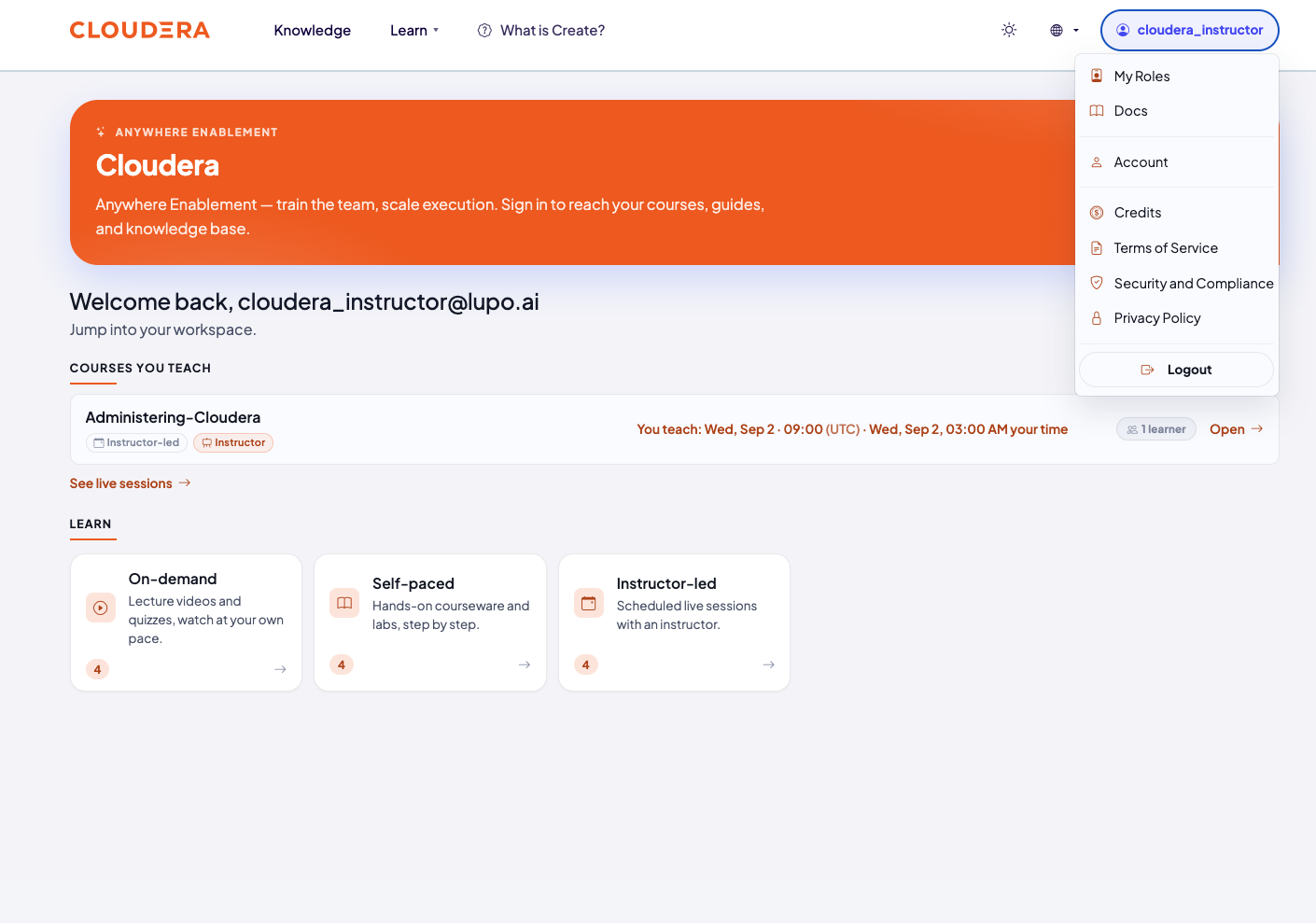
Open My Roles, from the account menu in the top right.
Find the course under the Learn tab. If it's split into channels, the page groups them under one course name and lists each offering you hold a role on as its own row, tagged On-demand, Self-paced, or Instructor-led, each with its own Open link.
Check specifically for Instructor-led. An offering you hold nothing on doesn't get a row of its own — it's folded into one line under the rows you do hold, reading No role on 1 other offering (or "No role on 2 other offerings"; if you hold nothing on the course at all, "No current role on this course" or "No role on any of its 3 offerings"). Expand that line and each missing offering shows its channel and the words "no role", with no Open link. A sentence says what the absence costs you — for Instructor-led, "you cannot schedule sessions or teach this one"; for the other channels, "you cannot edit this one or see its learners". It's shown once for the group when every missing offering has the same consequence, or on each row when they differ.
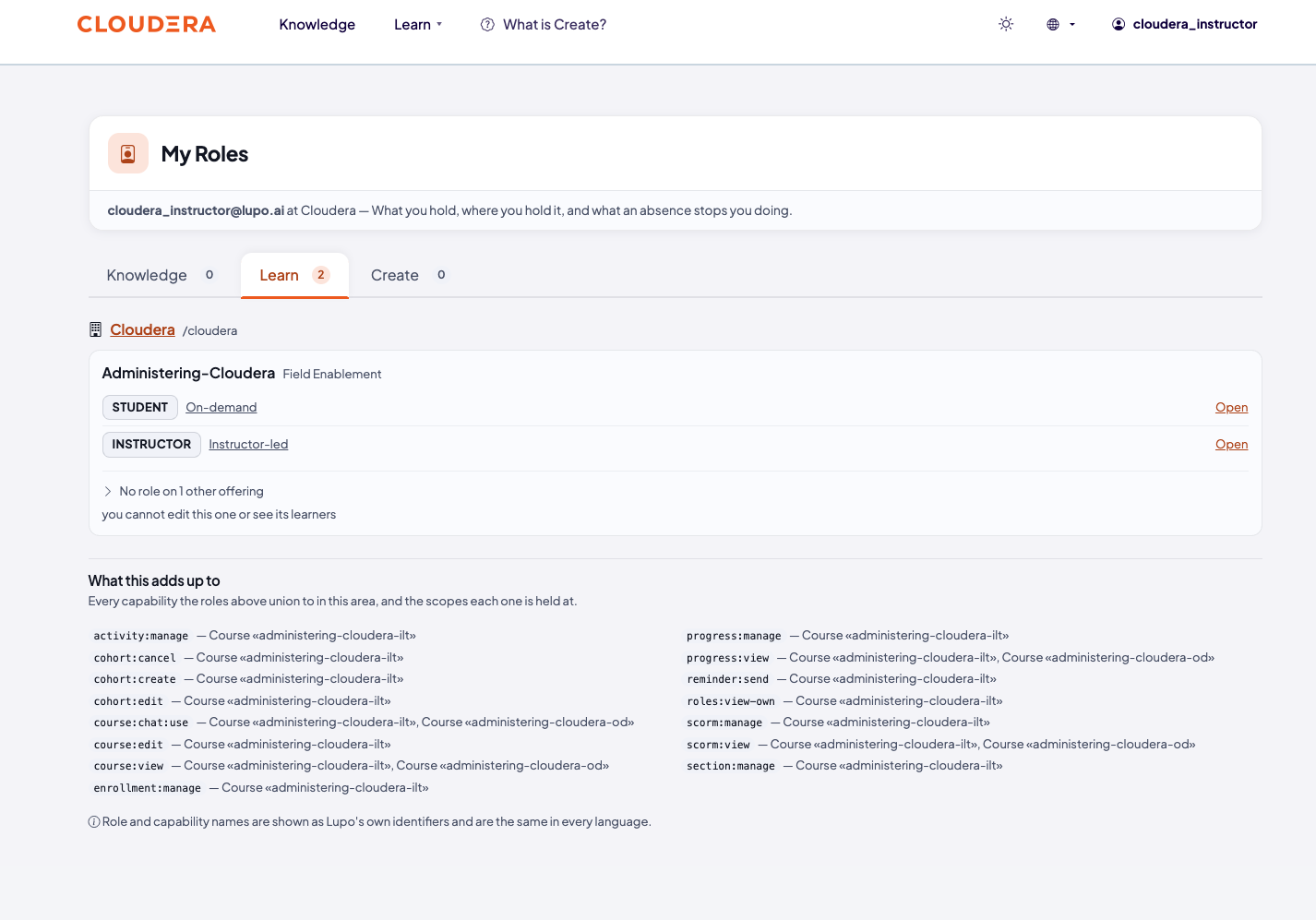
If Instructor-led is missing, ask your admin to assign you there specifically — naming the course alone isn't enough, since a course split into channels can have three separate offerings to choose from.
What this doesn't do
Holding Instructor anywhere else in the same course family — the On-Demand or Self-Paced version, or an archived "master" — doesn't give you anything on the Instructor-Led offering. Each channel is its own seat.
Common issues
The "New session" button isn't there, and there's no error. This is the known shape of the problem: a seat on the wrong offering shows no button and no explanation on the sessions page itself. Check My Roles first.
Where to go next
- Find your teaching home — where your course shows up once your seat is confirmed.