Welcome!
-
-
- Learn Home
- Core Concepts
- Companies and Departments
- Courses
- Course Status and Visibility
- Modules
- Video Activities
- Reading Activities
- Document Activities
- Enrolling People in a Course
- Bulk Enroll With CSV
- Roles in a Course
- How Progress Is Tracked
- Course Reports
- Knowledge Base Overview
- Libraries and Folders
- Uploading Content Items
- Library Visibility
- AI Agent per Library
- My Courses
- Platform People
-
- Project Structure Template
- Table of Contents (TOC)
- Content Folder
- Introduction to Markdown
- Markdown Basics
- Markdown Lists
- Markdown Links
- Markdown Images
- Markdown Code
- Markdown Tables
- Markdown Equations
- Markdown Videos
- Markdown Embedded HTML
- VS Code Snippets
- Introduction to Styles
- Framed Narrations
- Markdown Configuration
- Editor Setup
-
-
-
Overview of the Create Menu
TL;DR; The Create menu on lupo.ai holds the tools that turn something you already have — PowerPoint, Google Slides, or a PDF — into a video or a deck, plus one tool that re-narrates a video you already have. This page is a quick map of which tool to use when.
When you sign in to lupo.ai with an account that includes the creation tools, the top bar shows a Create menu. Its entries are grouped under two headers:
- Creation Tools — PowerPoint → Video, PowerPoint → Narration, Google Slides → Video, PDF → Slides, and Voice Studio.
- Enhance — Re-narrate Existing Video.
Depending on your account you may also see Projects and Builds at the top of the menu, a Users entry, and an Analytics section — those belong to the Workspace, not to the creation tools. Lupo platform administrators additionally see PDF → Video and Bulk Video Build; those two are not available to customer accounts and are not covered here.
The menu only appears on lupo.ai itself, not on a branded company site, and only for accounts that include the creation tools. If your account doesn't include them, the menu isn't there — you may see a What is Create? link in its place.
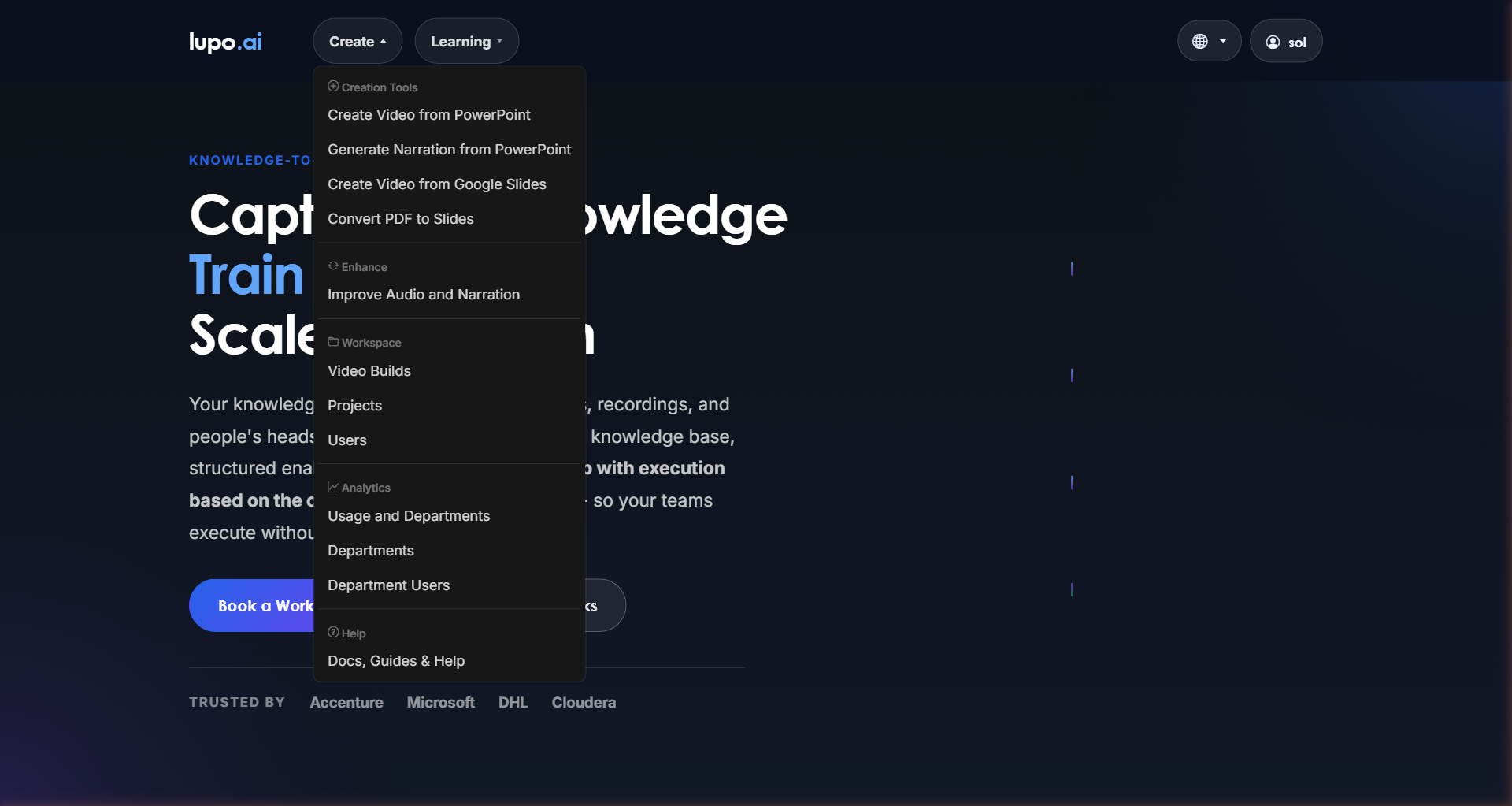
The five tools at a glance
Each row links to the guide for that tool. The name in bold is the label you'll see in the menu.
| Tool | Starts with | Gives you back | When to use it |
|---|---|---|---|
| PowerPoint → Video | A .pptx file with narrations in the speaker notes |
A finished video | You already have a deck and notes. The fastest path. |
| PowerPoint → Narration | A .pptx file with no narrations yet |
The same .pptx file with AI-generated narrations in the notes |
You have slides but never wrote the script. |
| Google Slides → Video | A Google Slides URL (speaker notes filled in) | A finished video | Your team works in Google Workspace and doesn't want to export to .pptx. |
| PDF → Slides | A .pdf file |
A .pptx file |
Your source content is a PDF — a manual, a one-pager, a research paper. |
| Re-narrate Existing Video | A video URL or .mp4 upload |
The video's transcript, as a one-slide PowerPoint that references the original video, or as a Markdown file | You already have a video and want to re-narrate it with a Lupo voice, or reuse its text. |
Voice Studio, the fifth entry under Creation Tools, isn't a conversion tool: it's where you pick a language and a voice tier, preview voices, and generate a sample from your own script before you build a video. It's covered in Voices and Languages.
How the tools connect
These tools are designed to chain together. A realistic flow looks like this:
- You start with a PDF (say, a compliance manual).
- You run it through PDF → Slides to get a
.pptxout. - You open that
.pptx, fix anything that needs fixing, and run it through PowerPoint → Narration to add a first-draft script. - You review the narration, tweak it, and run the final file through PowerPoint → Video to get the finished video.
- You publish the video as an activity inside a course in the Learn section.
You don't have to do all five steps. Most people start at step 4 with a deck they already wrote narrations for. But knowing the chain exists is useful when your source material is messy.
The email pattern
Every tool in the table above follows the same pattern: you upload, you wait, you get an email. (Voice Studio plays a sample back to you on the page, and Translate a video shows its progress and ends in a Download button.)
Video generation doesn't happen while you watch a spinner. You upload the file (or paste the URL), confirm, and close the tab. A few minutes later you get an email with a link to the result. That email is what you're waiting for — and it's the same pattern across all of these tools.
If you don't get the email after a reasonable wait, check your spam folder first, then contact help@lupo.ai.
Where to read next
- Create Video From PowerPoint (PowerPoint → Video) — start here if this is your first time
- Generate Narration From PowerPoint (PowerPoint → Narration) — let Lupo draft the script for you
- Create Video From Google Slides (Google Slides → Video)
- Convert PDF to Slides (PDF → Slides)
- Improve Audio and Narration (Re-narrate Existing Video)