Welcome!
-
-
- Learn Home
- Core Concepts
- Companies and Departments
- Courses
- Course Status and Visibility
- Modules
- Video Activities
- Reading Activities
- Document Activities
- Enrolling People in a Course
- Bulk Enroll With CSV
- Roles in a Course
- How Progress Is Tracked
- Course Reports
- Knowledge Base Overview
- Libraries and Folders
- Uploading Content Items
- Library Visibility
- AI Agent per Library
- My Courses
- Platform People
-
- Project Structure Template
- Table of Contents (TOC)
- Content Folder
- Introduction to Markdown
- Markdown Basics
- Markdown Lists
- Markdown Links
- Markdown Images
- Markdown Code
- Markdown Tables
- Markdown Equations
- Markdown Videos
- Markdown Embedded HTML
- VS Code Snippets
- Introduction to Styles
- Framed Narrations
- Markdown Configuration
- Editor Setup
-
-
-
Join on the Day
TL;DR; Once the instructor posts the join link, it shows up on the session's page and on My Schedule, and in your reminder email if it's posted by the time that goes out. Your registration confirmation carries it only for a one-day class, and only if it was already posted when you registered; its calendar file carries it for any day that already had one. The Join session button itself appears 15 minutes before the start.
Before you start
You need to be registered for the session. See Register for a class if you haven't yet.
Steps
Open the session — from My Schedule, from the course's Sessions page, or from the calendar entry or email you already have.
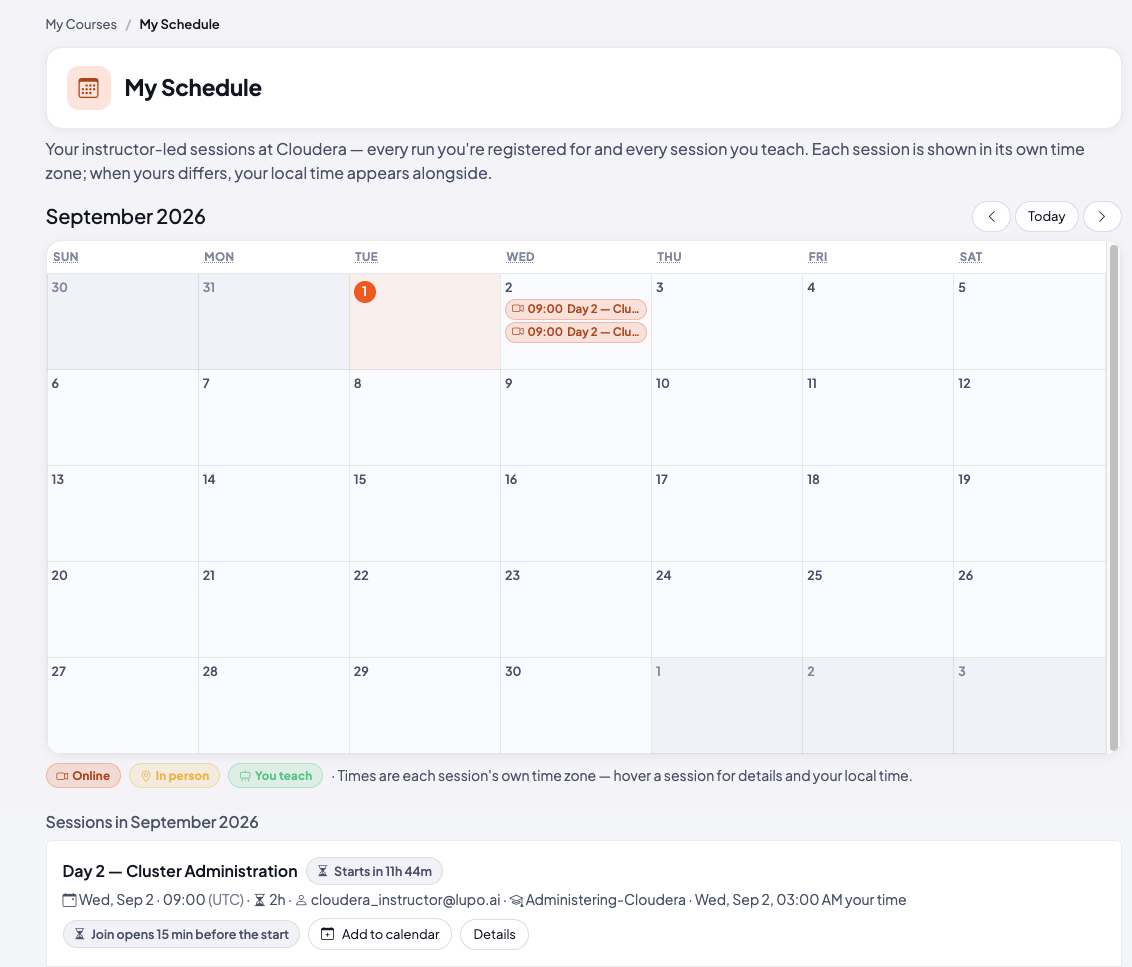
If the Join session button is showing, select it to go straight to the meeting. If it's too early, the row shows Join opens 15 min before the start instead — the button only appears that close to the session's start time, and stays until the session ends.
If the instructor hasn't posted a join link yet, the session shows Join link not posted yet instead of a button. Check back closer to the start time.
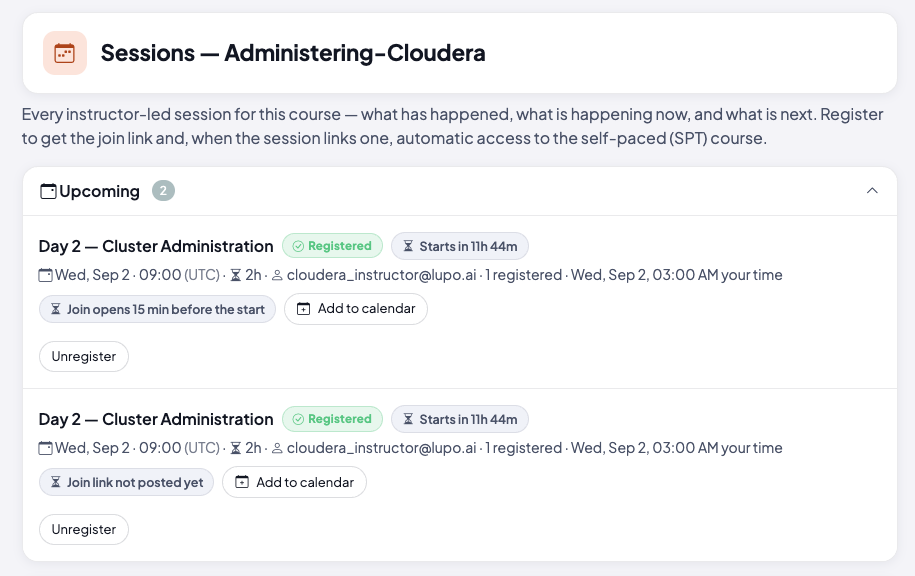
Your emails and calendar entry can save you the trip, with one catch: they're built when they're sent. The registration confirmation for a one-day class carries the link only if it was already posted when you registered — otherwise it says the instructor will share it before the session. For a multi-day class that email never carries a link at all; it tells you the join links appear on each session's page. Either way the attached calendar file carries the link for any day that already had one. The reminder email, sent in the 24 hours before the session, carries the link if it's posted by then, and its calendar file has it as the location. Nothing is re-sent when a link is posted later — the session's page and My Schedule are the places that always have the current one.
What this doesn't do
The 15-minute window applies to the Join session button on the session's page and My Schedule. The link in your reminder email and calendar entry is the meeting's own link, so Lupo doesn't gate when you open it — whether you can get into the meeting early is up to the meeting itself.
Common issues
"Join link not posted yet." — The instructor hasn't added one. It's not something you can fix from your side; check back later or ask your instructor.
Where to go next
- Work through the Student Guide — what to expect once you're in.
- See what you're booked into — back to My Schedule.
- Get to support — if the link isn't working when you expect it to.