Welcome!
-
-
- Learn Home
- Core Concepts
- Companies and Departments
- Courses
- Course Status and Visibility
- Modules
- Video Activities
- Reading Activities
- Document Activities
- Enrolling People in a Course
- Bulk Enroll With CSV
- Roles in a Course
- How Progress Is Tracked
- Course Reports
- Knowledge Base Overview
- Libraries and Folders
- Uploading Content Items
- Library Visibility
- AI Agent per Library
- My Courses
- Platform People
-
- Project Structure Template
- Table of Contents (TOC)
- Content Folder
- Introduction to Markdown
- Markdown Basics
- Markdown Lists
- Markdown Links
- Markdown Images
- Markdown Code
- Markdown Tables
- Markdown Equations
- Markdown Videos
- Markdown Embedded HTML
- VS Code Snippets
- Introduction to Styles
- Framed Narrations
- Markdown Configuration
- Editor Setup
-
-
-
Register for a Class
TL;DR; When a course allows self-registration — it does unless an administrator has switched it off — any member of your company can take a seat on one of its instructor-led sessions straight from the course's schedule. You don't need to be enrolled first: registering is what enrolls you. If a session is full, you join the waitlist instead, and you're promoted automatically, in order, if a spot opens up. When self-registration is off, the same buttons are greyed out and marked Arranged by your team, and your training team puts you on the class.
Before you start
You need a Lupo account and to belong to the company offering the course. See Invitation arrives if you don't have an account yet.
Steps
Open the course's Sessions page. There are three ways in, all leading to the same page: the Instructor-led button on the course's tile in My Courses or the Course Catalog; the See the schedule button on the course overview; or the Sessions button in the course's navigation once you're enrolled. Any member of the company can open the schedule of a published course that isn't private, whether or not they're already enrolled — registering for a session is how you become enrolled.
The schedule groups sessions into Happening now, Upcoming, and Past sessions, each with a count. A group with nothing in it is hidden, and Past sessions starts collapsed. Every row shows the date and time (in the session's own time zone, with your local time alongside), duration, instructor, and how many people are registered.
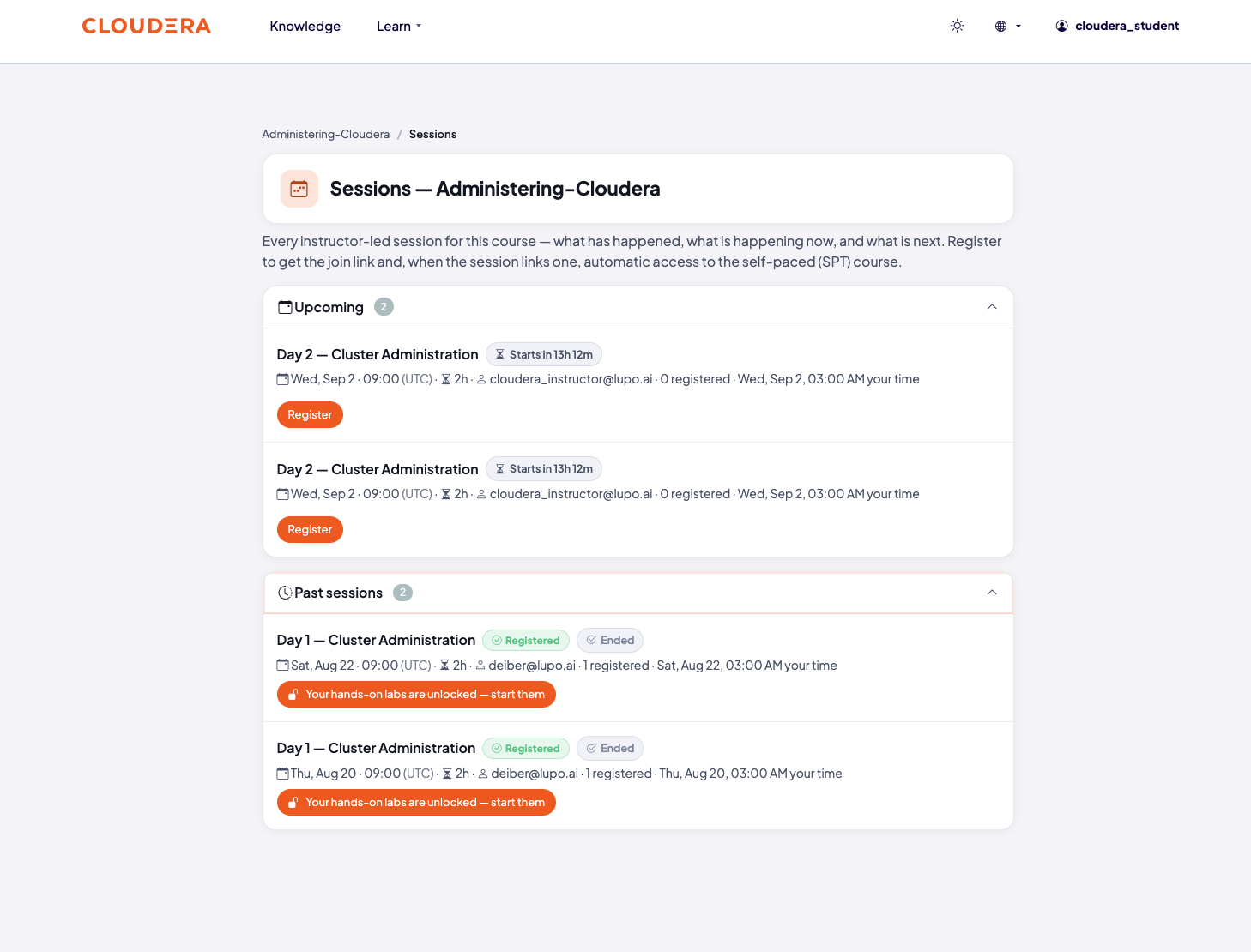
Select Register on the session you want.
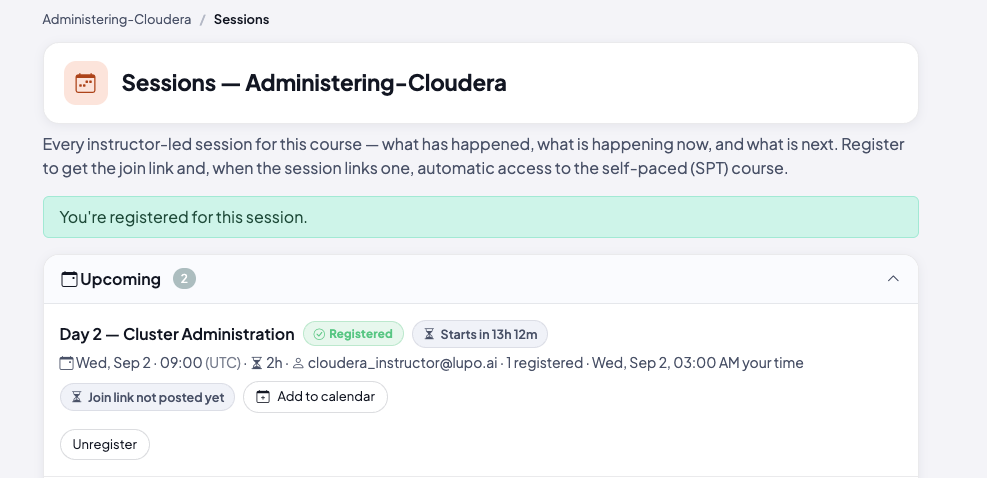
If there's room, you're in — a green message confirms "You're registered for this session." and the session's row picks up a Registered badge, a countdown to the start time, and buttons to Add to calendar or Unregister. If the instructor hasn't posted a join link yet, the row says Join link not posted yet instead of showing one.
If the session is full and has a waitlist, the button reads Join waitlist instead. Selecting it queues you — the message reads "This session is full — you've been added to the waitlist and will be registered automatically if a spot opens." — and the row shows Waitlisted. You also get a "You're on the waitlist" email listing the class days. If a spot opens up, you're registered automatically, in the order people joined the waitlist, and emailed the details. There's no position number shown, just the automatic promotion. If the session is full and has no waitlist, the button reads Full and can't be selected.
To change your mind, select Unregister (or Leave waitlist if you're waitlisted) on the same schedule page.
If the session links to a self-paced course, you may get a seat on it automatically — at registration, or when the class starts, depending on how the run was set up — without enrolling in it separately. The session's row carries a button to it: Your course materials are unlocked — start them once your seat is there and your progress in it is still zero, Open self-paced course otherwise. It's on upcoming sessions as well as past ones.
When seats are arranged for you
Self-registration is a per-course setting. It's on unless an administrator or instructor switches it off in the course's settings — a control you won't see as a learner. When it's off:
- Register, Join waitlist, Unregister and Leave waitlist are still on the schedule but greyed out, each marked · Arranged by your team. Hovering one explains: "Seats on this class are arranged by your training team. Ask your manager or your training lead to be added or removed."
- If you're not enrolled yet, the course overview says "It is delivered live, and seats are arranged by your training team — ask your manager or your training lead to be added to a class." Its See the schedule button still opens the schedule, so you can see the dates.
- You can't take yourself off a class either; that goes through the same team.
Once your training team registers you, everything else on this path — the confirmation email, the calendar file, the reminder, the join link — works the same way as if you had registered yourself.
What this doesn't do
Joining a waitlist doesn't tell you how many people are ahead of you — there's no queue position, only an automatic seat grant and email when one opens.
There's no separate approval step when self-registration is on. If a seat is open when you select Register, you're in immediately. When it's off, there's no request to send from the schedule either — ask your manager or your training lead.
Common issues
"This session is full." — No seats left and no waitlist for this session. Check back later or ask your instructor about another run.
"This session is no longer open for registration." — The session, or the run it belongs to, was cancelled after you opened the page, so it isn't taking registrations. Reload the schedule and ask your instructor about another run.
"Seats on this class are arranged by your training team — ask your manager or your training lead." — Self-registration is off for this course. See When seats are arranged for you above.
"This is a platform administrator account — it already has access to every session and can't be registered as a learner." — A platform admin account doesn't need to self-register; it already has access.
Where to go next
- Your calendar invite and reminder — the next step, what arrives once you're registered.
- See what you're booked into — where a session you registered for shows up afterward.
- Get to support — if a class you registered for doesn't behave as expected.