Welcome!
-
-
- Learn Home
- Core Concepts
- Companies and Departments
- Courses
- Course Status and Visibility
- Modules
- Video Activities
- Reading Activities
- Document Activities
- Enrolling People in a Course
- Bulk Enroll With CSV
- Roles in a Course
- How Progress Is Tracked
- Course Reports
- Knowledge Base Overview
- Libraries and Folders
- Uploading Content Items
- Library Visibility
- AI Agent per Library
- My Courses
- Platform People
-
- Project Structure Template
- Table of Contents (TOC)
- Content Folder
- Introduction to Markdown
- Markdown Basics
- Markdown Lists
- Markdown Links
- Markdown Images
- Markdown Code
- Markdown Tables
- Markdown Equations
- Markdown Videos
- Markdown Embedded HTML
- VS Code Snippets
- Introduction to Styles
- Framed Narrations
- Markdown Configuration
- Editor Setup
-
-
-
Ask Lupo and Your Course
TL;DR; Ask Lupo doesn't appear on an instructor-led course at all — not for you, not for your learners. Any other course can offer it, when that course has its AI assistant turned on.
Before you start
Nothing — this is about what's available where, not a task to complete.
Steps
Look through your instructor-led course's navigation — there's no Ask Lupo tab, and going directly to the chat page for this course won't work either.
If the same content also exists as an on-demand or self-paced course, that version can have Ask Lupo. It's a separate offering with its own access, though — it isn't something you turn on for the instructor-led version.
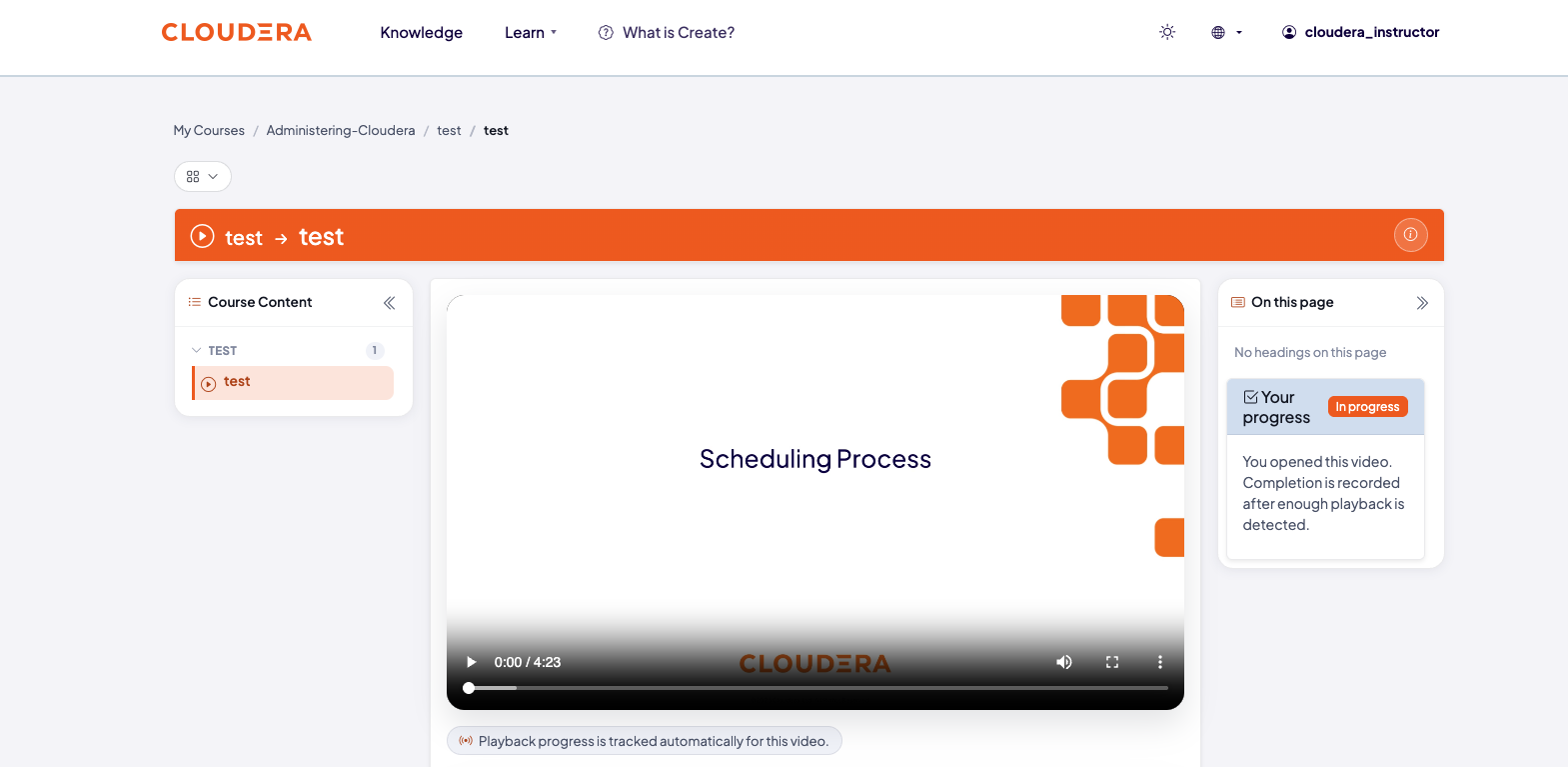
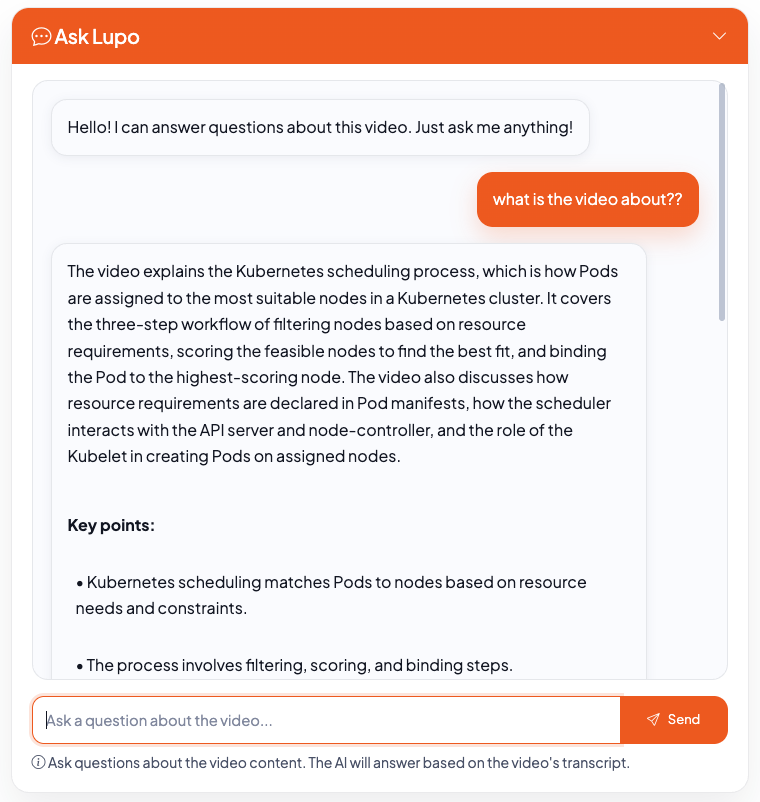
Questions on an instructor-led class go through you instead — see Ask questions for what that looks like from a learner's side.
What this doesn't do
There's no setting to turn Ask Lupo on for an instructor-led course. It's off for the course type itself, not something configured per-course.
Common issues
Ask Lupo used to be somewhere and now it's gone. If the course changed to instructor-led, or you're looking at the instructor-led offering of a family that also has an on-demand version, that's expected — it's off for instructor-led specifically.
Where to go next
- Add a join link — the next step, for an online day.
- Check your seat — back to the start of this path.
- Get to support — for anything else.