Welcome!
-
-
- Learn Home
- Core Concepts
- Companies and Departments
- Courses
- Course Status and Visibility
- Modules
- Video Activities
- Reading Activities
- Document Activities
- Enrolling People in a Course
- Bulk Enroll With CSV
- Roles in a Course
- How Progress Is Tracked
- Course Reports
- Knowledge Base Overview
- Libraries and Folders
- Uploading Content Items
- Library Visibility
- AI Agent per Library
- My Courses
- Platform People
-
- Project Structure Template
- Table of Contents (TOC)
- Content Folder
- Introduction to Markdown
- Markdown Basics
- Markdown Lists
- Markdown Links
- Markdown Images
- Markdown Code
- Markdown Tables
- Markdown Equations
- Markdown Videos
- Markdown Embedded HTML
- VS Code Snippets
- Introduction to Styles
- Framed Narrations
- Markdown Configuration
- Editor Setup
-
-
-
Send Reminders
TL;DR; Registrants get one automatic reminder 24 hours before each session. From the roster you can send that same reminder ahead of time — to everyone, or to one person — but only to people who haven't been sent one yet: Lupo never re-sends the pre-session reminder. To reach people again, schedule a custom message or a feedback request from the run's Reminders page.
Before you start
You need a session with registrants. See Manage the roster.
Steps
Nothing to do for the automatic reminder — it goes out 24 hours before the session to everyone registered at that point, and to you as the instructor. The run's Reminders page lists it under Automatic reminder, with "24 hours before the session" and, once it has gone, "Sent" and who it went to.
To send it ahead of time, open the session's roster and select Remind everyone. You're asked to confirm — "Email the session reminder to every active registrant now?" — and the page then reports "Reminder sent to N registrants". Anyone who already has the reminder is skipped: if that's everyone, the page says "Already reminded moments ago — nothing re-sent."; if it's some of them, the report ends with "; N skipped (reminded moments ago)". It says "moments ago" regardless of when the reminder actually went out. The button is only there while the session is still upcoming and has registrants.
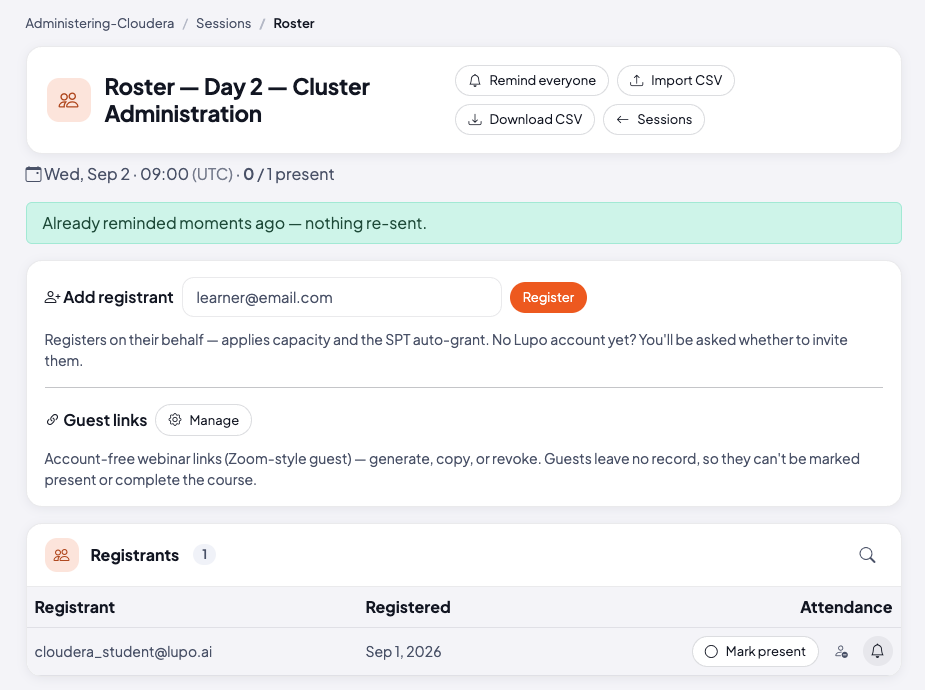
The bell next to a name (Send reminder email now) does the same thing for one person — useful for someone you added after the round went out. It can't re-send to someone who already has the reminder; you get the same "Already reminded moments ago — nothing re-sent."
To reach people again, or to send something other than the standard reminder, open the run's Reminders page from the delivery run (not the single session) and use Schedule a reminder: choose the type (Custom message or Feedback request), the scope (Whole cohort or one session), when it goes, and — for a custom message — the text. "Feedback sends the cohort's feedback link; custom sends your message." These aren't subject to the once-only rule, so they're the way to send a second nudge. Everything scheduled, sent, or cancelled is listed on the same page. For a feedback request right now, the run's own page has Send feedback request — it needs a Feedback form link set on the run first (Edit run).
What this doesn't do
No reminder — automatic, manual, or scheduled — reaches someone who is only on the waitlist; they haven't been given a seat yet.
Nothing re-sends the pre-session reminder. If you send it manually inside the 24-hour window, the automatic pass doesn't send a second one; and neither the button nor the bell sends to anyone who already has it.
Common issues
"Already reminded moments ago — nothing re-sent." Everyone you tried to remind already had the reminder — from the automatic pass or an earlier click, however long ago. To reach them again, schedule a custom message.
A reminder didn't reach someone. Check they're Active (waitlisted people aren't included) and that they have an email address — "No reminder sent — no email address on file." or "; N without an email address" tells you that's the reason.
"Reminders can only be sent for upcoming scheduled sessions." The session has started, ended, or was cancelled.
Where to go next
- Track progress with course reports — the next step.