Welcome!
-
-
- Learn Home
- Core Concepts
- Companies and Departments
- Courses
- Course Status and Visibility
- Modules
- Video Activities
- Reading Activities
- Document Activities
- Enrolling People in a Course
- Bulk Enroll With CSV
- Roles in a Course
- How Progress Is Tracked
- Course Reports
- Knowledge Base Overview
- Libraries and Folders
- Uploading Content Items
- Library Visibility
- AI Agent per Library
- My Courses
- Platform People
-
- Project Structure Template
- Table of Contents (TOC)
- Content Folder
- Introduction to Markdown
- Markdown Basics
- Markdown Lists
- Markdown Links
- Markdown Images
- Markdown Code
- Markdown Tables
- Markdown Equations
- Markdown Videos
- Markdown Embedded HTML
- VS Code Snippets
- Introduction to Styles
- Framed Narrations
- Markdown Configuration
- Editor Setup
-
-
-
Student Guide
TL;DR; The Student Guide is where an instructor-led class's lectures and exercises live. A menu on the left lists the course's content, a menu on the right outlines the page you're on, and you can download the whole guide as a PDF or copy any code block with one click.
Before you start
You need access to the course — usually through the class you're registered for.
Steps
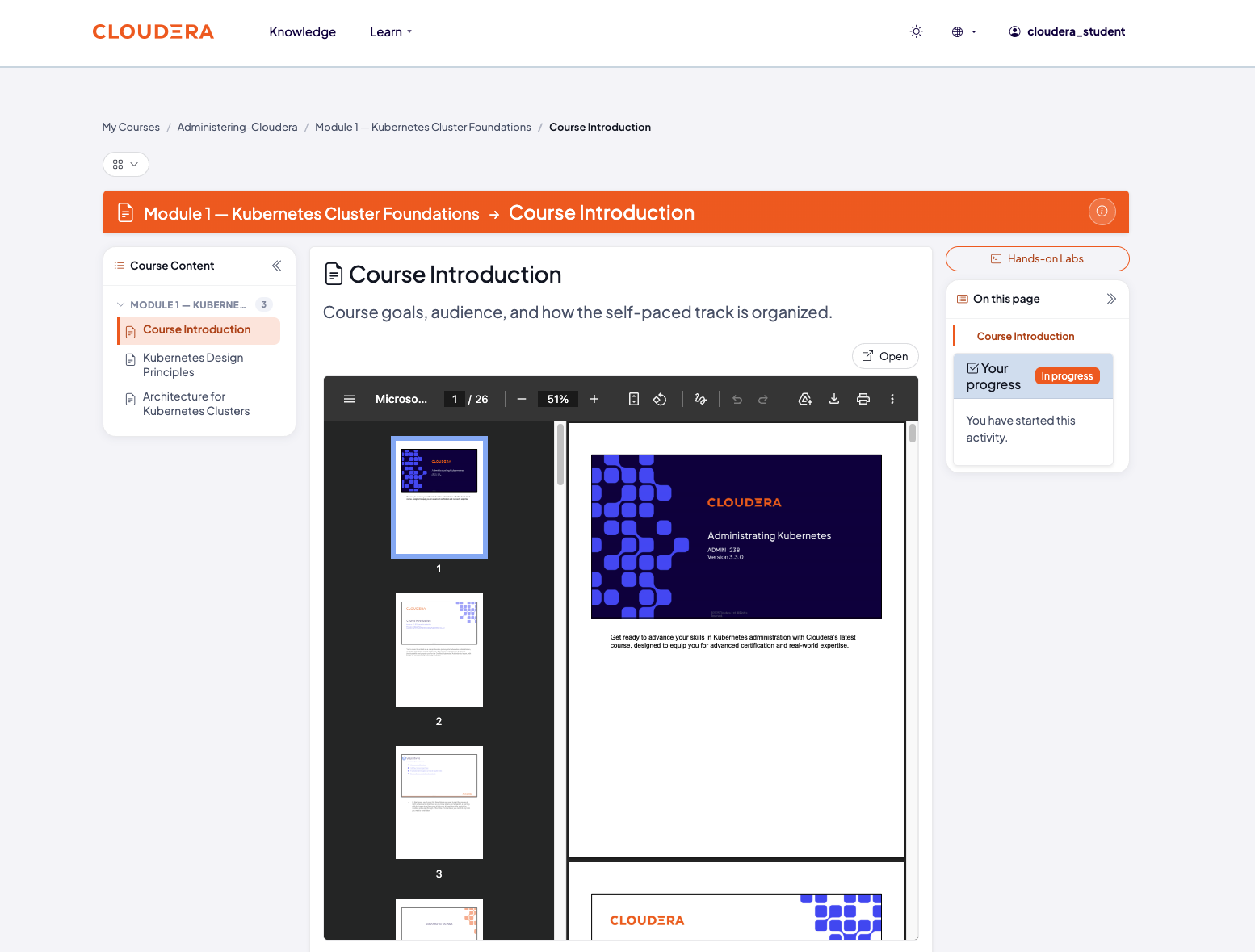
Open the Student Guide from the course. It reads like any lecture page, but with two navigation rails around the content.
Use the left rail to move between the course's own modules and activities — this is the course's table of contents, not just this page's.
Use the right rail, "On this page," to jump between headings on the current page. It's built from whatever headings are actually on the page, so it's empty on a page with none.
Select Download PDF to get the whole guide as a file — it's built from the same content you're reading, so it matches what's on screen.
On any code block, select the copy button to copy it to your clipboard. If your browser blocks the automatic copy, it falls back to telling you to press Ctrl+C instead.
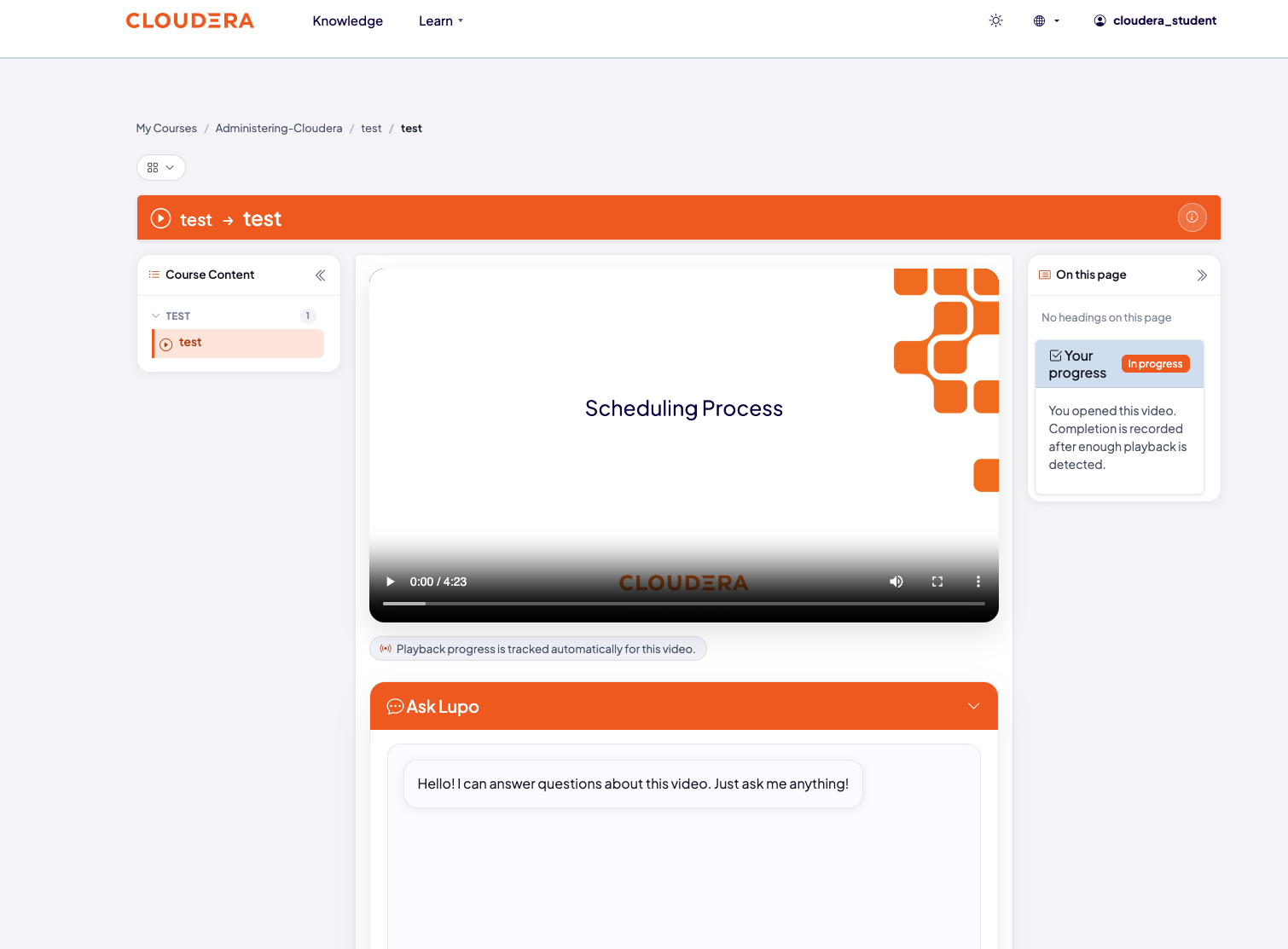
The instructor-led Student Guide itself doesn't include Ask Lupo. If the same content also has a self-paced or on-demand version, that version can show an Ask Lupo panel below its content, when the course and that activity have it turned on. The panel opens with a prompt to ask a question, and it answers from that specific piece of content.
What this doesn't do
The instructor-led Student Guide doesn't include Ask Lupo — see Ask questions for where it is available.
Common issues
Copy button doesn't do anything. Some browsers block automatic clipboard access; if it fails, the button switches to telling you to press Ctrl+C to copy manually.
Where to go next
- Ask questions — what's and isn't available if you get stuck.
- Come back afterward — whether the guide stays available once class ends.