Welcome!
-
-
- Learn Home
- Core Concepts
- Companies and Departments
- Courses
- Course Status and Visibility
- Modules
- Video Activities
- Reading Activities
- Document Activities
- Enrolling People in a Course
- Bulk Enroll With CSV
- Roles in a Course
- How Progress Is Tracked
- Course Reports
- Knowledge Base Overview
- Libraries and Folders
- Uploading Content Items
- Library Visibility
- AI Agent per Library
- My Courses
- Platform People
-
- Project Structure Template
- Table of Contents (TOC)
- Content Folder
- Introduction to Markdown
- Markdown Basics
- Markdown Lists
- Markdown Links
- Markdown Images
- Markdown Code
- Markdown Tables
- Markdown Equations
- Markdown Videos
- Markdown Embedded HTML
- VS Code Snippets
- Introduction to Styles
- Framed Narrations
- Markdown Configuration
- Editor Setup
-
-
-
Improve Audio and Narration
TL;DR; Paste a video URL or upload an .mp4 at lupo.ai/projects/transcript — it's Re-narrate Existing Video, under Enhance in the Create menu. Lupo transcribes the video and emails you the timestamped transcript as either a one-slide PowerPoint that references your video or a Markdown file — your choice. Edit the transcript, run the PowerPoint through Create Video From PowerPoint, and you get the same footage narrated by a Lupo voice.
This is the "I already have a video and I want it to be better" tool. It takes a video you already made (by you, by a colleague, by a vendor, from a meeting recording) and turns it into an editable artifact.
When to use this tool
Use Re-narrate Existing Video when:
- You have a video already — maybe a webinar recording, a recorded training session, or an old enablement video.
- You want that video's content in a format you can edit.
- You're planning to re-narrate it with a Lupo voice, or re-create a cleaner version using Lupo's other tools.
The output is a transcript, not a new video. The idea is to get an editable version of what's said in the original so you can rework it.
Step 1 — Open the tool
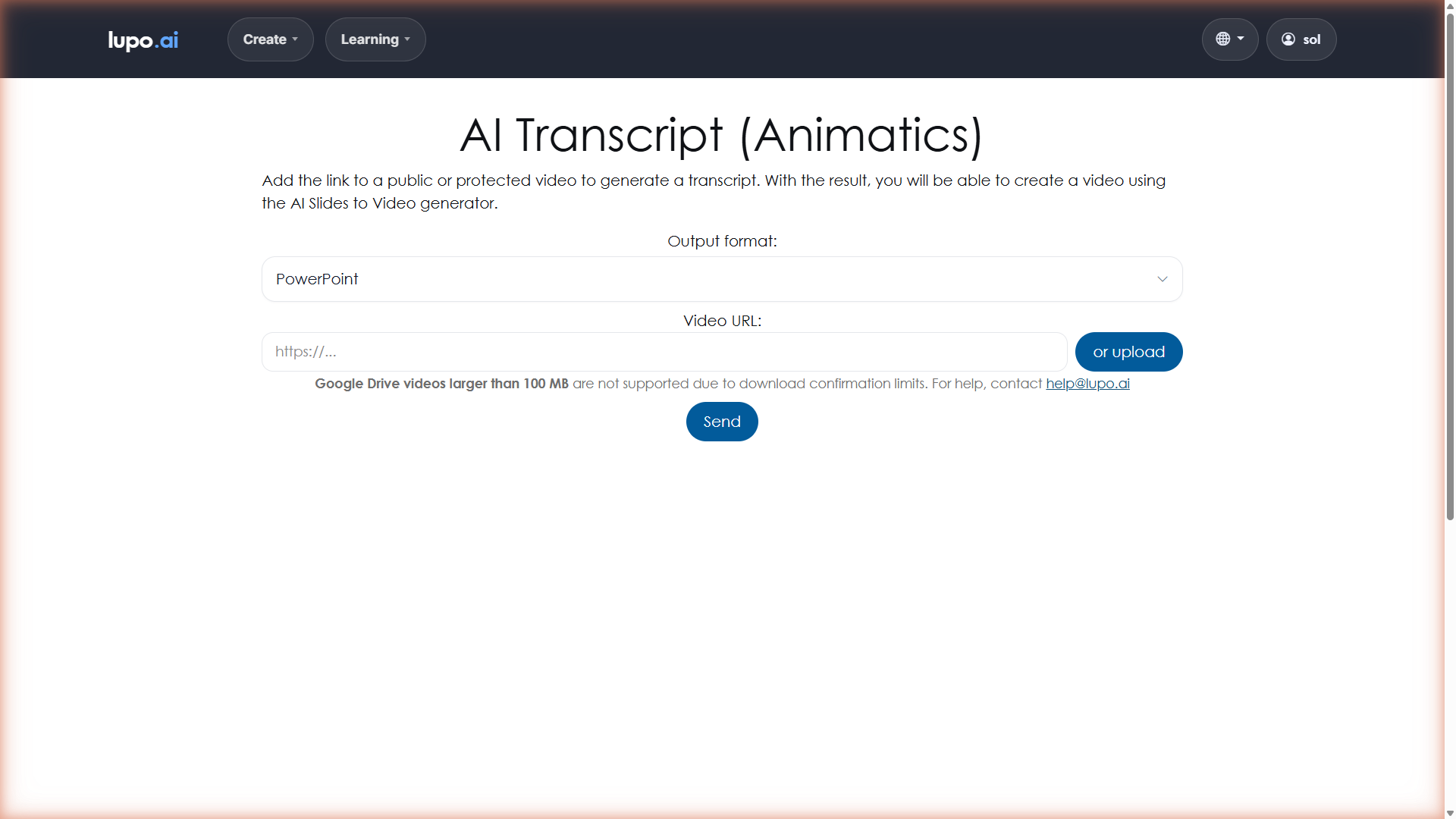
Go to lupo.ai/projects/transcript. The page is titled AI Transcript (Animatics), and in the Create menu it sits under the Enhance header as Re-narrate Existing Video.
The page has three sections — Provide your video, Choose the output format, and Submit and track — with matching steps across the top.
Step 2 — Pick an output format first
Under Choose the output format, pick what you want back. PowerPoint is selected by default; the other option is Markdown. Do this before you upload a file: an uploaded video is submitted automatically the moment the upload finishes, with whatever format is selected at that point.
- PowerPoint — a
.pptxwith a single slide. The slide's background is the first frame of your video, and its speaker notes hold the whole transcript, one line per caption, each starting with a timestamp such as((0:09)). The notes also carry an[ANIMATIC-VIDEO: …]tag that tells Lupo which video to play behind the narration. This is the format to pick if your next step is Create Video From PowerPoint — see Step 5. - Markdown — a
.mdfile with the same timestamped transcript as text (in Lupo's Markdown slide format, with a reference to the original video at the top). Pick this if you want to summarize, edit, or repurpose the text outside of Lupo.
Step 3 — Provide the video
Under Provide your video you have two choices:
- Paste a URL. Put the link in the Video URL: field. It must be an
https://link that returns the video file itself — for example a link to an.mp4in cloud storage that opens without signing in (public, or a signed share link), or a Google Drive share link. Lupo downloads whatever the link returns, so a link to a page with a player on it (YouTube, Vimeo, a video portal) does not work: the download is a web page, not a video, and the job fails. - Upload an
.mp4. Click or upload and pick a local.mp4. The upload starts immediately, and the transcription is submitted on its own as soon as the upload finishes — there's no button to click afterwards.
A note on Google Drive: videos larger than 100 MB hosted on Google Drive are not supported because of the way Drive handles download confirmations on large files. For videos that size, download them first and upload the .mp4 directly.
Step 4 — Send
If you pasted a URL, click Send. You'll see Processing..., then Transcription started. You'll receive an email once it's ready.
If you uploaded a file, you'll see Uploading video..., then Upload successful. Starting transcription..., then Processing..., then the same Transcription started message — with no click needed.
Close the tab. To submit another video, click Create a new transcript.
Step 5 — Wait for the email and review
When the email arrives, you'll receive your chosen format. Open the file and review:
- If you picked PowerPoint, open it and edit the speaker notes — that's the narration. Fix wrong words, cut filler, rewrite sentences; keep each line's timestamp (it marks where in the video that line is spoken) and leave the
[ANIMATIC-VIDEO: …]tag in place. Then feed the deck into Create Video From PowerPoint: Lupo plays your original video, muted, and a Lupo voice reads your edited lines over it. That's the re-narration. - If you uploaded the
.mp4instead of pasting a link, build the video within a day. The address Lupo writes into the[ANIMATIC-VIDEO: …]tag is the temporary upload address, and it stops working about a day later. After that the build produces a placeholder slide saying the video couldn't be reached — run the transcript again, or replace the address in the tag with a durable link to the same video. - If you picked Markdown, you'll have a readable text document you can summarize, translate, or rewrite.
A common workflow
- You have a recording of a live training session from a quarter ago.
- Run it through Re-narrate Existing Video with PowerPoint output.
- Open the resulting deck and clean up the speaker notes: trim the filler, fix the wording, keep the timestamps and the
[ANIMATIC-VIDEO: …]tag. - Run the cleaned-up deck through Create Video From PowerPoint — within a day of the upload, if you uploaded the video rather than pasting a link.
- The new video is the same footage, narrated cleanly with a Lupo voice — no more recording yourself.
Where to go next
- Create Video From PowerPoint — the step that turns the cleaned-up transcript back into a video.
- Generate Narration From PowerPoint — useful if you pull the transcript into Markdown and then rebuild the deck from scratch.