Welcome!
-
-
- Learn Home
- Core Concepts
- Companies and Departments
- Courses
- Course Status and Visibility
- Modules
- Video Activities
- Reading Activities
- Document Activities
- Enrolling People in a Course
- Bulk Enroll With CSV
- Roles in a Course
- How Progress Is Tracked
- Course Reports
- Knowledge Base Overview
- Libraries and Folders
- Uploading Content Items
- Library Visibility
- AI Agent per Library
- My Courses
- Platform People
-
- Project Structure Template
- Table of Contents (TOC)
- Content Folder
- Introduction to Markdown
- Markdown Basics
- Markdown Lists
- Markdown Links
- Markdown Images
- Markdown Code
- Markdown Tables
- Markdown Equations
- Markdown Videos
- Markdown Embedded HTML
- VS Code Snippets
- Introduction to Styles
- Framed Narrations
- Markdown Configuration
- Editor Setup
-
-
-
Images
Inserting Images
Inserting images in Markdown is simple and easy. You need to use a combination of square brackets and parentheses. The square brackets contain the alt text for the image, while the parentheses contain the image URL.
The image can be a URL or a file in your repository, written as a path relative to the Markdown file. Lupo checks every image before it builds: a file that is not in the repository, or a URL that does not answer, stops the build. The text in the brackets is not shown on the slide; in Marp it is where the sizing and background keywords go (see below). It's fine to leave it blank, but the brackets are required. Make sure there are no spaces between the brackets.

for example:

Resizing Images
You can resize an image by using width and height keyword options. We also support the shorthand options w and h. Usually, it's helpful to use these.

or


Adding Background Images
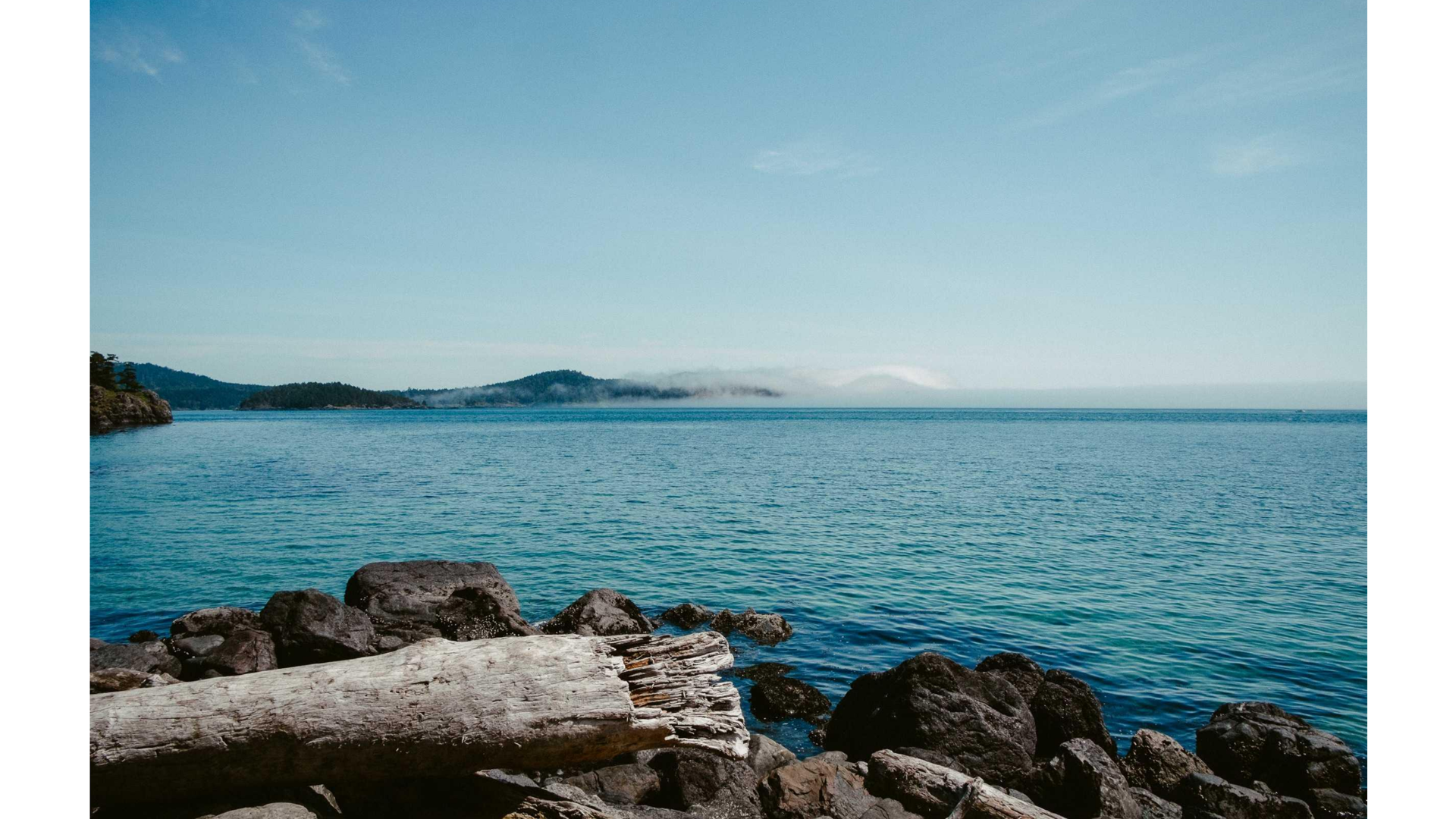
To add a background image to a slide, use the ![bg] directive followed by the path to your image. This will set the image as the background of that slide. Let's take a look at an example. PNG, JPG and SVG files render as expected. An animated GIF shows a single frame: unless the slide holds a <video> tag, Lupo turns it into one still image before it becomes video, so nothing else on the slide moves. (A slide with a <video> is built from that video instead — see Markdown Videos.)

for example:
```
testing bg
```


Using Multiple Background Images
In addition to setting a single background image for a slide with the ![bg] directive, Marpit also allows you to use multiple background images on the same slide using the bg directive. These images will arrange in a horizontal row.


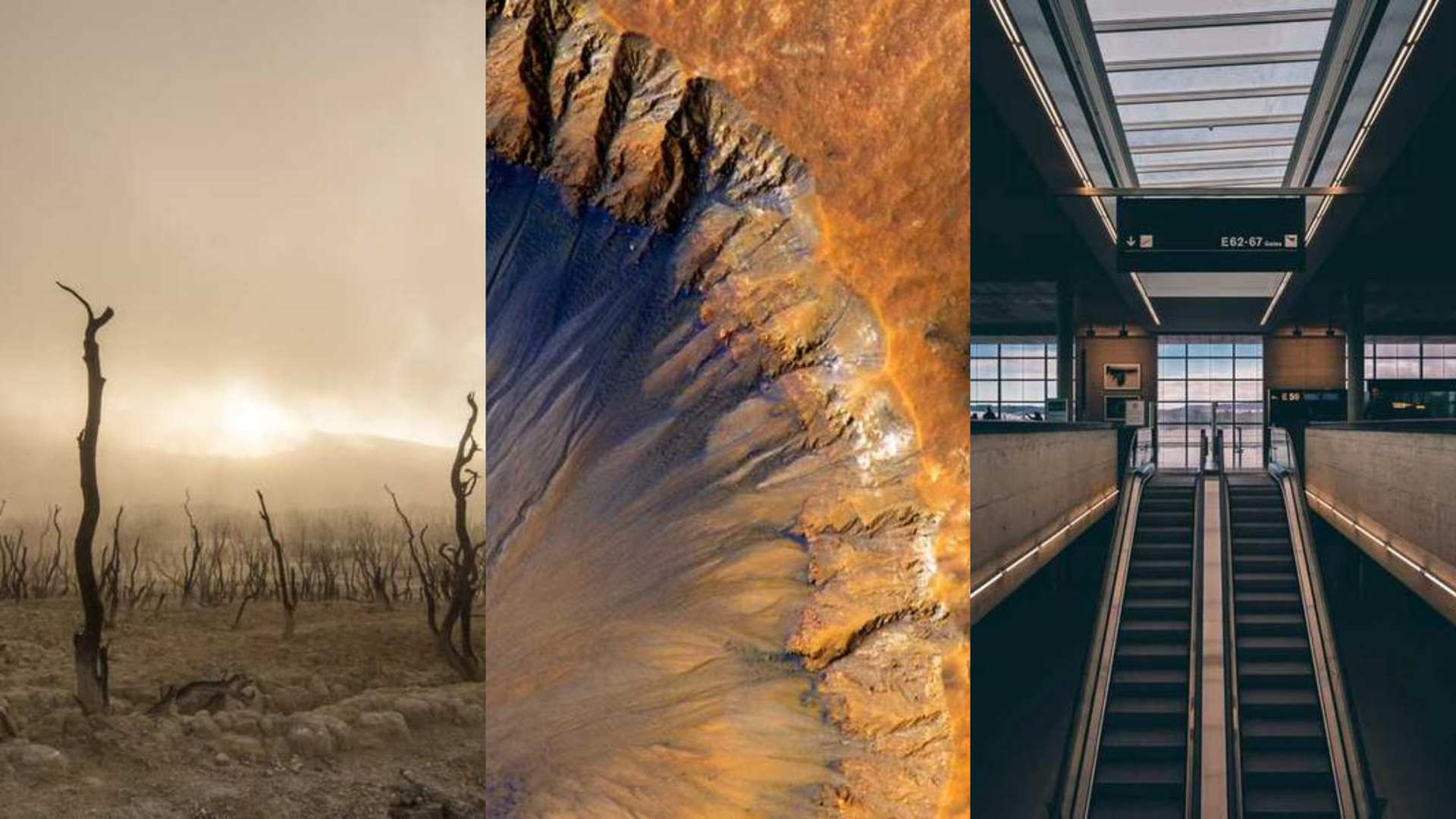
You may change the alignment direction from horizontal to vertical by using the vertical direction keyword.



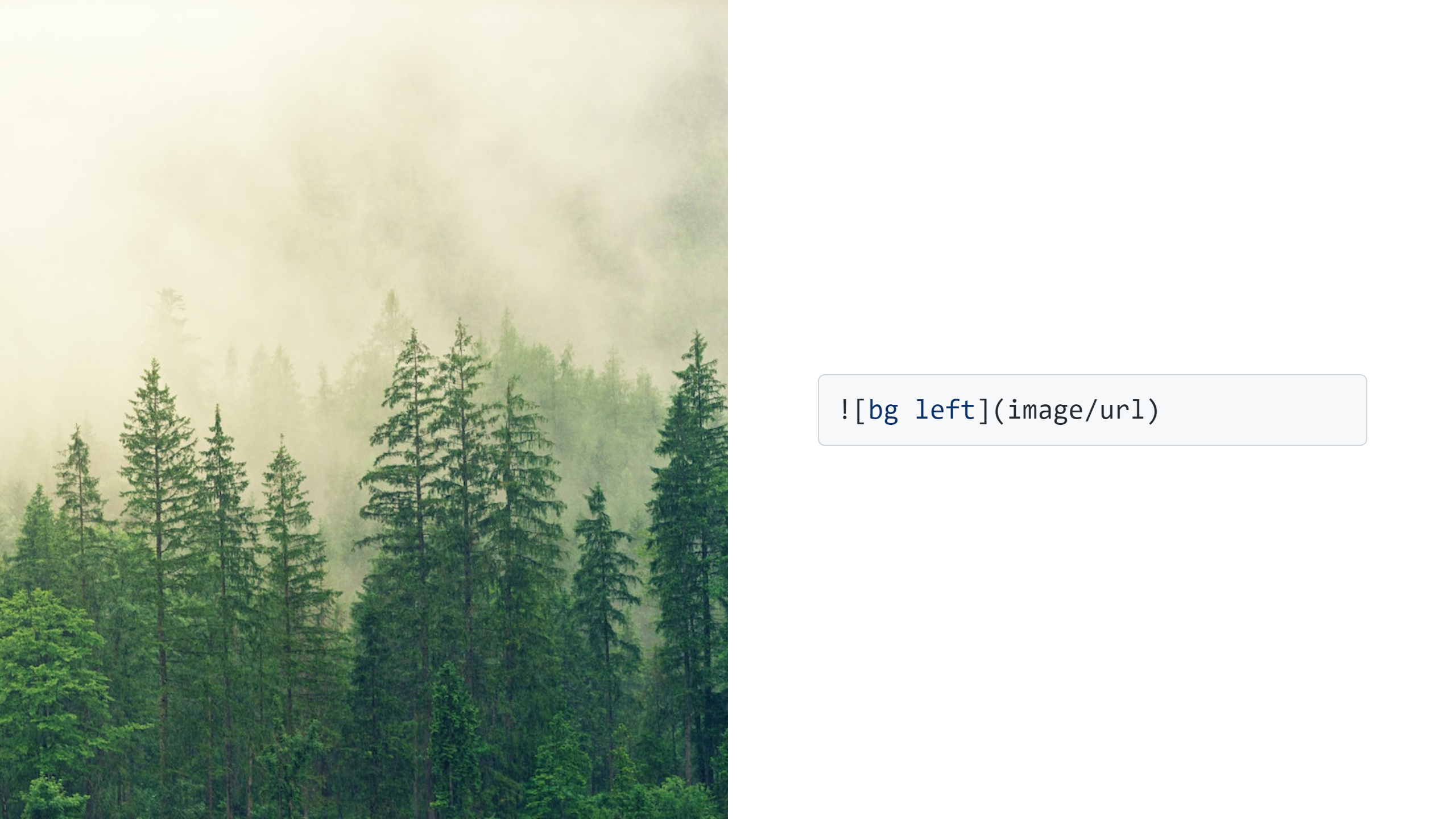
You can also specify the left or right keyword with the bg directive to make space for the background on the specified side. It has half of the slide size, and the space of the slide content will shrink as well.

for example:
```

```

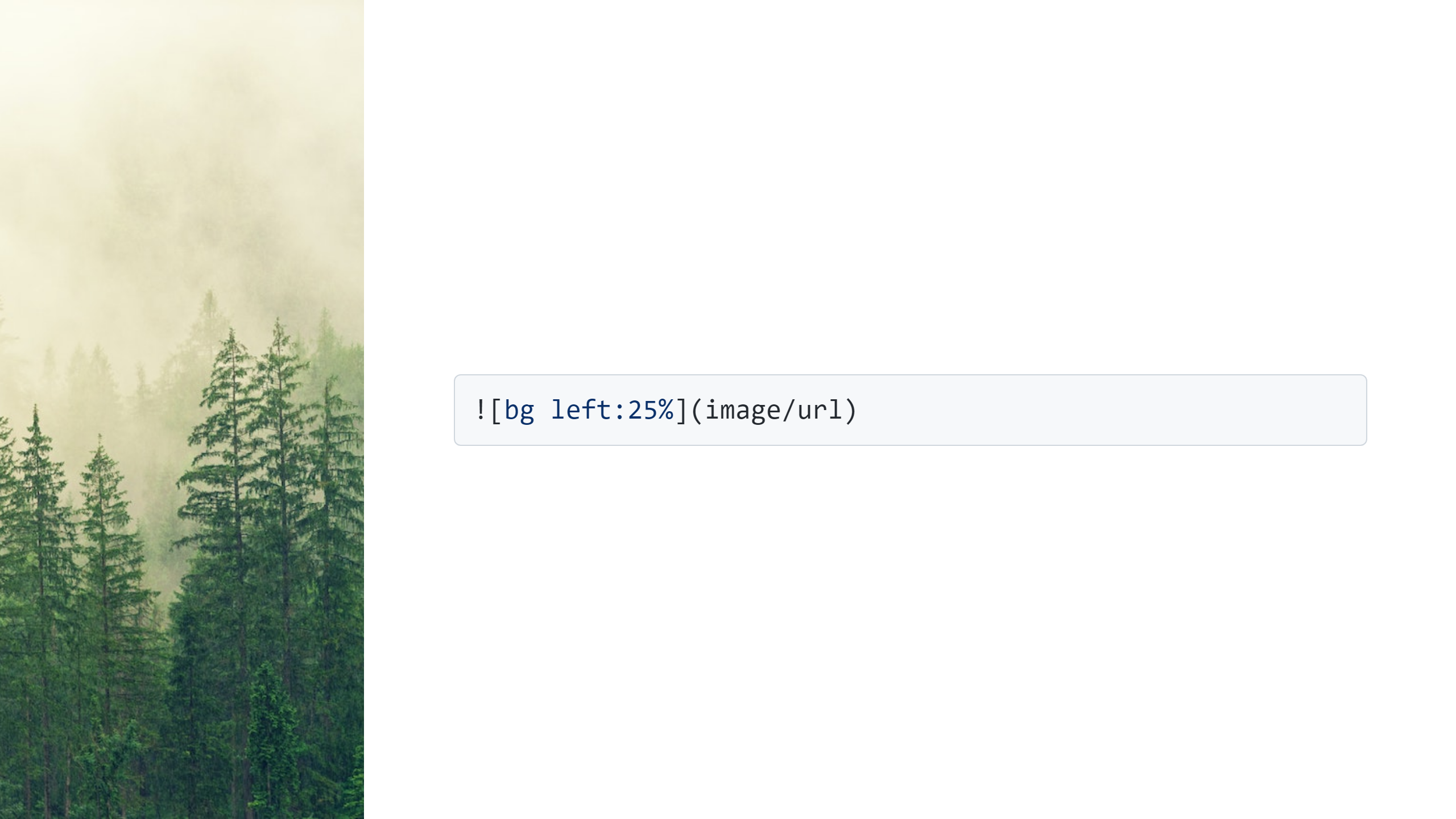
Multiple backgrounds will work well on the specified background side. Marpit can specify the split size for the background by percentage, like left:25% from the slide.

for example:
```

```