Welcome!
-
-
- Learn Home
- Core Concepts
- Companies and Departments
- Courses
- Course Status and Visibility
- Modules
- Video Activities
- Reading Activities
- Document Activities
- Enrolling People in a Course
- Bulk Enroll With CSV
- Roles in a Course
- How Progress Is Tracked
- Course Reports
- Knowledge Base Overview
- Libraries and Folders
- Uploading Content Items
- Library Visibility
- AI Agent per Library
- My Courses
- Platform People
-
- Project Structure Template
- Table of Contents (TOC)
- Content Folder
- Introduction to Markdown
- Markdown Basics
- Markdown Lists
- Markdown Links
- Markdown Images
- Markdown Code
- Markdown Tables
- Markdown Equations
- Markdown Videos
- Markdown Embedded HTML
- VS Code Snippets
- Introduction to Styles
- Framed Narrations
- Markdown Configuration
- Editor Setup
-
-
-
Manage the Roster
TL;DR; Each session has a roster page listing who's registered, where you can mark attendance and, if someone needs to join without a Lupo account, generate a one-time guest link.
Before you start
You need a session with at least one registrant. See Enroll learners.
Steps
Open the session's roster page from its schedule entry.
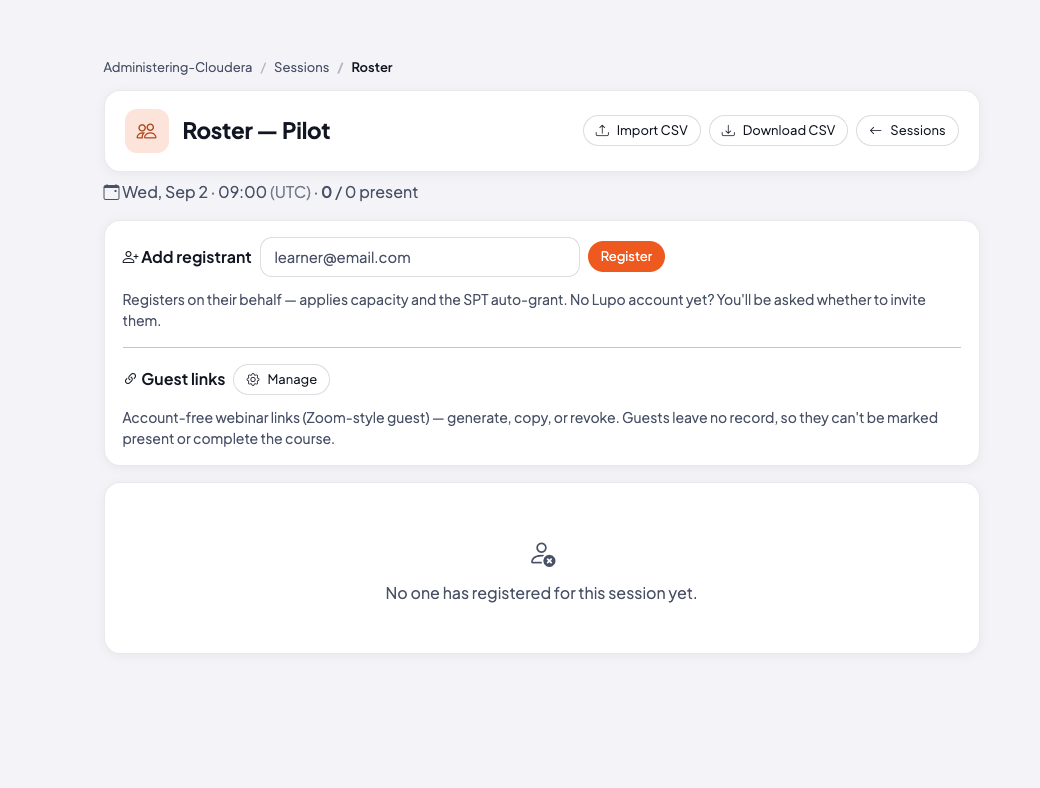
To add someone yourself, use Add registrant — one email at a time. This registers them on their behalf, applying capacity and the linked self-paced grant the same as if they'd registered themselves. If they don't have a Lupo account yet, you'll be asked whether to invite them.
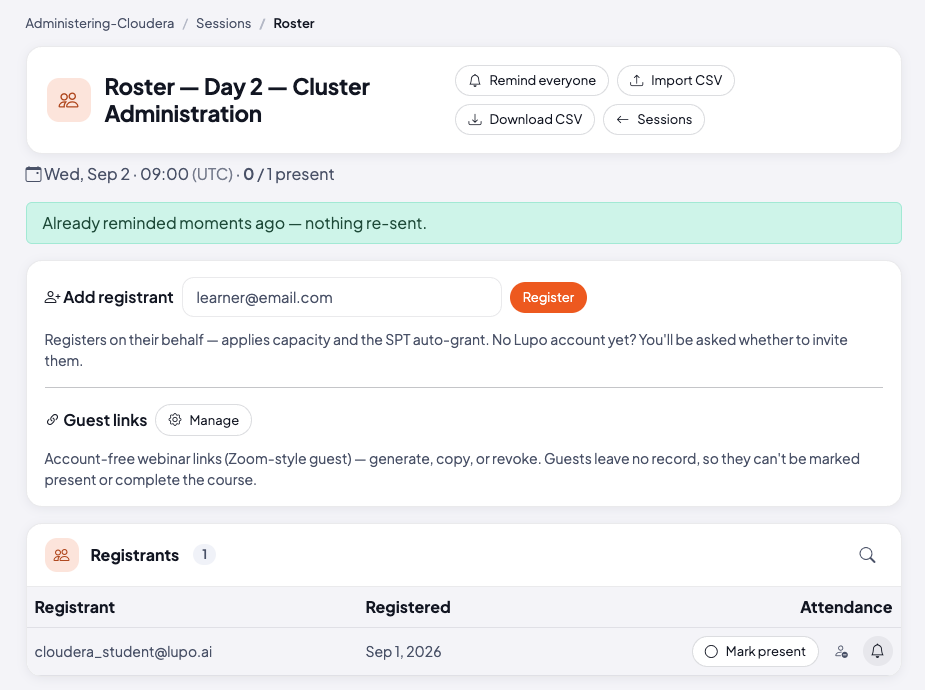
To record who showed up, select Mark present next to a registrant. Marking someone present records attendance and, once they reach the run's pass mark, completes the course for them — see Close out a class.
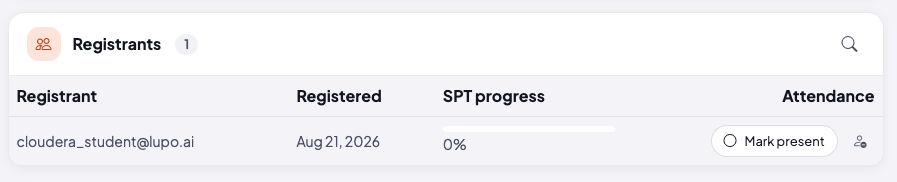
If the run has a linked self-paced course, the table adds an SPT progress column, showing each registrant's percent complete in that course right on the roster.
To let someone join without a Lupo account, use the Guest links panel to generate a link. Guests leave no record — they can't be marked present or complete the course. It's only available for online sessions with a meeting link set, and it stops working once the session ends or is cancelled.
Download CSV exports the current roster. Import CSV, next to it, registers the learners in a CSV file on this run — not just in the course. Its template uses the first two columns of the export (
Name,Email), so a downloaded roster can be edited and uploaded back.
What this doesn't do
Marking someone present doesn't grant access to a linked Self-Paced course — that access comes from registering, not from attendance.
A guest link is tied to one specific session and expires with it — don't reuse it for a different day or a different run. A guest never appears on the roster as a registrant, so they can't be marked present.
Common issues
Can't generate a guest link. This usually means the session has no meeting URL set, is in person, or has already ended or been cancelled — guest links only make sense for a live online session that's still upcoming.
Where to go next
- Send reminders — the next step.
- Track progress with course reports — where attendance shows up in aggregate.