Welcome!
-
-
- Learn Home
- Core Concepts
- Companies and Departments
- Courses
- Course Status and Visibility
- Modules
- Video Activities
- Reading Activities
- Document Activities
- Enrolling People in a Course
- Bulk Enroll With CSV
- Roles in a Course
- How Progress Is Tracked
- Course Reports
- Knowledge Base Overview
- Libraries and Folders
- Uploading Content Items
- Library Visibility
- AI Agent per Library
- My Courses
- Platform People
-
- Project Structure Template
- Table of Contents (TOC)
- Content Folder
- Introduction to Markdown
- Markdown Basics
- Markdown Lists
- Markdown Links
- Markdown Images
- Markdown Code
- Markdown Tables
- Markdown Equations
- Markdown Videos
- Markdown Embedded HTML
- VS Code Snippets
- Introduction to Styles
- Framed Narrations
- Markdown Configuration
- Editor Setup
-
-
-
Enrolling People in a Course
TL;DR; Open the course's People tab, click Enroll User, enter the person's email, pick their role (Student or Observer), and send the invitation. The course shows up in their My Courses list straight away, Draft or not.
Enrollment is how you put a learner — or an observer — into a course. Everything about who can see and take a course runs through enrollment.
Finding the People tab
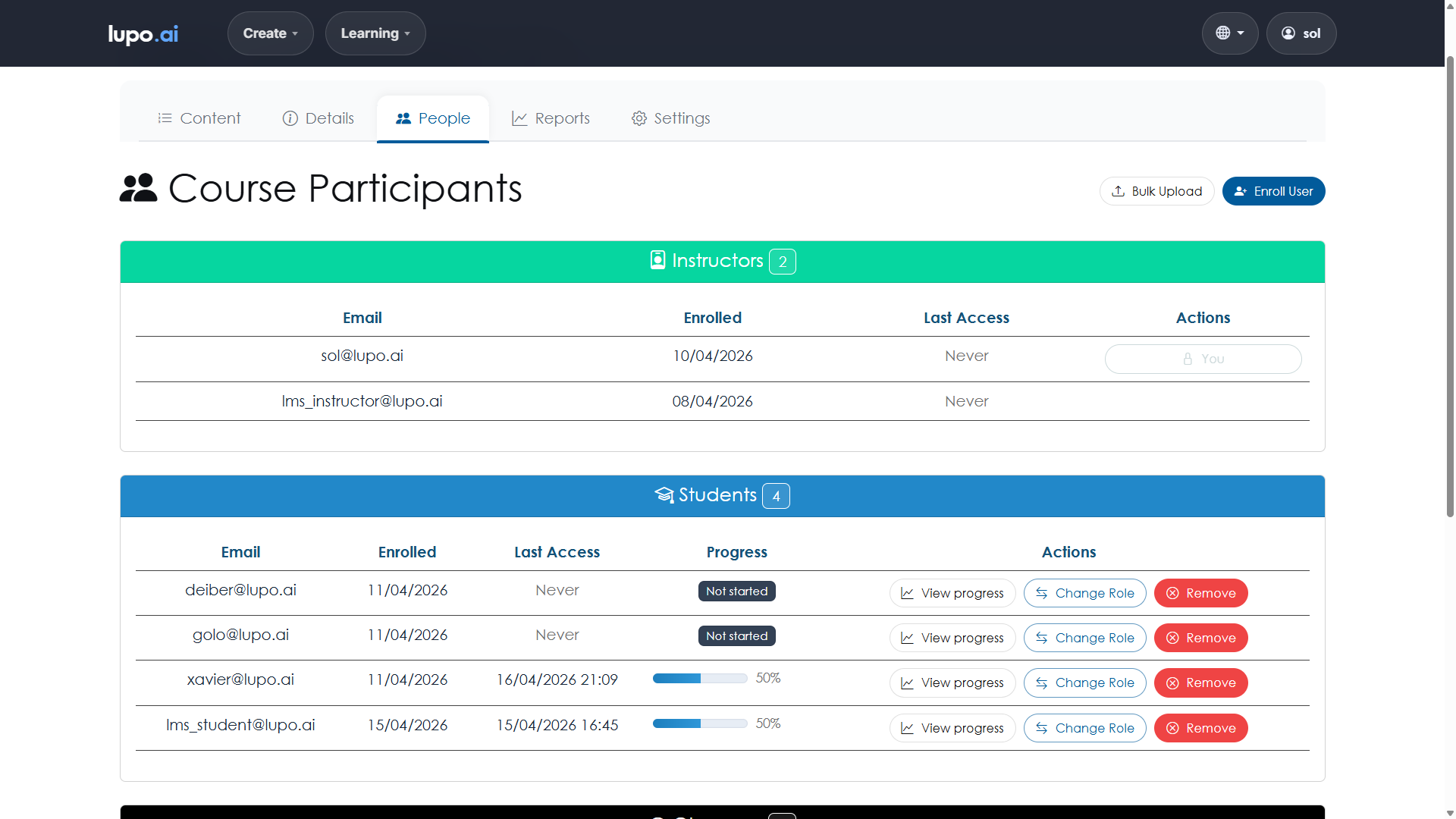
From a course's details page, click the People tab. That's where enrollment lives. You'll see the list of people currently enrolled, along with their roles and any enrollment actions.
Enrolling one person
Click Enroll User. You'll get a short form:
- Email address — the person's email. Lupo will look them up by email; if they don't have an account yet, one will be created for them. You can invite external email addresses (outside your company's domain) the same way.
- Role — Student (takes the course, progress tracked) or Observer (read-only, progress not tracked); administrators also see Instructor. See Roles in a Course for the full breakdown.
Click Send Invitation. New users receive an invitation email with a sign-in link valid for 30 days. Existing users are enrolled immediately and notified. The course appears in their My Courses list straight away.
Note that only administrators can add someone as an Instructor — if you manage the course as an Instructor, the form offers Student and Observer only.
Enrolling many people at once
If you need to enroll more than a handful of people, do it via CSV instead of clicking through the form for each one. See Bulk Enroll With CSV for the format and upload steps.
What happens after enrollment
As soon as a person is enrolled, the course shows up in their My Courses list and they can start working through the modules.
Draft does not hold them back: an enrolled person sees a Draft course and can open its content. If you want a coordinated launch, enrol people when you are ready for them to start — see Course Status and Visibility.
Changing a role
From the People tab, click Change Role next to a person's name, pick the new role from the pop-up, and click Change Role to confirm. Changes take effect immediately.
Removing someone from a course
Click Remove next to a person's name to unenroll them entirely. Their progress records are kept, but stop appearing in the course's reports; re-enrolling the same person brings them back.
If you just want to revoke someone's access temporarily, consider changing their role to Observer instead of removing them.
Re-enrolling someone
If a person was in the course before and you re-enroll them, their earlier progress comes back with them. When in doubt, check the Reports tab to see what the historical record shows before re-enrolling.
Common enrollment patterns
Whole-team launch. For a required course, enroll everyone in the relevant department at once using the CSV bulk upload. Flip to Published on launch day and everyone sees the course simultaneously.
Cohort-based rollout. For time-bound training — a new-hire curriculum, a quarterly compliance module — enroll the specific cohort, track completion at the cohort level, and archive the course when the cohort wraps up.
Observer preview. Before publishing, enroll a trusted colleague as an Observer so they can walk through the content and give feedback without their clicks affecting your learner analytics.
Where to go next
- Bulk Enroll With CSV — the fast path for adding many people at once.
- Roles in a Course — what Students and Observers can actually do.
- Platform People — managing the underlying user accounts for your company.