Welcome!
-
-
- Learn Home
- Core Concepts
- Companies and Departments
- Courses
- Course Status and Visibility
- Modules
- Video Activities
- Reading Activities
- Document Activities
- Enrolling People in a Course
- Bulk Enroll With CSV
- Roles in a Course
- How Progress Is Tracked
- Course Reports
- Knowledge Base Overview
- Libraries and Folders
- Uploading Content Items
- Library Visibility
- AI Agent per Library
- My Courses
- Platform People
-
- Project Structure Template
- Table of Contents (TOC)
- Content Folder
- Introduction to Markdown
- Markdown Basics
- Markdown Lists
- Markdown Links
- Markdown Images
- Markdown Code
- Markdown Tables
- Markdown Equations
- Markdown Videos
- Markdown Embedded HTML
- VS Code Snippets
- Introduction to Styles
- Framed Narrations
- Markdown Configuration
- Editor Setup
-
-
-
Three Ways to Create a Video
TL;DR; Lupo can make a video from a PowerPoint file, a Google Slides deck, or a PDF. Pick whichever format your content is already in — don't re-create anything you already have.
Most people who land in Lupo already have their content somewhere. In PowerPoint. In Google Slides. In a PDF that HR or legal prepared. The question isn't "how do I write this from scratch?" — it's "how do I turn what I already have into a video?"
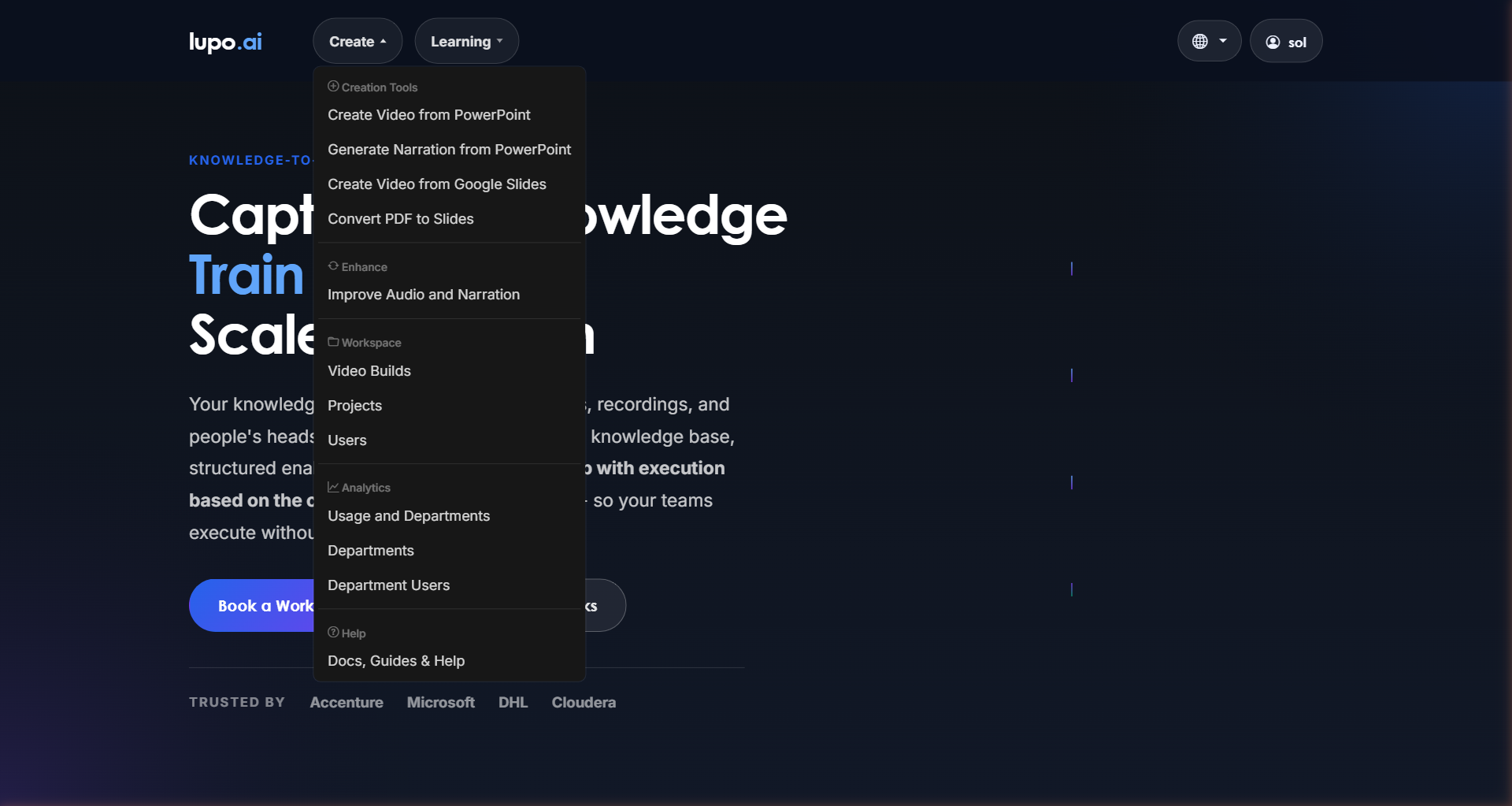
Lupo has a separate entry in the Create menu for each starting format. PowerPoint and Google Slides go straight to a finished video; a PDF becomes a PowerPoint first, which you then turn into a video the same way.
Option 1 — Start with PowerPoint
This is the most popular path, and the one we recommend first.
You upload a .pptx file with narrations in the speaker notes, and Lupo turns it into a video. If your content is already in PowerPoint, or if someone on your team is comfortable with PowerPoint, use this.
- In the Create menu: PowerPoint → Video
- Where: lupo.ai/projects/slides
- Best for: Decks you already have, training content, internal SOPs, product walkthroughs.
- Good to know: If your slides contain embedded videos, those will play inside the generated video. If you already wrote speaker notes, you're ready — no rework required. Slides with no notes get a narration written for them when Generate voice-over if no notes are found is left on in the upload dialog.
- Full guide: Create Video From PowerPoint
Option 2 — Start with Google Slides
Plenty of teams live in Google Workspace. Instead of exporting to .pptx and re-uploading every time you make a change, you can just paste a link to your Google Slides deck into Enter Google Slides URL and click Generate Video.
- In the Create menu: Google Slides → Video
- Where: lupo.ai/projects/googleslides
- Best for: Teams already collaborating in Google Slides, or presentations that change often.
- Good to know: Your narrations still go in the speaker notes — same idea, different tool. Lupo has to be able to open the deck: either anyone with the link can view it, or you share it with the Lupo converter account shown on the page under How it works. The option to let Lupo write missing notes is off for Google Slides, so every slide needs its notes.
- Full guide: Create Video From Google Slides
Option 3 — Start with a PDF
Sometimes the content you have isn't a deck at all. It's a PDF — a product manual, a regulatory document, a research paper, a sales one-pager. Lupo can turn that PDF into slides first, and then into a video.
- In the Create menu: PDF → Slides
- Where: lupo.ai/projects/aipdf2pptx
- Best for: Content that lives in PDFs and needs to become something a learner can sit through.
- Good to know: This tool produces a PowerPoint from the PDF and emails it to you when it's ready; you then run that file through PowerPoint → Video. Lupo offers three conversion modes — Replication, Smart, or AI Enhancement (the default) — depending on how much you want Lupo to reshape the source.
- Full guide: Convert PDF to Slides
Which one should I pick?
| If your content is in… | Create menu entry | Full guide | Link |
|---|---|---|---|
PowerPoint (.pptx) |
PowerPoint → Video | Create Video From PowerPoint | lupo.ai/projects/slides |
| Google Slides | Google Slides → Video | Create Video From Google Slides | lupo.ai/projects/googleslides |
| PDF → Slides | Convert PDF to Slides | lupo.ai/projects/aipdf2pptx | |
| A video that already exists | Re-narrate Existing Video (under Enhance) | Improve Audio and Narration | lupo.ai/projects/transcript |
The last row isn't a fourth way to make a video from scratch: you give Lupo a video link (or upload an .mp4) and get its transcript back as a PowerPoint or Markdown deck, which you then re-narrate through PowerPoint → Video.
Still not sure? Start with PowerPoint — it's the simplest path and the one most new users get a result from on day one.