Welcome!
-
-
- Learn Home
- Core Concepts
- Companies and Departments
- Courses
- Course Status and Visibility
- Modules
- Video Activities
- Reading Activities
- Document Activities
- Enrolling People in a Course
- Bulk Enroll With CSV
- Roles in a Course
- How Progress Is Tracked
- Course Reports
- Knowledge Base Overview
- Libraries and Folders
- Uploading Content Items
- Library Visibility
- AI Agent per Library
- My Courses
- Platform People
-
- Project Structure Template
- Table of Contents (TOC)
- Content Folder
- Introduction to Markdown
- Markdown Basics
- Markdown Lists
- Markdown Links
- Markdown Images
- Markdown Code
- Markdown Tables
- Markdown Equations
- Markdown Videos
- Markdown Embedded HTML
- VS Code Snippets
- Introduction to Styles
- Framed Narrations
- Markdown Configuration
- Editor Setup
-
-
-
Calendar Invite and Reminder
TL;DR; Registering for a class emails you a calendar file that adds every day of the class to your calendar. A reminder email arrives in the 24 hours before each session, carrying the join link if the instructor has posted one by then.
Before you start
You need to be registered for a session — by yourself, or by your training team. See Register for a class if you haven't yet.
Steps
Once you're registered, check your email for the confirmation. Its subject starts "You're registered:", and it has a calendar file attached. On a one-day class, the email carries the join link if one was already posted, and otherwise says the instructor will share it before the session. On a multi-day class it lists every class day and says join links appear on each session's page before class starts — that email never carries the link itself, though the attached calendar file carries it for any day that already had one.
Open the attached file in Outlook, Google Calendar, or whatever calendar app you use, and accept it. For a multi-day class, the file adds one entry per day, so every day lands on your calendar separately.
Before each session, watch for a reminder email. It goes out in the 24 hours before that session's start time, names the session and its start time, and comes with the same calendar file. If a join link is posted by then, the email includes a Join the session button; if not, it tells you the instructor will share the join link before the session starts.
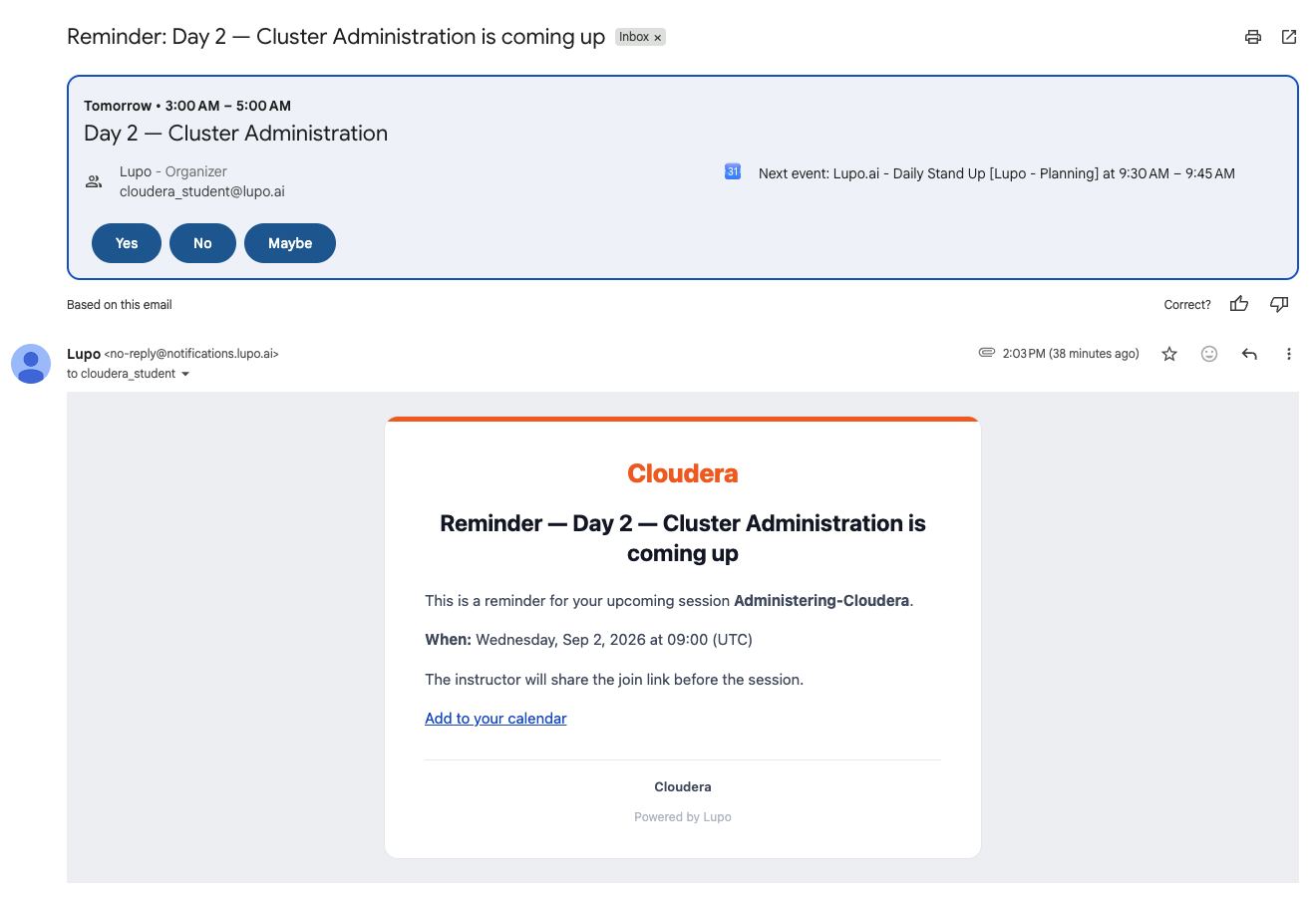
If you were promoted off a waitlist instead of registering directly, you get the same kind of email — a calendar file attached, and a note that join links appear on each session's page before class starts.
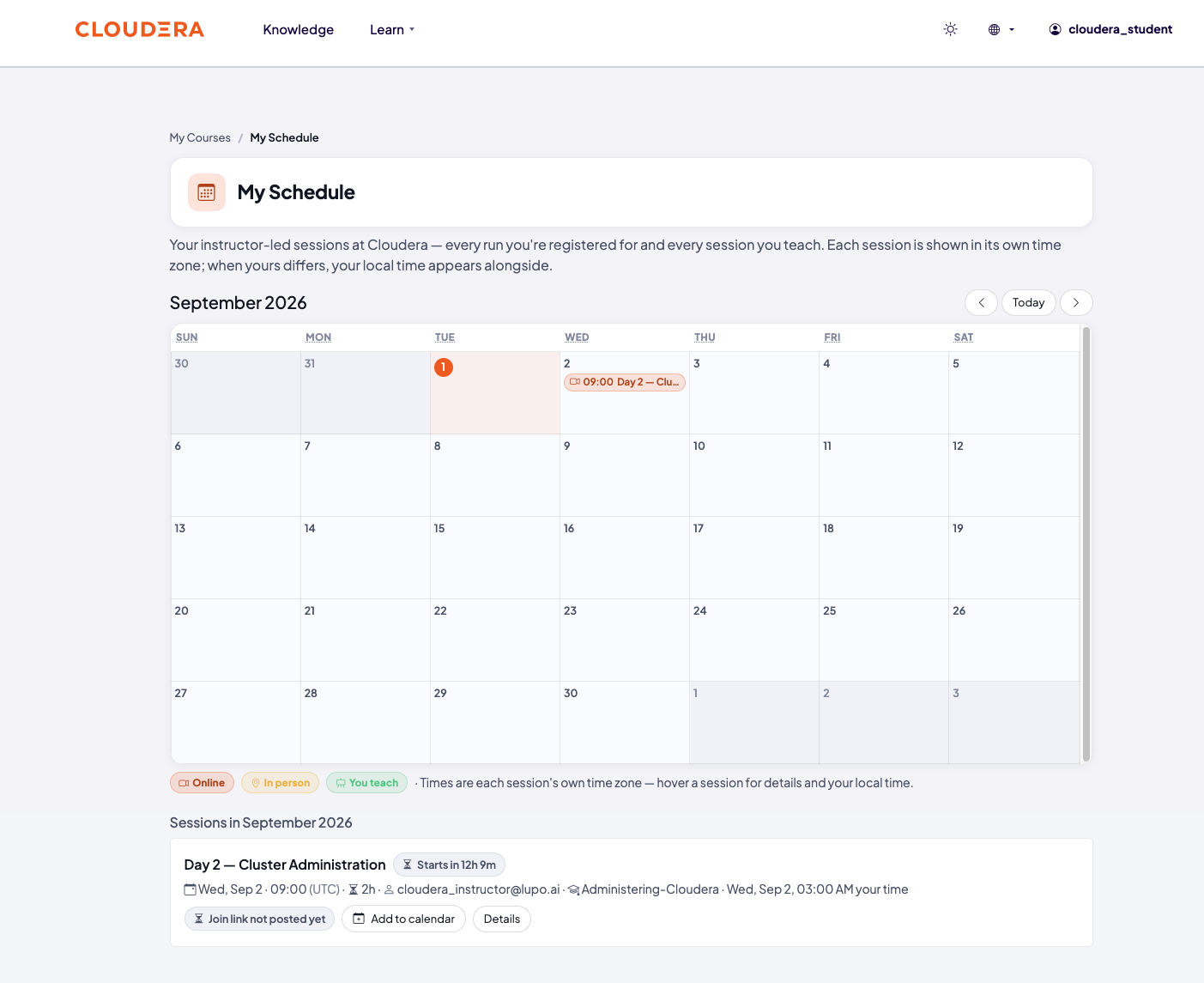
The session also shows up on My Schedule, both as a block on the month calendar and listed below it — date and time, duration, instructor, whether the join link is posted yet, and buttons to Add to calendar or open its Details.
What this doesn't do
The reminder isn't sent at one fixed instant exactly 24 hours out. Lupo checks every 15 minutes for sessions starting within the next 24 hours and sends at the first check after your session enters that window — so the reminder can land up to about 15 minutes after the 24-hour mark, never before it.
A reminder that goes out before the join link is posted isn't re-sent when the link appears. Use the session's page or My Schedule for the link in that case — see Join on the day.
Common issues
No calendar file arrived. Check spam, and confirm you're checking the inbox tied to your Lupo account's email address.
No reminder arrived close to class time. If you were registered inside the 24-hour window, the reminder still goes out at the next check — within about 15 minutes — as long as the session hasn't started yet. Check spam, and if it's still missing, use the join link on the session's page instead.
Where to go next
- Join on the day — the next step, all the places the join link shows up.
- Register for a class — back to registering, if you need to unregister and rejoin.
- Get to support — if invites or reminders aren't arriving.