Welcome!
-
-
- Learn Home
- Core Concepts
- Companies and Departments
- Courses
- Course Status and Visibility
- Modules
- Video Activities
- Reading Activities
- Document Activities
- Enrolling People in a Course
- Bulk Enroll With CSV
- Roles in a Course
- How Progress Is Tracked
- Course Reports
- Knowledge Base Overview
- Libraries and Folders
- Uploading Content Items
- Library Visibility
- AI Agent per Library
- My Courses
- Platform People
-
- Project Structure Template
- Table of Contents (TOC)
- Content Folder
- Introduction to Markdown
- Markdown Basics
- Markdown Lists
- Markdown Links
- Markdown Images
- Markdown Code
- Markdown Tables
- Markdown Equations
- Markdown Videos
- Markdown Embedded HTML
- VS Code Snippets
- Introduction to Styles
- Framed Narrations
- Markdown Configuration
- Editor Setup
-
-
-
Find Your Teaching Home
TL;DR; Live Learning is where the runs you administer or teach actually live — their class days, rosters, and instructors. My Schedule only shows your own dates, and says so directly, pointing you to Live Learning for anything beyond that.
Before you start
You need a confirmed seat on the course. See Check your seat if you're not sure yours is in the right place.
Steps
Open Live Learning. It lists every instructor-led run across the company, with each run's dates, registration counts, status, and instructors — read-only from here, but every row links through to the actual run.
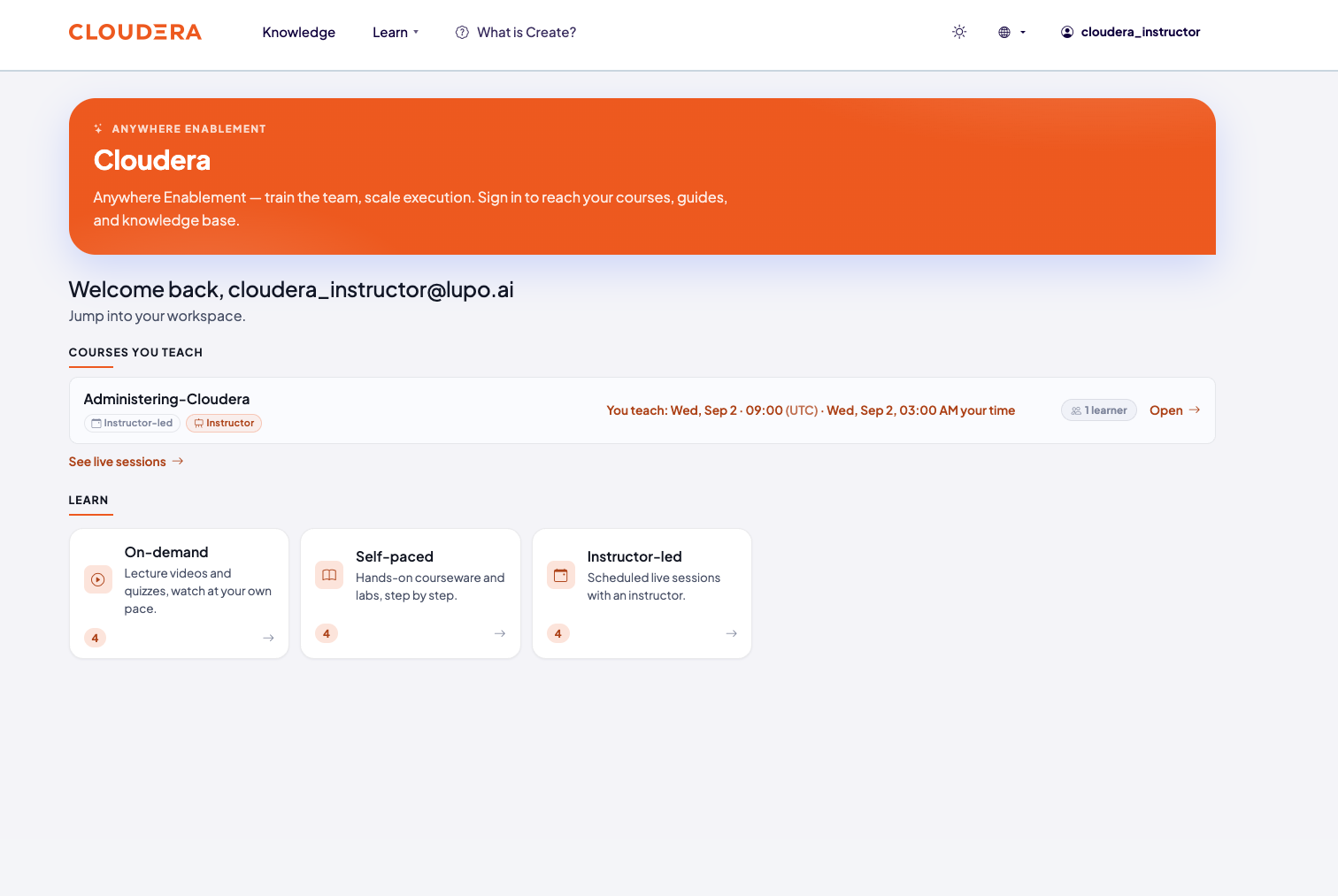
Open My Courses. Courses you teach have their own Courses you teach section at the top, separate from anything you're taking. Each row shows how many learners are enrolled and, when a session is scheduled, when the course next runs — marked You teach if you're the instructor for that session, Next session if not — with an Open link. The section can also end with a See live sessions link to Live Learning. If your company has a branded home page, it shows the same Courses you teach section.
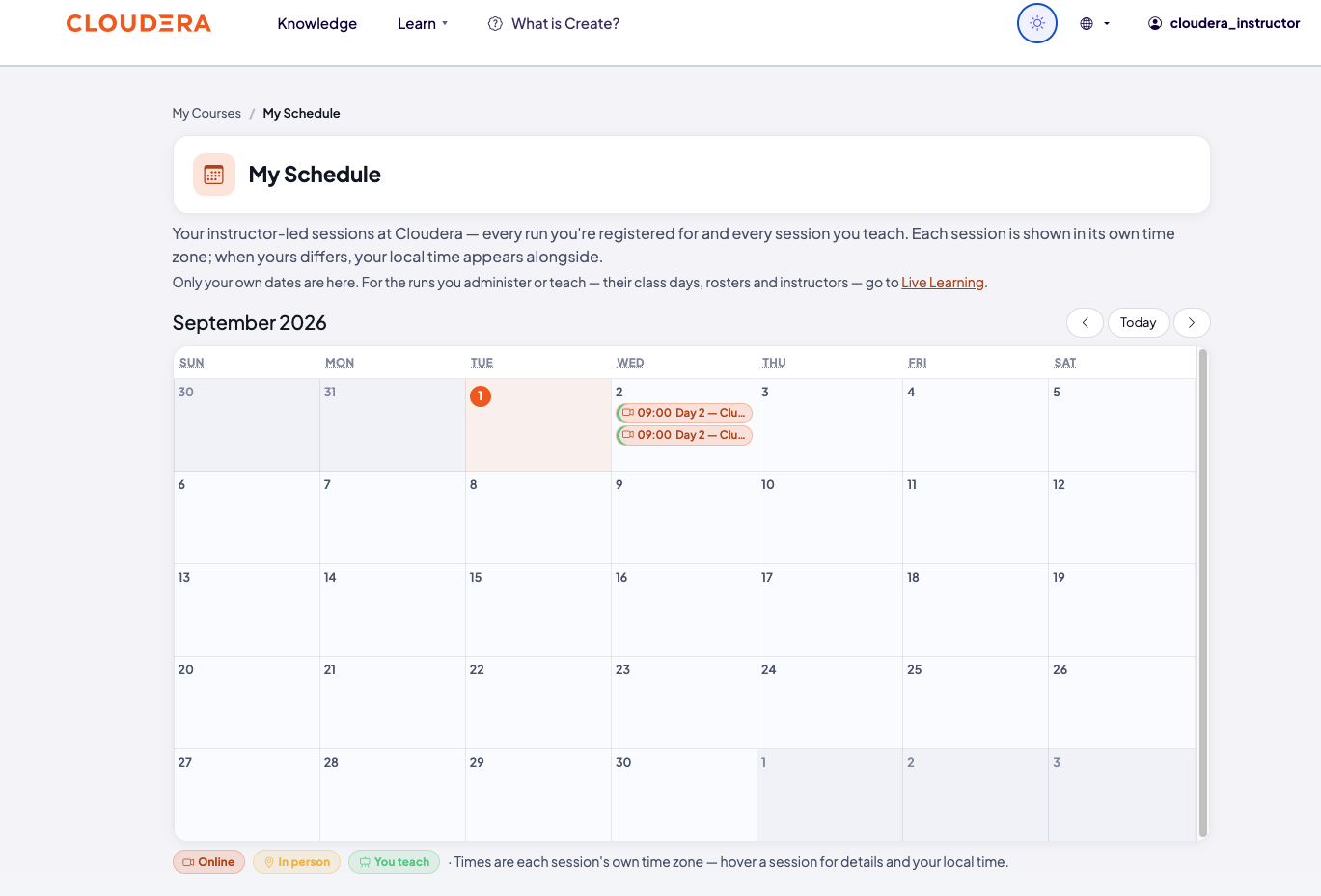
Open My Schedule to see your own session dates on the month calendar. It's explicit about its limits: "Only your own dates are here. For the runs you administer or teach — their class days, rosters and instructors — go to Live Learning."
From any of these, select a run or session to get to the page where the actual teaching tools — roster, reminders, guest links — live.
What this doesn't do
Live Learning itself is read-only — you don't register, join, or manage a roster from it. It's a landing page that routes you to the per-course run page for that.
Common issues
A course you teach isn't showing up. Confirm your seat is on the right offering — see Check your seat.
Where to go next
- Schedule a class — the next step, once you've found the course.