Welcome!
-
-
- Learn Home
- Core Concepts
- Companies and Departments
- Courses
- Course Status and Visibility
- Modules
- Video Activities
- Reading Activities
- Document Activities
- Enrolling People in a Course
- Bulk Enroll With CSV
- Roles in a Course
- How Progress Is Tracked
- Course Reports
- Knowledge Base Overview
- Libraries and Folders
- Uploading Content Items
- Library Visibility
- AI Agent per Library
- My Courses
- Platform People
-
- Project Structure Template
- Table of Contents (TOC)
- Content Folder
- Introduction to Markdown
- Markdown Basics
- Markdown Lists
- Markdown Links
- Markdown Images
- Markdown Code
- Markdown Tables
- Markdown Equations
- Markdown Videos
- Markdown Embedded HTML
- VS Code Snippets
- Introduction to Styles
- Framed Narrations
- Markdown Configuration
- Editor Setup
-
-
-
See Your Bookings
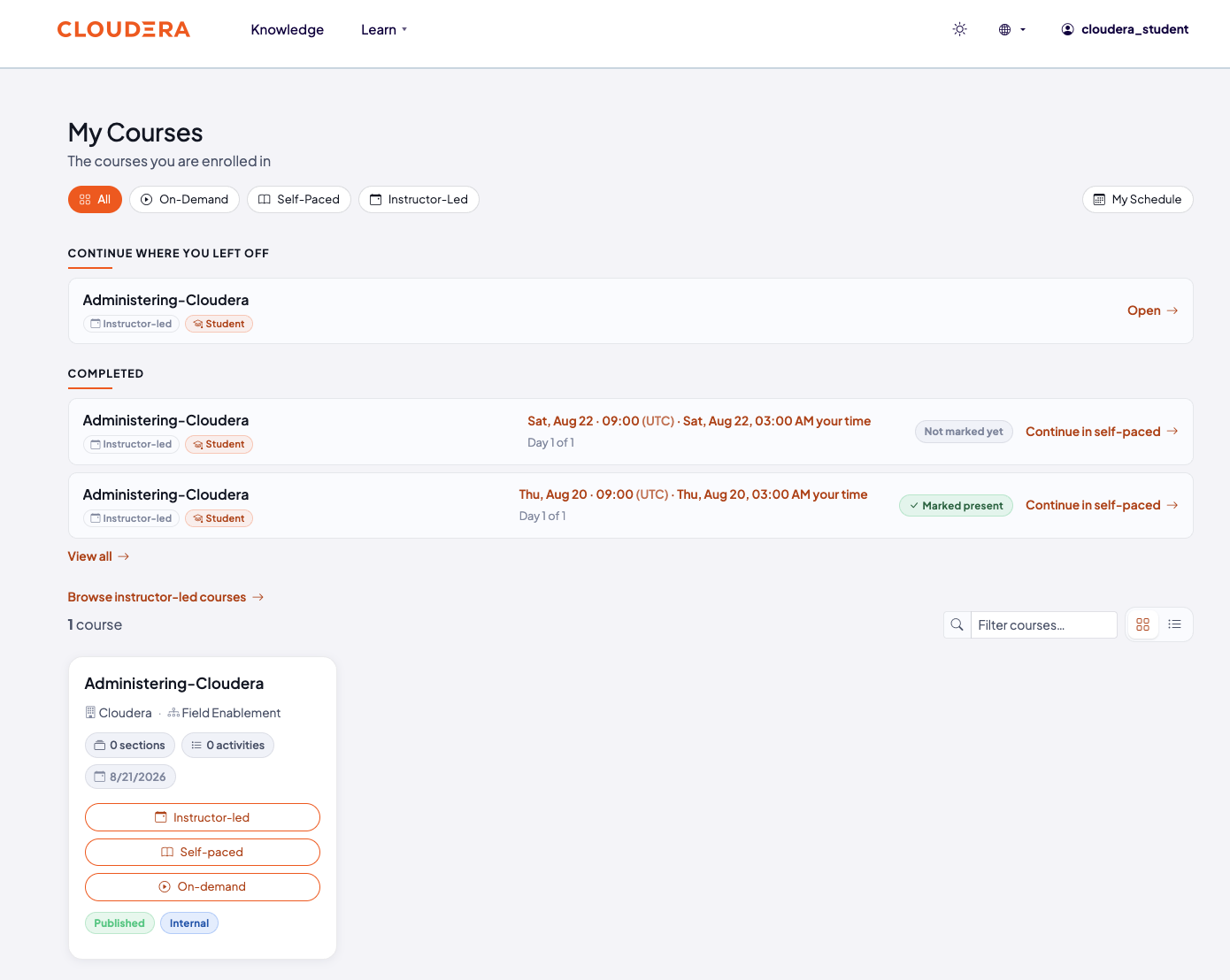
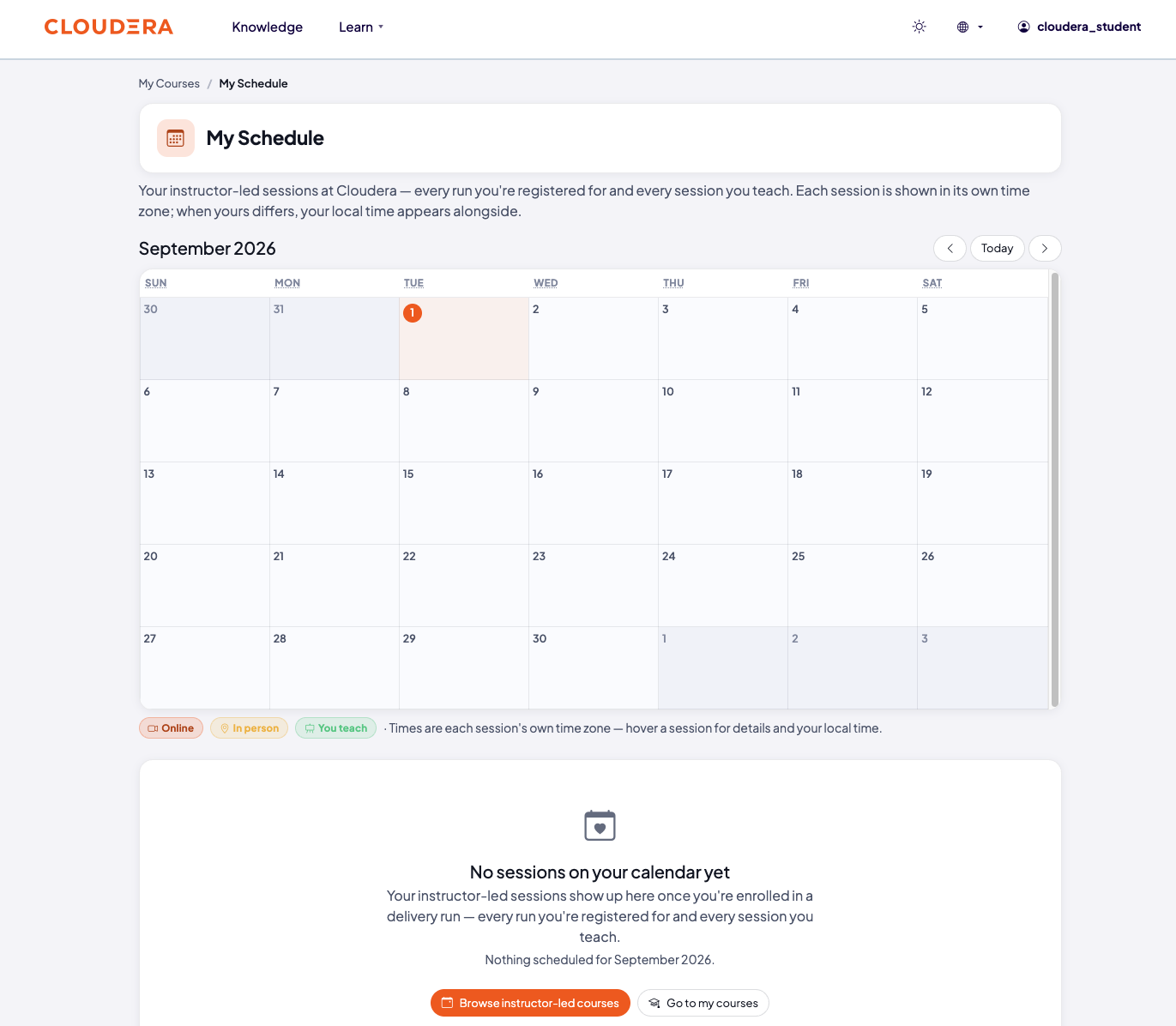
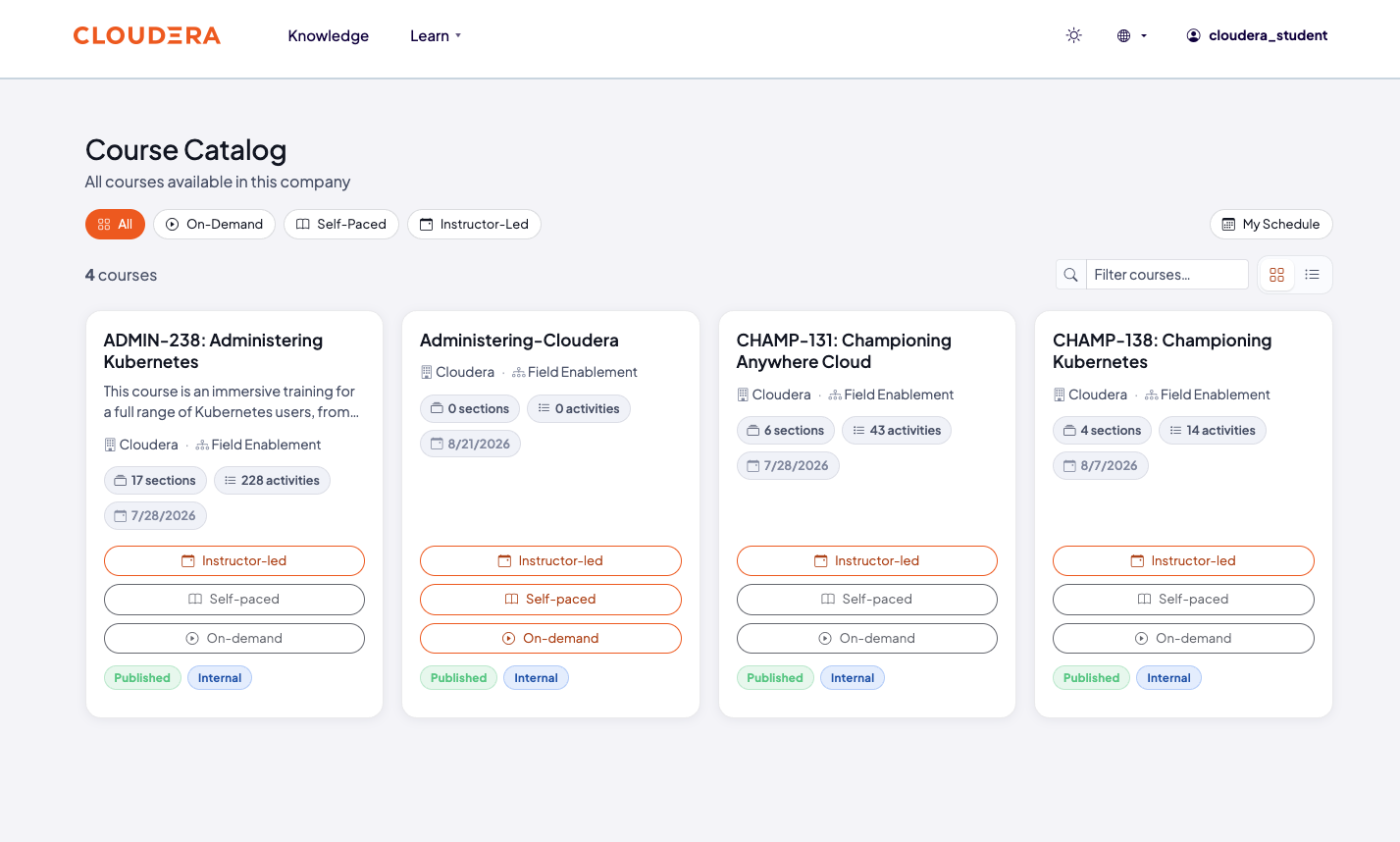
TL;DR; My Courses lists everything you're enrolled in, including a class you're only on the waitlist for. My Schedule shows your upcoming sessions on a month calendar — but only ones you're actively registered for. The catalog shows what else is available to you.
Once you're signed in, these are the three places to check what's happening with your training.
Before you start
You need to be signed in. See Invitation arrives if you haven't accepted your invitation yet.
Steps
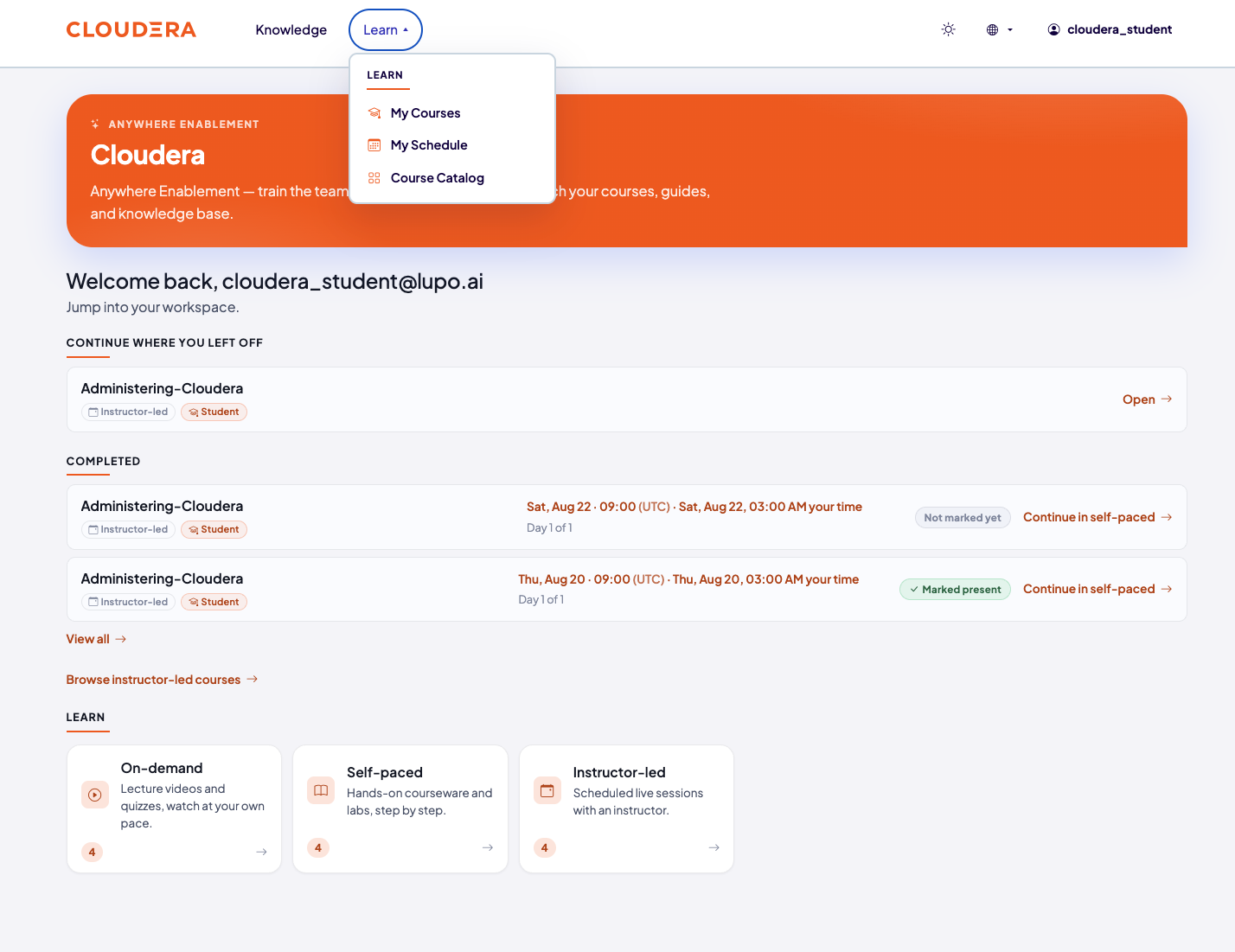
Open My Courses (from the top navigation's Learn menu, or go there directly after signing in). Each course you're working through or registered on has a card under Your courses, with the one to do next above them — headed Next session or Continue where you left off. Every other course you're enrolled in shows up as a tile below. When the page shows more than one course, you can filter by On-Demand, Self-Paced, or Instructor-Led. A course you're only waitlisted for still shows up here, as a tile marked Waitlisted.
Open My Schedule, from the same Learn menu, to see your upcoming instructor-led sessions on a month calendar — every run you're registered for, shown in its own time zone with your local time alongside. This only shows sessions you're actively registered for; a waitlisted session does not appear here yet. If nothing is scheduled, the page says so and offers to browse instructor-led courses instead.
On your organization's branded Lupo site, open Course Catalog, also from the Learn menu, to see the published courses available to you — not just what you're enrolled in. The same On-Demand / Self-Paced / Instructor-Led filter and a search box are here too.
If your company has a branded home page, it shows the same cards as the top of My Courses — what to do next, and Your courses — plus a Learn section with a card for each delivery type.
What this doesn't do
My Schedule doesn't show a class you're waitlisted for — that only shows up on My Courses. Once you're promoted off the waitlist into a registered seat, it appears on My Schedule too.
Common issues
A course you expect isn't on My Courses. Check whether you were actually enrolled — being invited or registering for a session is what enrolls you; browsing the catalog alone doesn't.
Where to go next
Register for a class — the next step, if you haven't registered for a session yet.
Get to support — if something you expect to see isn't there.