Welcome!
-
-
- Learn Home
- Core Concepts
- Companies and Departments
- Courses
- Course Status and Visibility
- Modules
- Video Activities
- Reading Activities
- Document Activities
- Enrolling People in a Course
- Bulk Enroll With CSV
- Roles in a Course
- How Progress Is Tracked
- Course Reports
- Knowledge Base Overview
- Libraries and Folders
- Uploading Content Items
- Library Visibility
- AI Agent per Library
- My Courses
- Platform People
-
- Project Structure Template
- Table of Contents (TOC)
- Content Folder
- Introduction to Markdown
- Markdown Basics
- Markdown Lists
- Markdown Links
- Markdown Images
- Markdown Code
- Markdown Tables
- Markdown Equations
- Markdown Videos
- Markdown Embedded HTML
- VS Code Snippets
- Introduction to Styles
- Framed Narrations
- Markdown Configuration
- Editor Setup
-
-
-
Projects
TL;DR; The Projects page lists the projects your account can use, one row per project, with a Department filter at the top. A project is a name inside a department that Lupo records video builds against — it does not store files. Clicking a project's name opens its list of builds; the magnifier at the end of the row opens its details.
Opening the Projects page
Open the Create menu and click Projects — it is the first entry, above the Creation Tools. The entry appears once your account belongs to a department with an active plan; if you don't see it, your uploads still work and the results reach you by email.
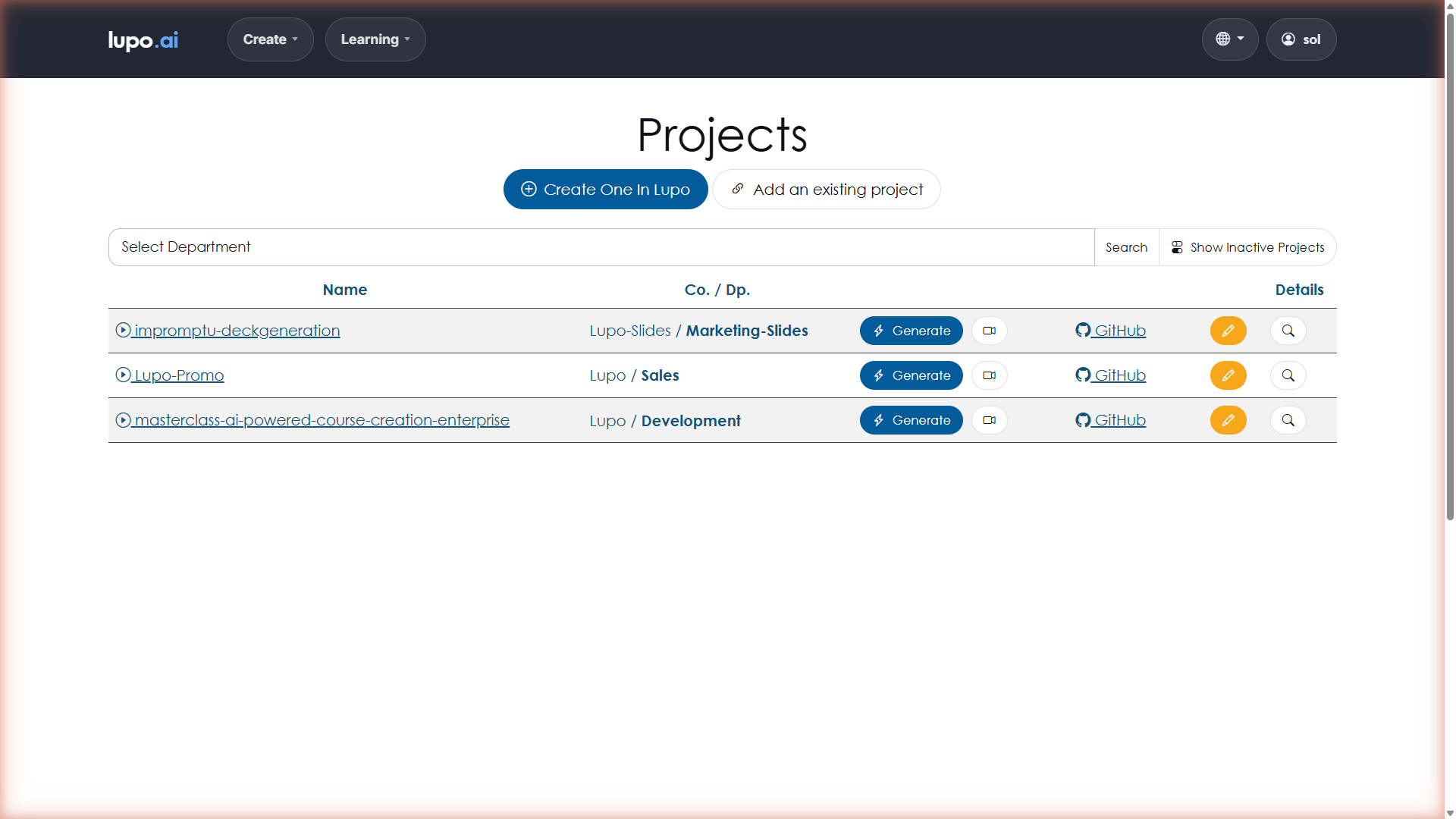
At the top of the page is the Department filter: a Select department dropdown listing your departments, each followed by the names of its projects, and a Search button. Below it is the table, with one row per project: the project's name, its company and department (hidden on narrow screens), an action button, a GitHub link on projects that have a repository, and a View details magnifier at the end.
What a project contains
A project is a small record:
- Name — for example, "2026 Q2 Onboarding" or "SOX Compliance Refresh". Pick a name that will still make sense to someone a year from now.
- Department — the department it belongs to, shown as company / department.
- Repository type, Repository URL and Default branch — filled in only on the Markdown path that the Lupo team sets up on request. Blank otherwise.
- Its builds — every render recorded against it. This is the project's history, and it is what the project's name links to.
A project does not hold your uploaded decks, PDFs or Google Slides links, and it does not hold the finished videos as files. Uploads are read once for the render, and the results reach you by email.
Most accounts have exactly one project, created when the account was set up, without a repository.
Creating a project
Team managers and Lupo administrators see two buttons in the page header; individual, explorer and team roles don't:
- Create one in Lupo — opens Create a new project. Fill in Name and Department, and tick Create as a special project (without GitHub repository). As the form says, "Projects without GitHub repositories can only be used with the PowerPoint upload feature" — and that is the feature you are using. Names may contain letters, digits,
.,-and_only. Click Create. Lupo takes you back to the projects list with the new project in it — there is no confirmation message. - Add an existing project — opens Add a project to Lupo, which connects an existing GitHub repository to Lupo: Name, Department, Repository URL, Repository type (fixed at GitHub) and an optional Default branch, then Add project. This is the Markdown path, and it is configured together with the Lupo team — see Markdown Configuration before using it.
The pencil (Edit project) is also for team managers and Lupo administrators. The trash icon (Delete project) is for Lupo administrators only.
Sending an upload to a specific project
Only PowerPoint → Video records a build against a project, and the way to choose the project is from the Projects page:
- Click Create video on the project's row. The upload page opens with that project preselected and says Uploads will be saved to project: followed by its name. On a project that has a repository, the same thing is the small camera icon next to Generate (Create video from PowerPoint upload).
- If you open PowerPoint → Video from the Create menu instead, and your account has a project without a repository, that project is preselected automatically and the same line is shown.
There is no target-project selector on the upload page for customers, and none at all on the other Create tools. The confirmation "Videos will be saved to selected project." belongs to a selector that only Lupo administrators see.
Opening a project
The two links on a row go to different places:
- The project's name opens Videos (Builds) filtered to that project — its history of renders. See Video Builds.
- The magnifier (View details) opens Project details: a Project information card with Name, Department, Repository type, Repository URL and Default branch. Team managers and Lupo administrators also see Edit, plus Usage, Video builds and Users buttons. There is no file list and no generate control on this page.
Showing inactive projects
Team managers and Lupo administrators have a Show inactive projects toggle next to Search (it reads Show active projects while inactive ones are shown). A project is inactive when its department has no active plan. On an inactive row the Generate button is greyed out with "You need an active subscription to generate videos. Contact us at help@lupo.ai".
Messages you might see
"You don't have access to that project. Using default (free trial) instead." — You opened the PowerPoint upload page with a link to a project your account is not a member of. The upload still works, but the build is recorded under Lupo's shared default project, so it will not appear in your list. Ask your team manager to add you to the project.
"URL is already in use." — On Add an existing project, the repository URL you entered is already registered under another project in Lupo. Use that project, or coordinate with its owner.
"Error 1002: Project with ID X not found." — Your PowerPoint upload targeted a project that no longer exists, usually because it was deleted while the upload page was open. Reload the Projects page and start again from a project that is listed.
Where to go next
- Video Builds — the list of past renders, and what the Generate button does.
- Overview of the Create Menu — if you haven't generated anything yet, start here.