Welcome!
-
-
- Learn Home
- Core Concepts
- Companies and Departments
- Courses
- Course Status and Visibility
- Modules
- Video Activities
- Reading Activities
- Document Activities
- Enrolling People in a Course
- Bulk Enroll With CSV
- Roles in a Course
- How Progress Is Tracked
- Course Reports
- Knowledge Base Overview
- Libraries and Folders
- Uploading Content Items
- Library Visibility
- AI Agent per Library
- My Courses
- Platform People
-
- Project Structure Template
- Table of Contents (TOC)
- Content Folder
- Introduction to Markdown
- Markdown Basics
- Markdown Lists
- Markdown Links
- Markdown Images
- Markdown Code
- Markdown Tables
- Markdown Equations
- Markdown Videos
- Markdown Embedded HTML
- VS Code Snippets
- Introduction to Styles
- Framed Narrations
- Markdown Configuration
- Editor Setup
-
-
-
Create Video From PowerPoint
TL;DR; Upload a .pptx file with narrations in the slide notes at lupo.ai/projects/slides. A few minutes later, Lupo emails you a link to the finished video. No recording, no editing timeline.
This is the flagship tool in Lupo and the one most users should try first. If your content is already in PowerPoint, you're 80% of the way to a video.
When to use this tool
Use Create Video From PowerPoint when:
- You already have a
.pptxdeck. - You've written narration in the slide notes, OR you're willing to write a short paragraph for each slide.
- You want the finished output to be a video (an
.mp4you can publish or share).
If you have slides but haven't written the narration yet, use Generate Narration From PowerPoint first — that tool fills in the notes for you, and then you come back here.
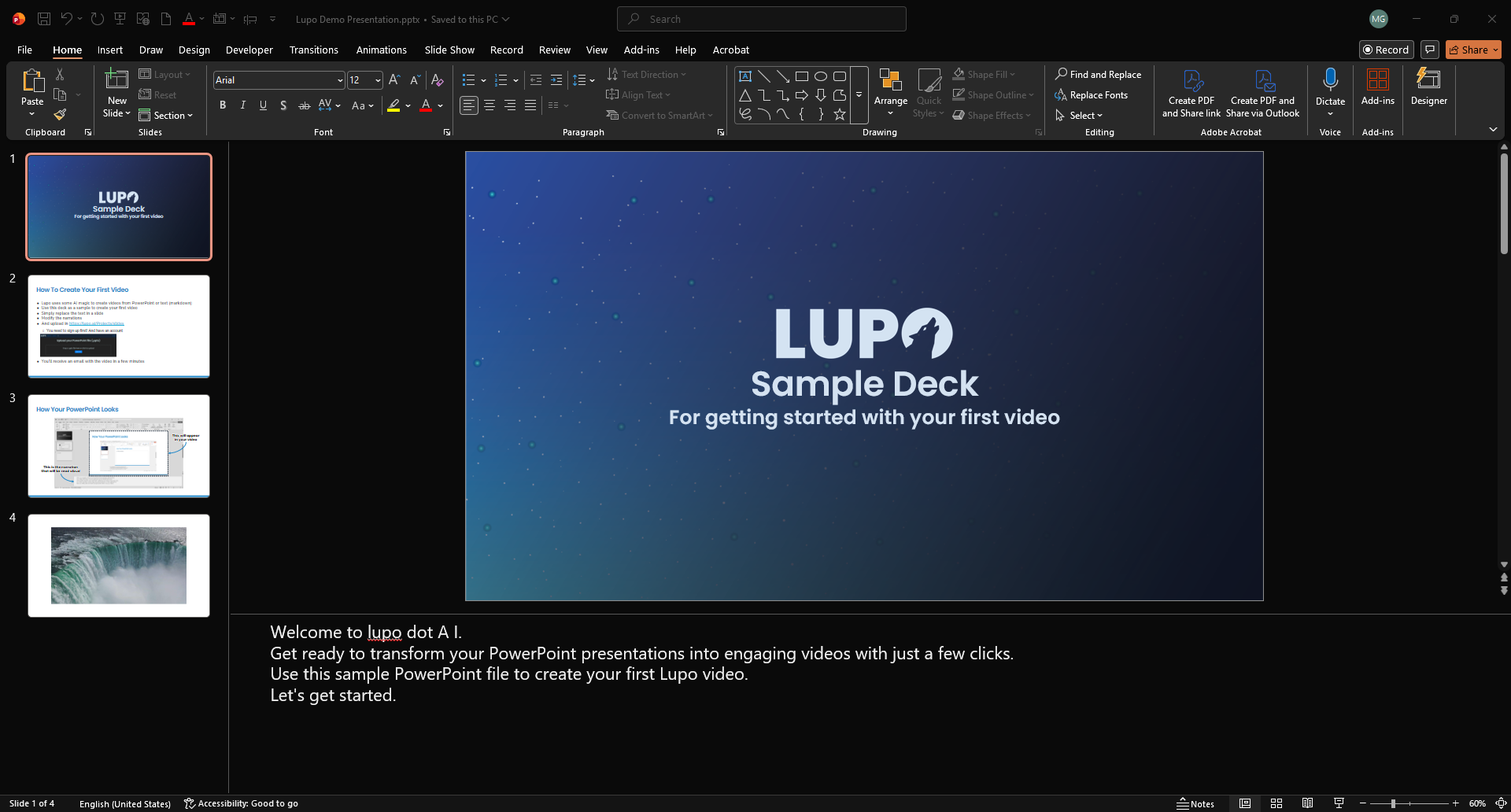
Step 1 — Prepare your PowerPoint
Open the .pptx you want to turn into a video and make sure the speaker notes are filled in for each slide. The speaker notes are what Lupo narrates, one slide at a time.
A few rules that will save you time:
- Write the way you'd speak it. A bulleted outline won't read well. A short paragraph will.
- One idea per slide. If a slide has two unrelated ideas, split it.
- 30 to 90 seconds per slide is the sweet spot — long enough to explain, short enough to hold attention.
- Embedded videos are supported. If your slide has a video clip embedded, Lupo will play it inside the generated video at the right moment.
If you don't have a PowerPoint to test with, the upload page offers a sample deck you can download and re-upload.
Step 2 — Go to the upload page
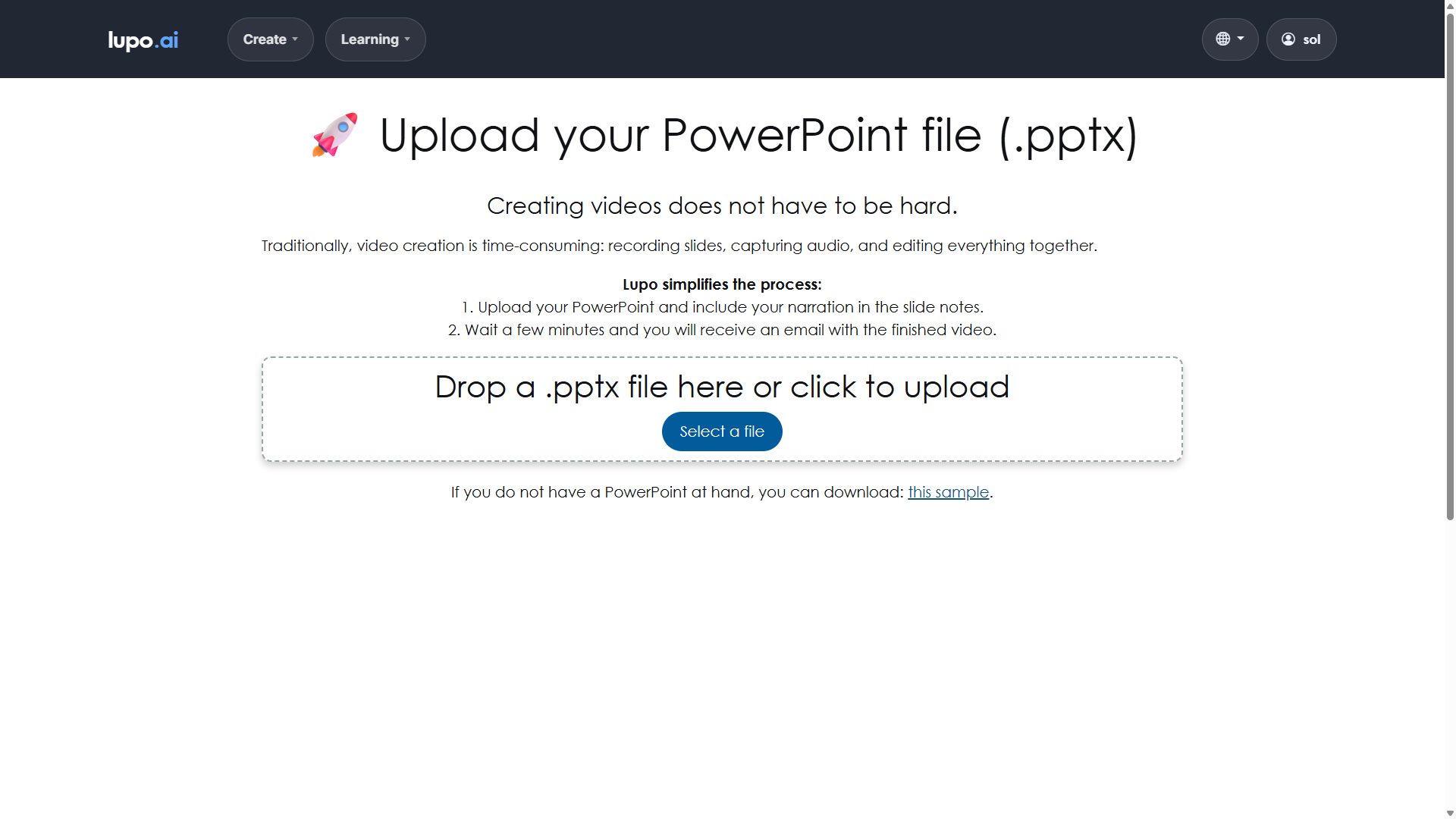
Open lupo.ai/projects/slides. This is the page titled Upload PowerPoint — in Lupo's navigation menu it's PowerPoint → Video.
The page has one job: take a .pptx file and start the video generation job. There's a big drop area in the middle that says "Drop a .pptx file here or click to upload".
Step 3 — Drop the file
Drag your .pptx file onto the drop area, or click it and pick the file from your computer. Lupo accepts .pptx only — not .ppt, not Keynote, not Google Slides. (For Google Slides, see Create Video From Google Slides.)
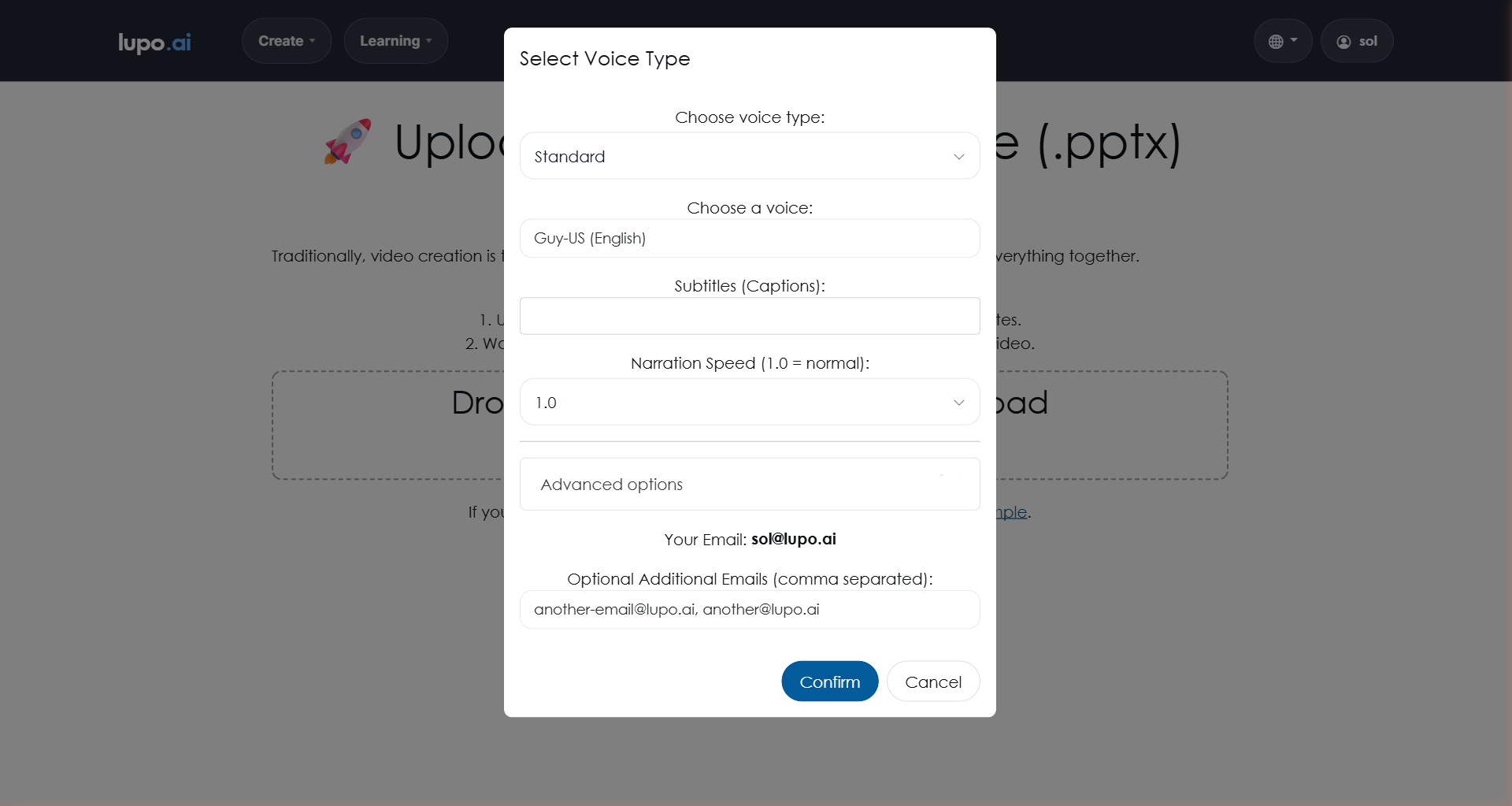
Once the file is selected, Lupo opens the Select Voice Type dialog. Pick a voice, plus any subtitles or speed you want (see Introduction to Voices and Languages), and click Confirm. Lupo uploads the file while "Uploading..." shows, then closes the dialog and shows "Video generation started. You'll receive an email with the results in a few minutes." with the Uploaded File name.
That's your signal that Lupo has the file and the job is running. You can close the tab.
Step 4 — Wait for the email
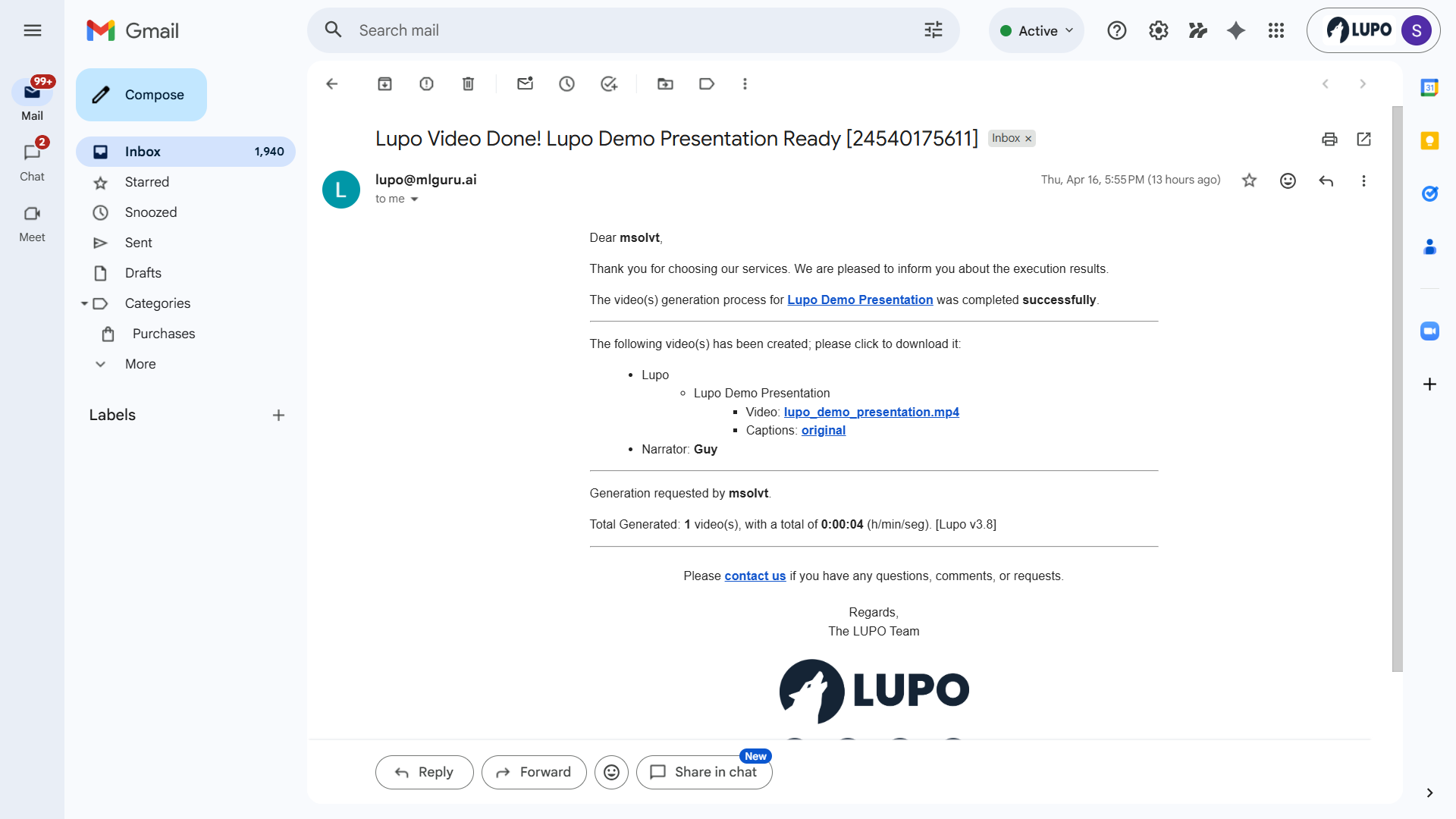
Video generation happens in the background. Depending on how long your deck is, the email usually arrives in a few minutes. It carries download links for the finished video (.mp4) and its captions.
If it's been a while and you haven't received anything, check your spam folder first. If it's still not there, email help@lupo.ai.
Saving to a specific project
By default, uploads land in your default project. If your account has a project, the page shows Uploads will be saved to project: with its name, and the build is filed there. There is no project picker on this page for customers; to send an upload to a different project, start from that project's Create video button on the Projects page. This only matters if you organize your work into multiple projects — see Projects for more.
Common things that go wrong
The upload rejects my file. Lupo only accepts valid .pptx files. If your file is .ppt, open it in PowerPoint and save as .pptx. If it's protected or corrupted, fix it in PowerPoint first.
The video doesn't have any narration. Check the speaker notes in your PowerPoint. If the notes are empty for a slide, that slide will be silent (or cut short) in the video. Re-upload with the notes filled in, or use Generate Narration From PowerPoint to draft them automatically.
The voice is wrong, or my name gets mispronounced. Voice selection and pronunciation are handled separately. See Voices and Languages.
Where to go next
- Generate Narration From PowerPoint — let Lupo write the script if you don't have one yet.
- Projects — organize your uploads and finished videos.
- Voices and Languages — change the narrator voice or language.