Welcome!
-
-
- Learn Home
- Core Concepts
- Companies and Departments
- Courses
- Course Status and Visibility
- Modules
- Video Activities
- Reading Activities
- Document Activities
- Enrolling People in a Course
- Bulk Enroll With CSV
- Roles in a Course
- How Progress Is Tracked
- Course Reports
- Knowledge Base Overview
- Libraries and Folders
- Uploading Content Items
- Library Visibility
- AI Agent per Library
- My Courses
- Platform People
-
- Project Structure Template
- Table of Contents (TOC)
- Content Folder
- Introduction to Markdown
- Markdown Basics
- Markdown Lists
- Markdown Links
- Markdown Images
- Markdown Code
- Markdown Tables
- Markdown Equations
- Markdown Videos
- Markdown Embedded HTML
- VS Code Snippets
- Introduction to Styles
- Framed Narrations
- Markdown Configuration
- Editor Setup
-
-
-
Schedule a Class
TL;DR; Creating a class means creating a delivery run, which can carry multiple days in one go. Each day has its own instructor, secondary instructors, time zone, capacity, and join link — you're not limited to one session per run.
Before you start
You need a confirmed Instructor-Led seat on this course. See Check your seat. You can't create a new course yourself — that's a Company Admin action; you're scheduling sessions on a course that already exists.
Steps
From the course's sessions page, select New session.
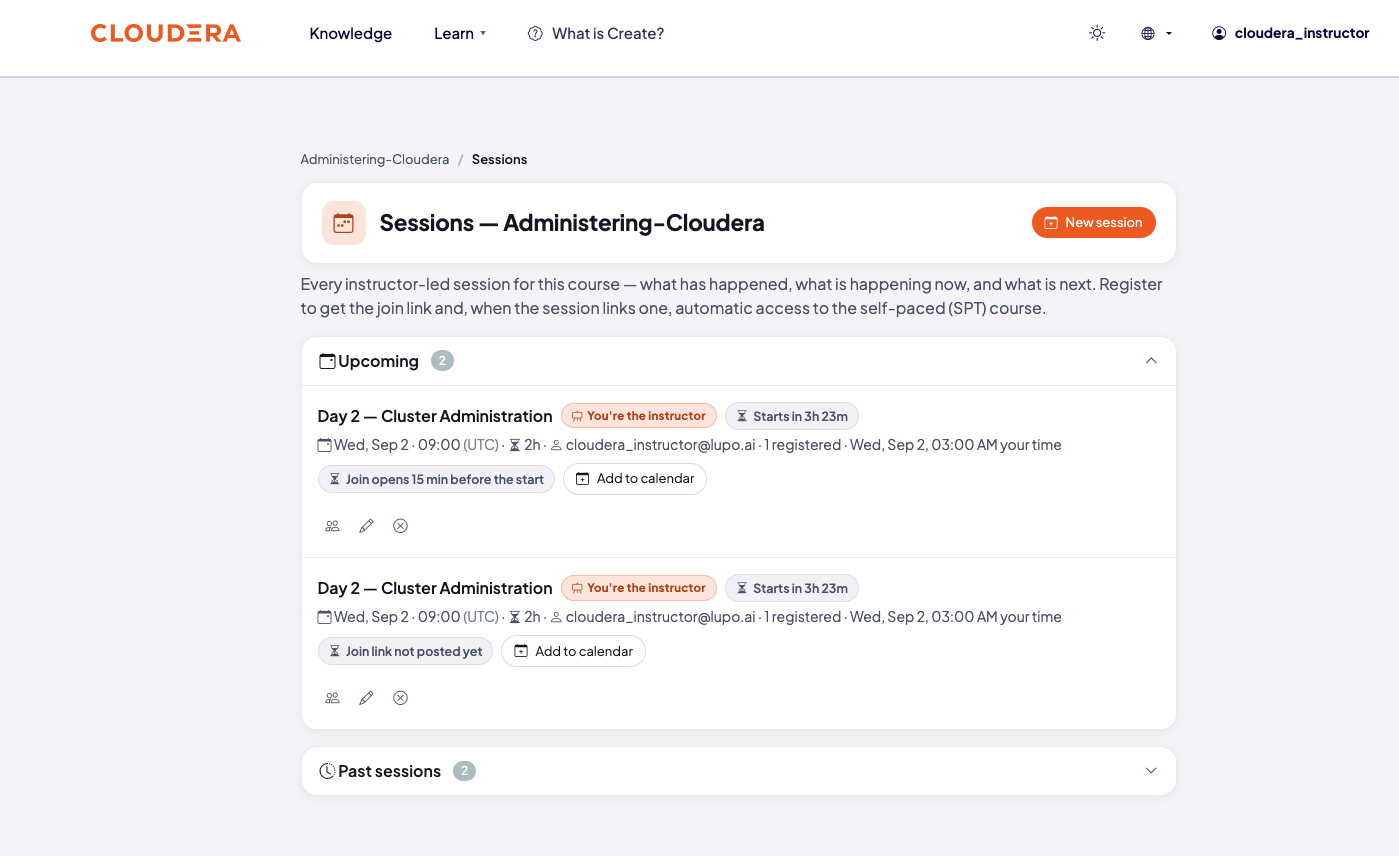
This opens the delivery run editor, not a single-session form — one submission creates the whole run and every day in it.
Fill in the run's own details: an optional title (auto-generated from the course, region, and start date if you leave it blank), region, capacity (blank means unlimited), and whether a waitlist is enabled (it is by default). Self-paced access opens is where you link a Self-Paced course and say when the seat is given: When they register or Never automatically on a new run. An existing run may also be set to When the class starts.
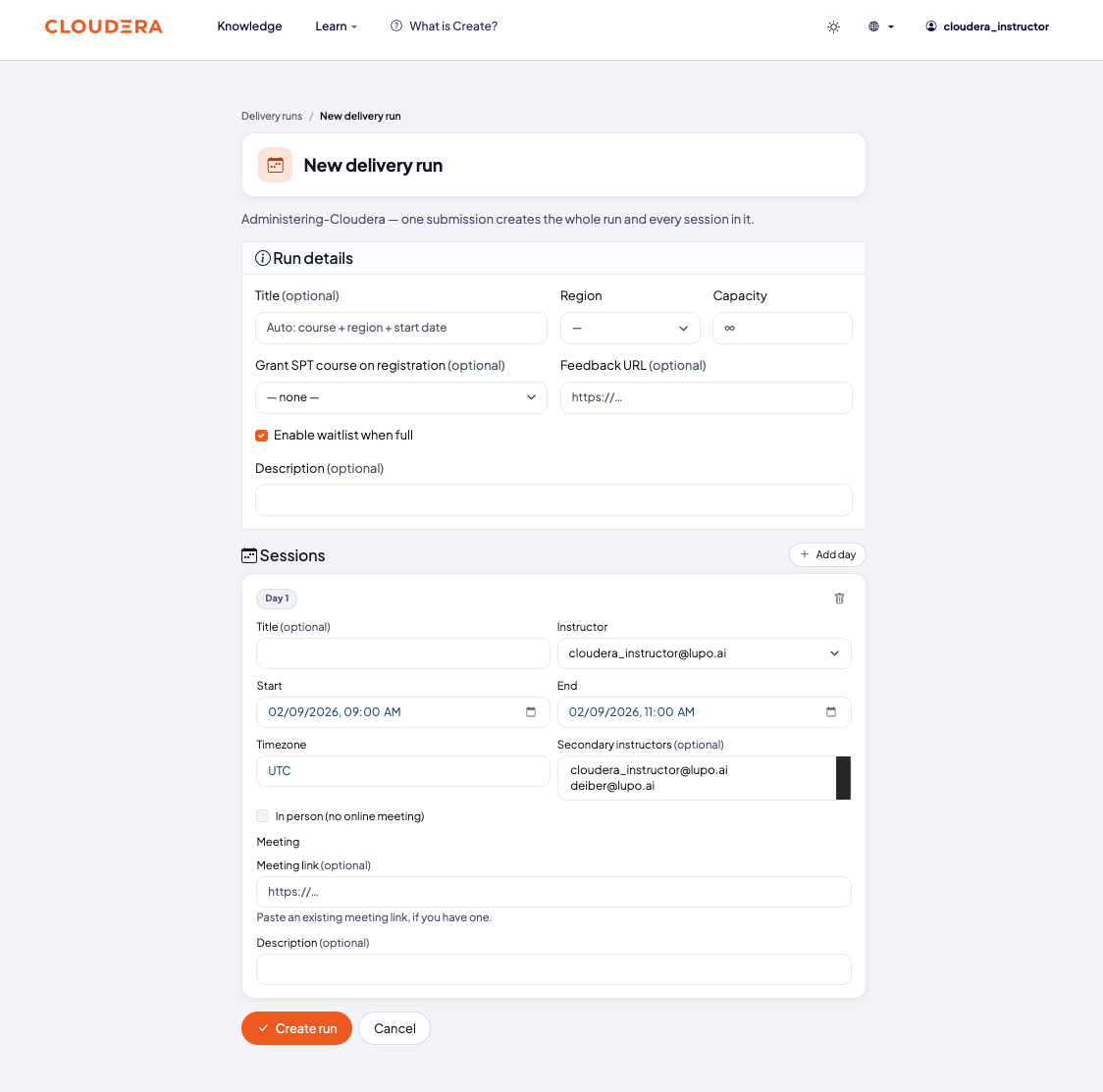
Add one or more days. Each day has its own optional title, a start and end time, and a time zone field — use a real IANA time zone id (like
America/Chicago); an invalid one is rejected rather than silently stored as UTC. Adding a second day offers Copy previous next to the instructor field, to carry over the prior day's details.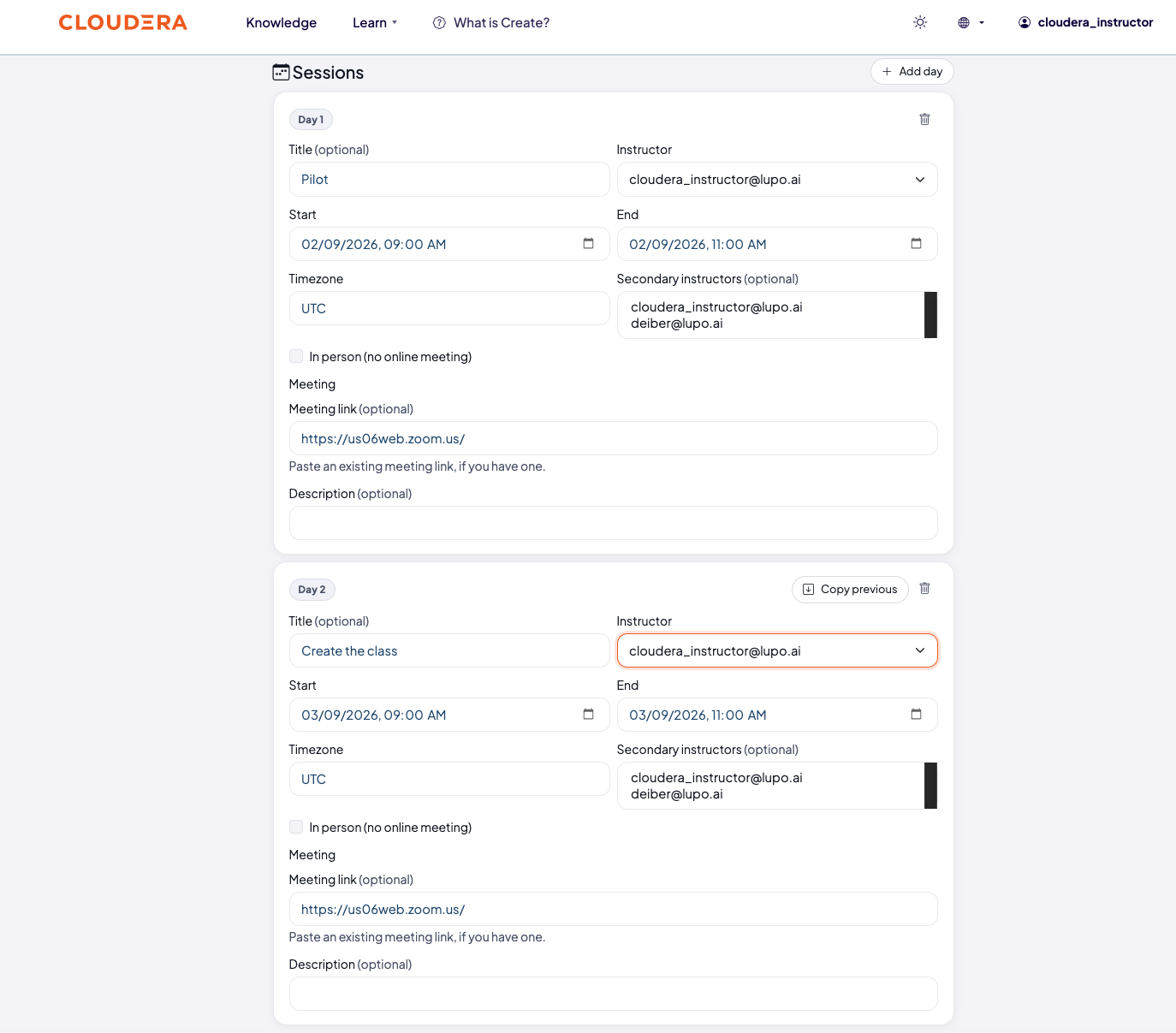
Assign a primary instructor and, if needed, one or more secondary instructors for each day.
Set whether the day is in person or online. For an online day, paste a meeting link if you already have one.
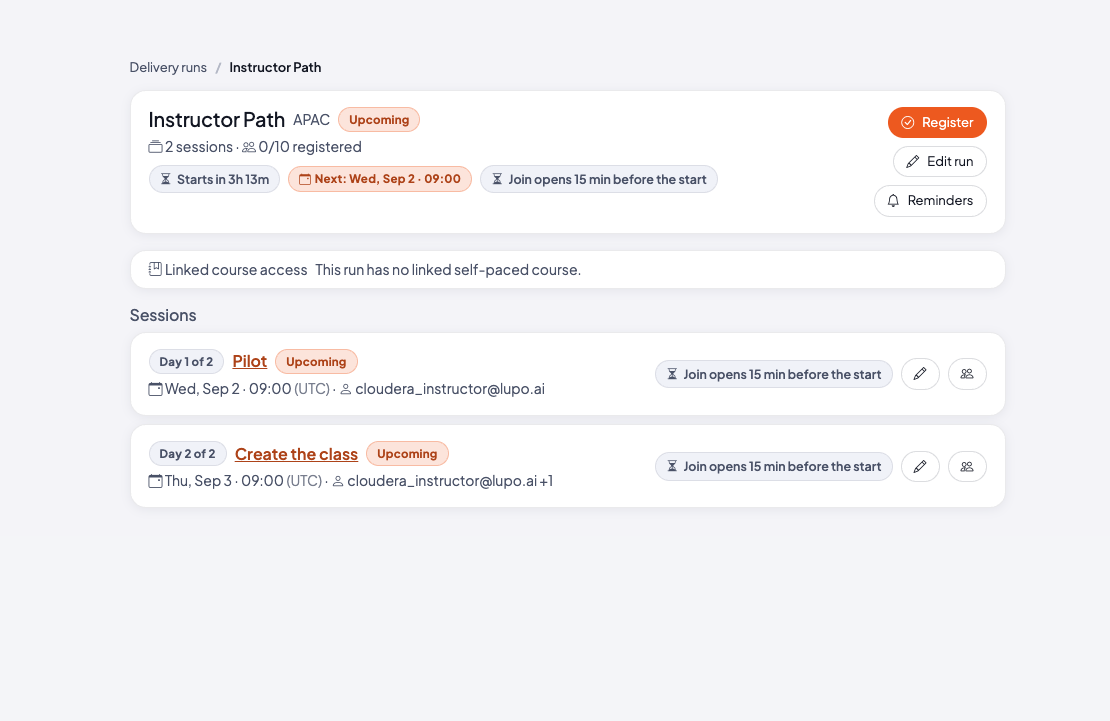
Select Create run. Learners can now find and register for it from the course's Instructor-led schedule. The run's own page shows Register, Edit run, and Reminders buttons, and lists each day with its own edit and roster icons.
What this doesn't do
You can't convert a Standard course into a channel-based one — that shape is set once, by a Company Admin, when the course is created. If a channel-based course has no Instructor-Led offering, a Company Admin can add one with Add a delivery channel… on the course's settings page. That creates a new, separate Instructor-Led offering alongside the existing ones; the course you're looking at doesn't change.
Common issues
"You can't create delivery runs for this course." — You don't hold the seat needed on this specific offering. See Check your seat.
"isn't a valid timezone — use an IANA id." — The time zone you typed isn't recognized; use a real IANA id rather than an abbreviation.
"New sessions must start in the future." — Pick a date from tomorrow onward.
Where to go next
- Enroll learners — the next step, and a bulk-upload pitfall worth knowing before you use it.
- Manage the roster — once people start registering.