Welcome!
-
-
- Learn Home
- Core Concepts
- Companies and Departments
- Courses
- Course Status and Visibility
- Modules
- Video Activities
- Reading Activities
- Document Activities
- Enrolling People in a Course
- Bulk Enroll With CSV
- Roles in a Course
- How Progress Is Tracked
- Course Reports
- Knowledge Base Overview
- Libraries and Folders
- Uploading Content Items
- Library Visibility
- AI Agent per Library
- My Courses
- Platform People
-
- Project Structure Template
- Table of Contents (TOC)
- Content Folder
- Introduction to Markdown
- Markdown Basics
- Markdown Lists
- Markdown Links
- Markdown Images
- Markdown Code
- Markdown Tables
- Markdown Equations
- Markdown Videos
- Markdown Embedded HTML
- VS Code Snippets
- Introduction to Styles
- Framed Narrations
- Markdown Configuration
- Editor Setup
-
-
-
Video Builds
TL;DR; A build is one render run, recorded against a project. The Builds entry in the Create menu opens the Videos (Builds) page, where every past render is listed with who started it, when, its minutes and its status, and a Play button for the finished video. On the Projects page, Generate appears only on projects connected to a GitHub repository — the Markdown path set up by the Lupo team — and renders a branch of that repository. It does not re-render an uploaded PowerPoint.
Most first-time users of Lupo never need this page, and that's fine. You come here to find a past render, to check the minutes your department has left, or — on the Markdown path — to start a build from a repository.
Where builds come from
Two things create a build:
- PowerPoint → Video. Every upload is one build, recorded against the project the upload page named (Uploads will be saved to project:). This is where most builds come from.
- Generate on a project that has a repository. Lupo renders the branch you pick from that repository's content. This exists only for projects the Lupo team has connected to a GitHub repository.
There is no way to re-run a past build from the Builds page. To render a deck again after editing it, upload it again through Create Video From PowerPoint — the Create video button on the project's row keeps the new build under the same project.
The Builds page
Open the Create menu and click Builds. The page is titled Videos (Builds).
- Select Project and Filter at the top narrow the list to one project. If your account has a single project, it is selected for you. With no project selected, builds from all your projects are listed and a Project column is added.
- Monthly summary — shown when the list is filtered to a project: Build Count, Total Minutes, Premium Minutes, Available Minutes, Completed Builds and Failed Builds for the current period. Available Minutes is what is left on the department's plan.
- The list — one row per build: Actions (Play opens the finished video in Lupo; Copy Video Build ID copies the build's number), First Video (the name of the first video in the build, with a "+N more videos" note when a build produced several), Initiated by, Running Time, Minutes, Created, Status (Running, Completed or Failed) and a Details magnifier that opens Project Build #N with the same fields plus the run ID.
The Video Build ID is the number after VB in the subject of the "Lupo Video Done!" email, so a build can be found from the email that announced it.
Generate on a repository-backed project
Generate (the lightning icon) appears on a project row only when the project has a Repository URL — see Project Structure Template for what such a repository contains. It needs your Lupo account to have a linked GitHub account (Lupo sends you to link one if not) and a department with minutes available.
- Open the Projects page.
- Click Generate on the project's row.
- The Generate video dialog opens with a Branch dropdown, the project's default branch preselected. Pick the branch that has the version you want to render.
- Click Generate.
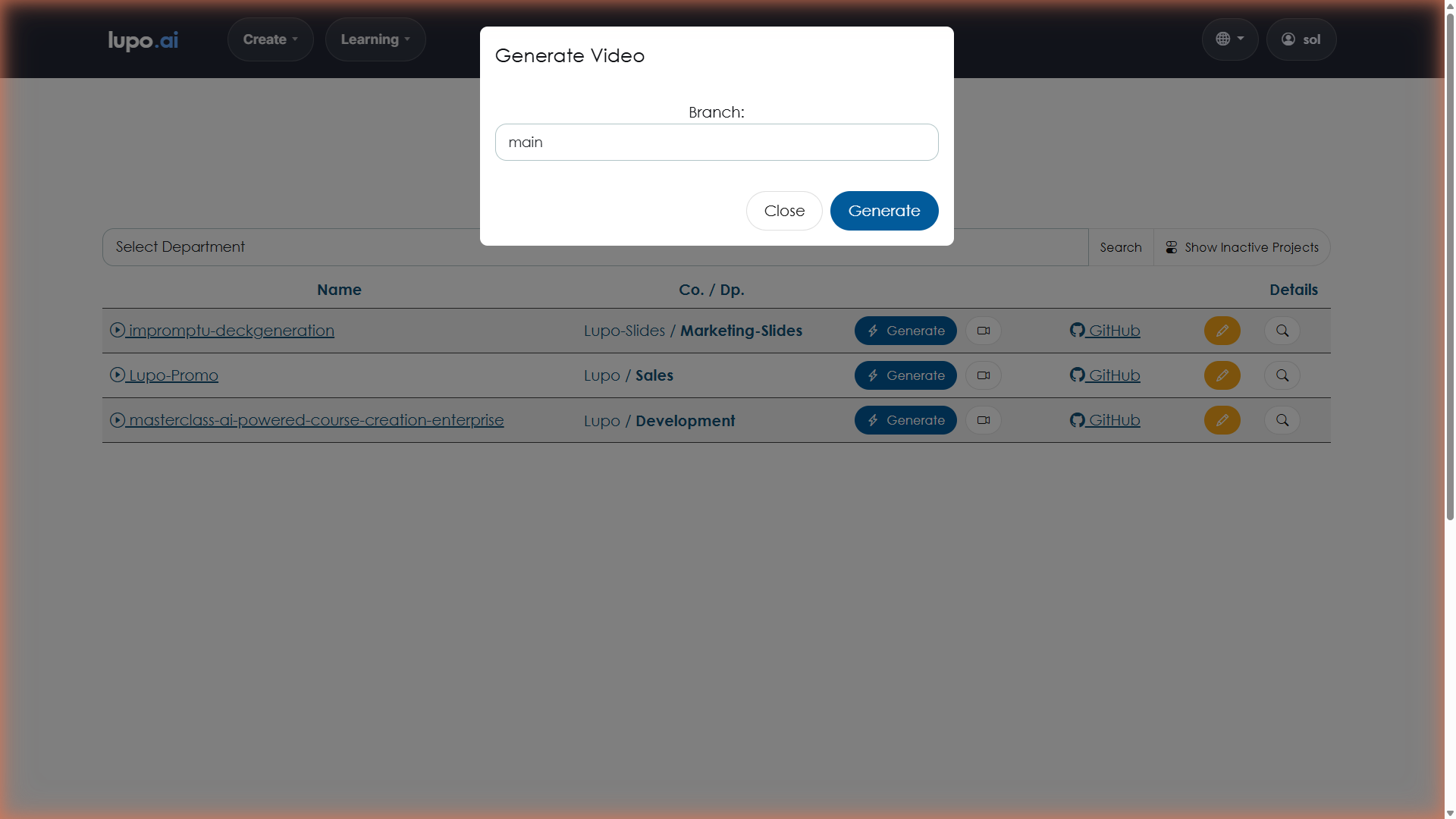
The Projects page then shows the banner "Video generation started. You'll receive an email with the results in a few minutes." What gets rendered is the branch's content — its toc.yml and the files it points to — exactly as committed. Nothing uploaded through the Create tools is involved, and Lupo has no editor for that content: edit the repository, push, then click Generate.
The email pattern (same as everything else)
Both kinds of build are asynchronous. You start the build, close the tab, and a few minutes later an email with the subject Lupo Video Done! arrives with a link to the finished video. If the render fails, the email subject starts with Generation Error instead.
If no email arrives, check spam, then contact help@lupo.ai.
Messages you might see
"Video generation started. You'll receive an email with the results in a few minutes." — The build was queued. Nothing else to do.
"The video build could not be started — nothing was dispatched. Please try again in a few minutes, or contact us at help@lupo.ai if it keeps failing." — Generate could not hand the build to the renderer. Nothing was queued and no minutes were used.
"You don't have minutes available. Please contact us at help@lupo.ai" — The project's department has no active pool of minutes, so Generate refused to start.
Generate is greyed out, with "You need an active subscription to generate videos. Contact us at help@lupo.ai" — the project is inactive because its department's plan is not active.
"Error 1003: Request failed. Please contact us at help@lupo.ai" — On the PowerPoint upload page: the file was uploaded but the render could not be started. Try again in a couple of minutes; if it keeps failing, write to support with the file name.
"Error 1002: Default processing project not found." — On the PowerPoint upload page: a configuration problem on Lupo's side, not something you can fix from the Projects page. Write to help@lupo.ai.
The video came back the same as before. For a Generate build, make sure your change was committed and pushed to the branch you picked in the dialog. For an upload, make sure you uploaded the edited file — a past build is never re-run.
Where to go next
- Projects — the container builds are recorded against.
- Create Video From PowerPoint — the way most builds are made.