Welcome!
-
-
- Learn Home
- Core Concepts
- Companies and Departments
- Courses
- Course Status and Visibility
- Modules
- Video Activities
- Reading Activities
- Document Activities
- Enrolling People in a Course
- Bulk Enroll With CSV
- Roles in a Course
- How Progress Is Tracked
- Course Reports
- Knowledge Base Overview
- Libraries and Folders
- Uploading Content Items
- Library Visibility
- AI Agent per Library
- My Courses
- Platform People
-
- Project Structure Template
- Table of Contents (TOC)
- Content Folder
- Introduction to Markdown
- Markdown Basics
- Markdown Lists
- Markdown Links
- Markdown Images
- Markdown Code
- Markdown Tables
- Markdown Equations
- Markdown Videos
- Markdown Embedded HTML
- VS Code Snippets
- Introduction to Styles
- Framed Narrations
- Markdown Configuration
- Editor Setup
-
-
-
Document Activities
TL;DR; A document activity attaches a file (.pdf, .docx, .pptx, .md, or .txt) to a module of a course and renders it inline for the learner. Use it for reference material that needs to live as a file — handbooks, policies, playbooks, supplementary guides.
Document activities are how you give learners a file to read or reference inside a course, without sending them somewhere external. Lupo renders the file inline so learners never leave the course page.
Supported file types
Document activities accept five file types:
- Markdown (
.md) — rendered as formatted HTML with headings, lists, links, and code blocks. Best for content you control and want learners to read inline. - PDF (
.pdf) — rendered in an embedded viewer. Best for pre-existing documents (policies, compliance docs, handbooks) you don't want to rewrite. - Plain text (
.txt) — rendered as unformatted text. Use sparingly; Markdown is almost always a better choice if you can control the source. - Word (
.docx) and PowerPoint (.pptx) — shown in an embedded Office viewer. If the course doesn't let learners download its materials, these two types can't be previewed, and the learner sees a note saying so.
Other file types, such as Excel spreadsheets, aren't accepted as document activities. Convert them to PDF before uploading.
When to use a document activity
Use document activities for:
- Long-form reference content. A 10-page handbook, a compliance policy, a full playbook.
- Externally authored documents. Content your legal, HR, or compliance team wrote in Word and published as PDF. You don't want to rewrite it — you want to use the original.
- Content that lives outside the course. Files that are canonical elsewhere (in a SharePoint drive, a corporate docs site, whatever) and you want to mirror inside the course for convenience.
- Reference material learners will come back to. Things learners want to find later, after they've finished the course.
Creating a document activity
From inside a module, click Add Activity → Document. You'll get a form with:
- Title — what the learner sees in the activity list.
- Description — optional blurb above the rendered file.
- File upload — drag or select the
.pdf,.docx,.pptx,.md, or.txtfile. - Order — where the activity sits in the module.
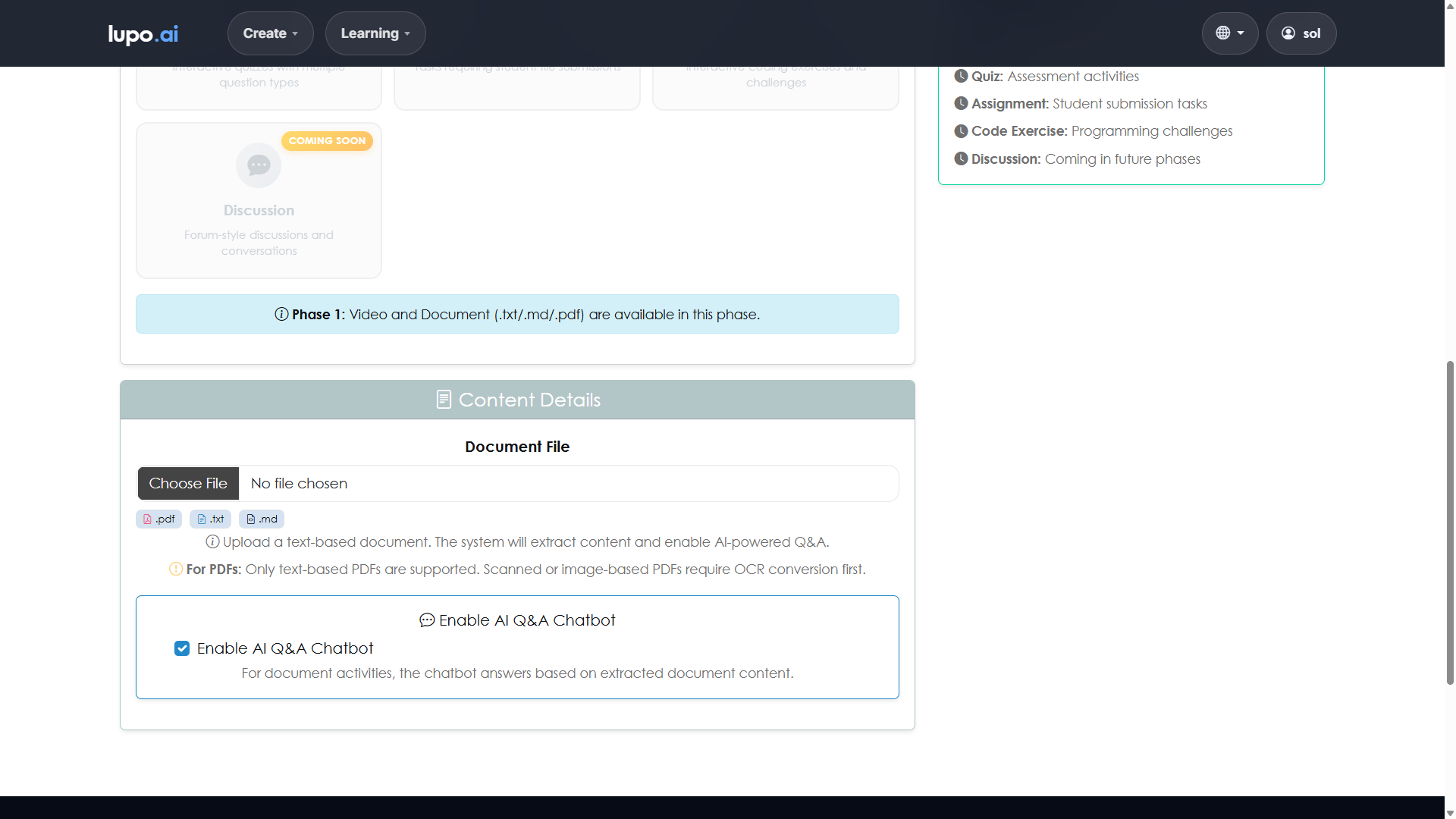
Once uploaded, the file is stored in Lupo and rendered in place whenever a learner opens the activity.
How documents render
Each file type has its own rendering path:
- Markdown files are parsed and converted to HTML. Headings become proper headings, lists become lists, and code stays in code blocks. The learner sees a clean, styled page — no raw Markdown.
- PDF files render in an embedded viewer. Learners can scroll, zoom, and (usually) search the text. They can also download the PDF if the course allows it.
- Text files render line by line, as plain text. Good for content where formatting doesn't matter.
- Word and PowerPoint files render in Microsoft's Office viewer, embedded in the activity. If the preview doesn't load, the learner can use the Open button at the top of the activity to open the file directly. If the course doesn't let learners download its materials, there's no preview and no Open button: the learner sees a note saying the document can't be previewed here, and to ask their instructor for another way to read it.
Replacing a document
If you need to update a document — a new version of a policy, for example — edit the activity and upload the new file. Lupo keeps the activity's ID stable, so any progress records learners have for that activity remain intact. The new file simply replaces the old one.
A caveat: if the content changes materially (new sections, different order, different meaning), some learners may have been "complete" on the old version and should probably re-read the new one. In that case, consider creating a new activity instead so the record clearly distinguishes "read version A" from "read version B."
Document activities and the Knowledge Base
Document activities and the Knowledge Base (Libraries) overlap in what they hold, but they serve different purposes:
- Document activity — a file attached to a specific module in a specific course, with completion tracking. Its purpose is course-specific.
- Library content item — a file in a department's reference library, browsable outside of any course. Its purpose is organization-wide reference.
The same PDF can live in both places. Put it in the library for general reference, and attach it as a document activity inside the specific course where it's required reading.
See Knowledge Base Overview for the library side.
Where to go next
- Video Activities — the most common activity type.
- Knowledge Base Overview — the non-course-bound home for reference files.