Welcome!
-
-
- Learn Home
- Core Concepts
- Companies and Departments
- Courses
- Course Status and Visibility
- Modules
- Video Activities
- Reading Activities
- Document Activities
- Enrolling People in a Course
- Bulk Enroll With CSV
- Roles in a Course
- How Progress Is Tracked
- Course Reports
- Knowledge Base Overview
- Libraries and Folders
- Uploading Content Items
- Library Visibility
- AI Agent per Library
- My Courses
- Platform People
-
- Project Structure Template
- Table of Contents (TOC)
- Content Folder
- Introduction to Markdown
- Markdown Basics
- Markdown Lists
- Markdown Links
- Markdown Images
- Markdown Code
- Markdown Tables
- Markdown Equations
- Markdown Videos
- Markdown Embedded HTML
- VS Code Snippets
- Introduction to Styles
- Framed Narrations
- Markdown Configuration
- Editor Setup
-
-
-
Getting Your Account
TL;DR; You get into Lupo one of two ways — sign up directly (with an email and password, or with a Microsoft account on lupo.ai), or accept an invitation someone already sent you. Either way, you end up signed in with an account tied to one company.
Sign up
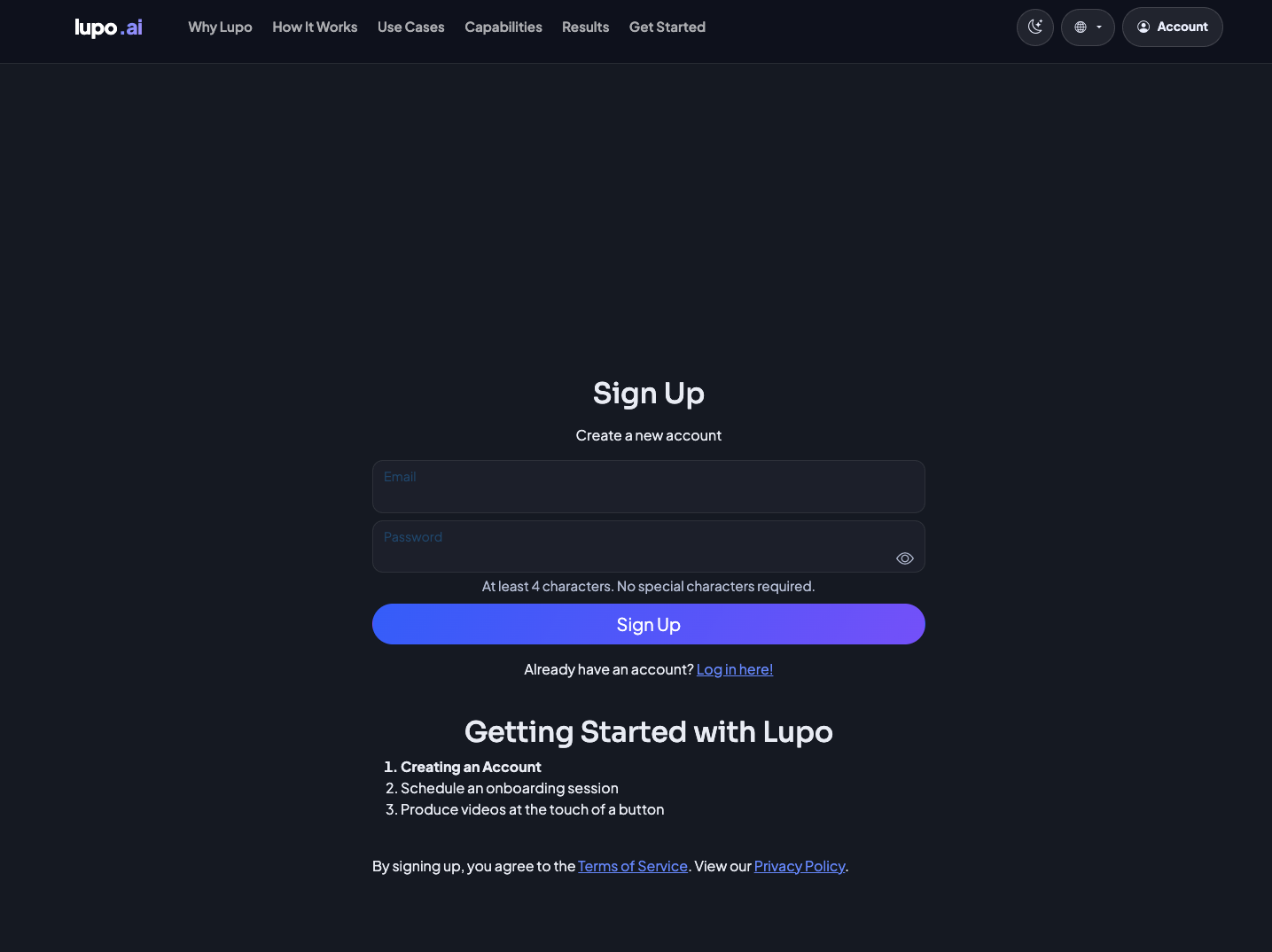
Go to the sign-up page and enter your email and a password (at least 4 characters — no special characters required). If you already have an account, use Log in here! instead.
Sign in
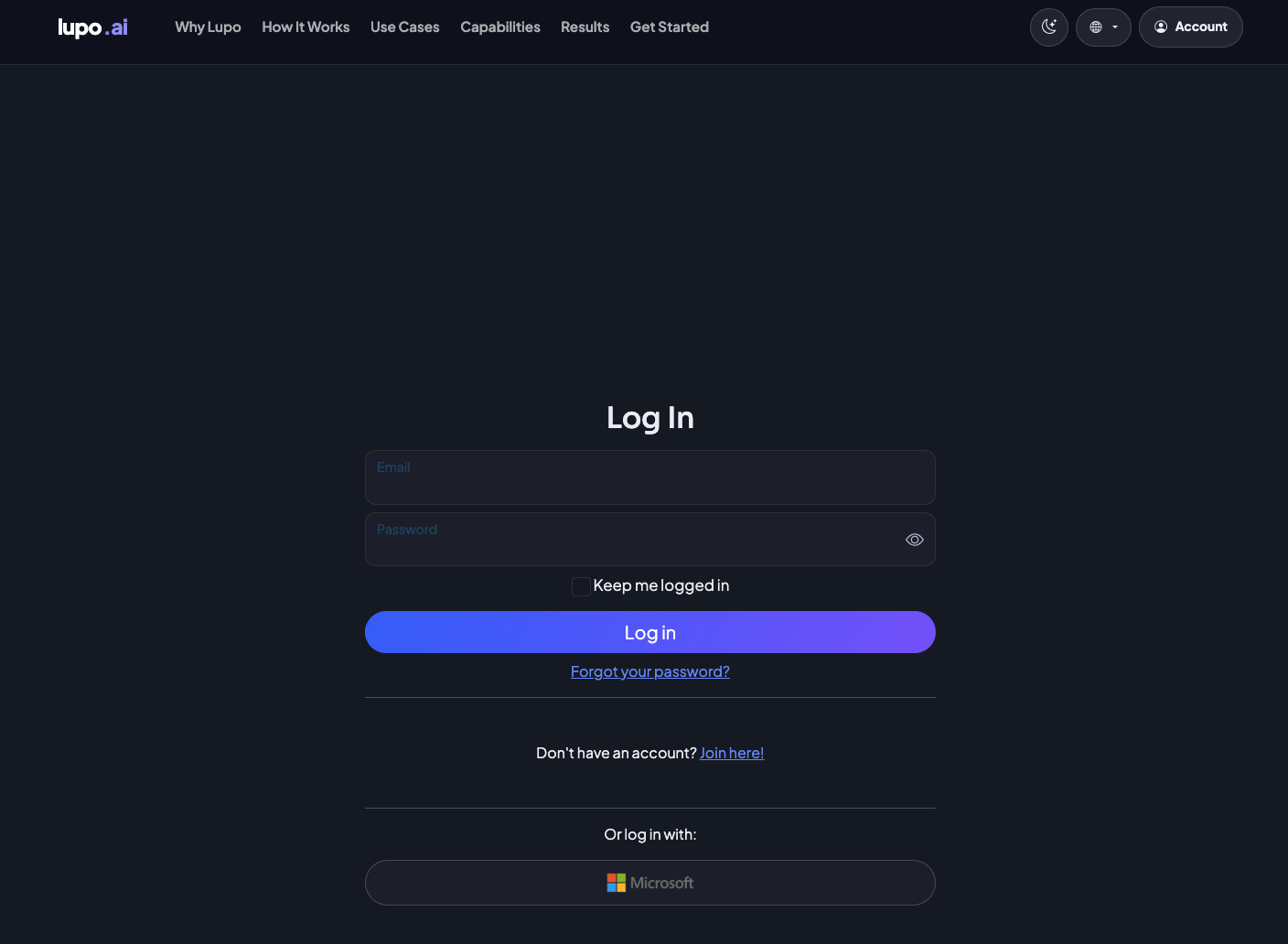
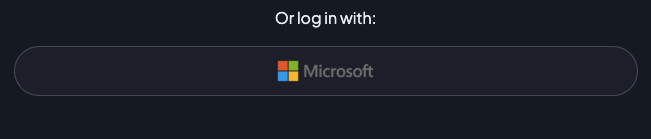
Enter your email and password, and optionally check Keep me logged in so you're not asked again on that device. On lupo.ai a Microsoft button sits below the form under Or log in with: — see the next section.
Sign in with Microsoft
Selecting Microsoft on the lupo.ai sign-in page redirects you to Microsoft to authenticate with any Microsoft account — work, school, or personal — then brings you back into Lupo signed in. If no Lupo account exists for that email yet, one is created for you on the spot; there's no separate Lupo password to manage.
This option is Lupo's own, not your company's: it's shown to everyone on lupo.ai and never on a company's branded sign-in page (a white-label subdomain), where you sign in with the credentials your company provisioned. If you don't see the button, sign in with email and password instead.
Forgot your password
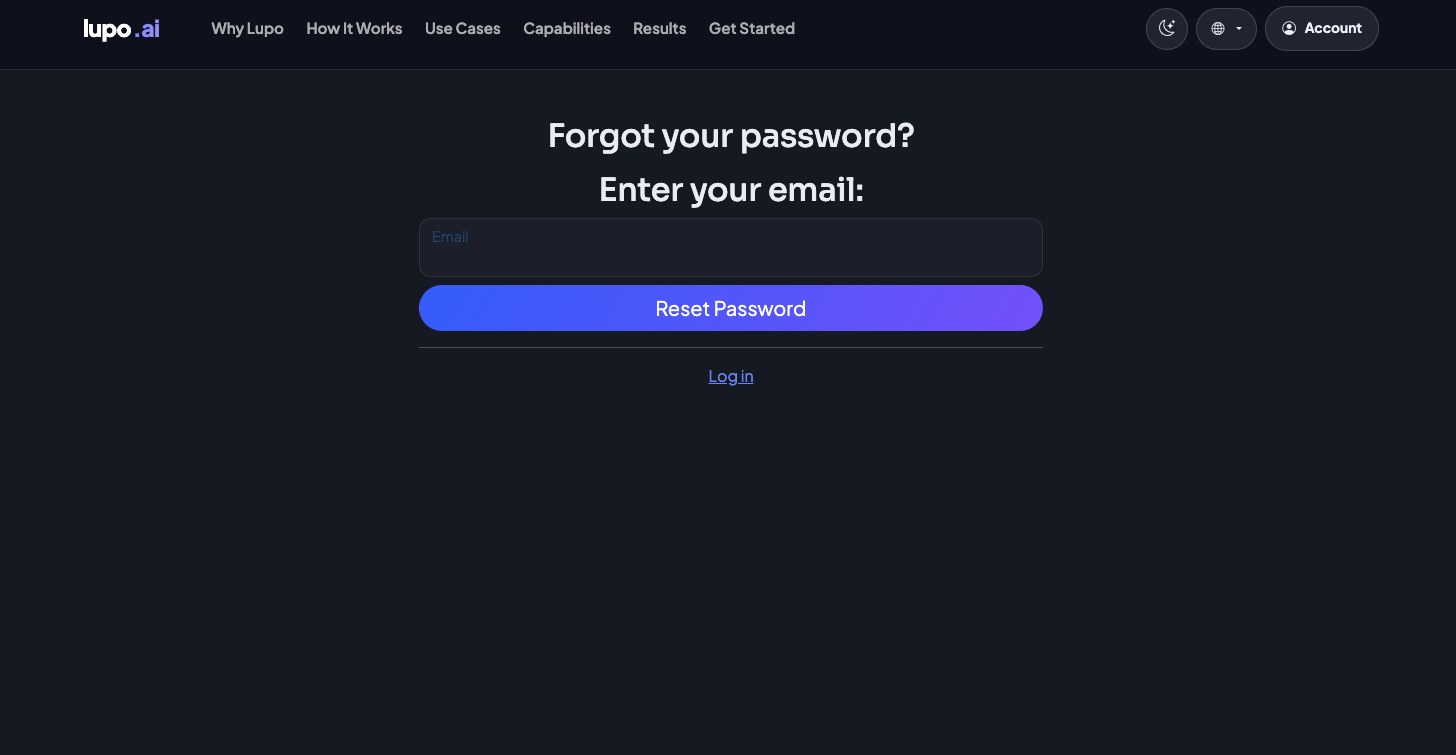
Select Forgot your password? on the sign-in page, enter your email, and select Reset Password. Lupo emails you a link to set a new one.
Accept an invitation
If someone at your company invites you instead of you signing up yourself, you'll get an email like this one, naming the course, the company, and your role.
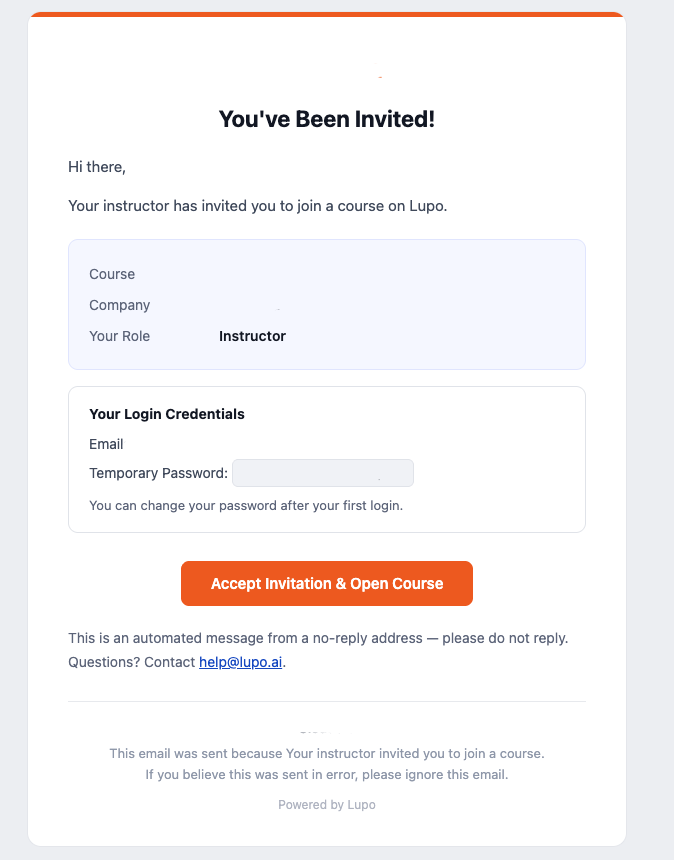
Selecting Accept Invitation & Open Course takes you to a page showing what you're being invited to and the email the invitation was sent to. If your account has no password yet, you set one there; if it already has one — you signed up before, or your invitation email came with a temporary password — you just confirm and you're in. See Log in from your invitation for the step-by-step.
Switch language
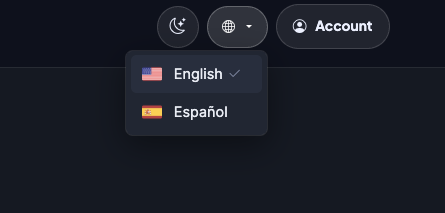
Select the globe icon in the top navigation to switch between the languages Lupo is translated into. Your choice is remembered for next time. A page that isn't translated into your selected language yet shows English for that page only — your choice isn't changed — and in the switcher, a language a page isn't available in is greyed out with "Not available on this page".
Where to go next
- Who can do what — what your role lets you do once you're in.
- Concepts and glossary — the terms used across this documentation.