Welcome!
-
-
- Learn Home
- Core Concepts
- Companies and Departments
- Courses
- Course Status and Visibility
- Modules
- Video Activities
- Reading Activities
- Document Activities
- Enrolling People in a Course
- Bulk Enroll With CSV
- Roles in a Course
- How Progress Is Tracked
- Course Reports
- Knowledge Base Overview
- Libraries and Folders
- Uploading Content Items
- Library Visibility
- AI Agent per Library
- My Courses
- Platform People
-
- Project Structure Template
- Table of Contents (TOC)
- Content Folder
- Introduction to Markdown
- Markdown Basics
- Markdown Lists
- Markdown Links
- Markdown Images
- Markdown Code
- Markdown Tables
- Markdown Equations
- Markdown Videos
- Markdown Embedded HTML
- VS Code Snippets
- Introduction to Styles
- Framed Narrations
- Markdown Configuration
- Editor Setup
-
-
-
Companies and Departments
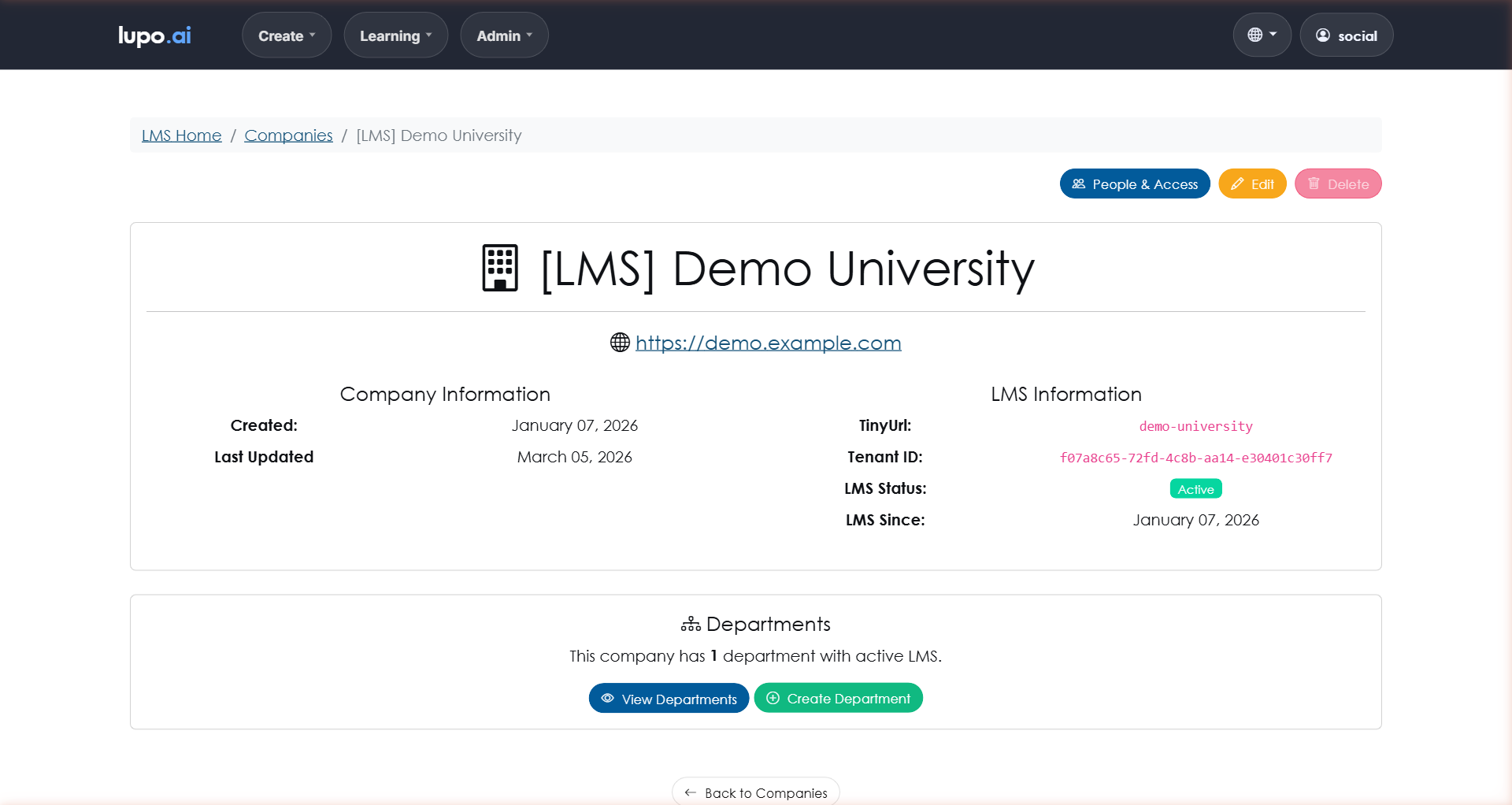
TL;DR; Companies are the top-level containers in Learn; Departments are the subdivisions inside each company. Lupo creates the company; a Company Administrator then creates at least one department inside it, and everything else — courses, libraries, people — lives inside a department.
Why two levels?
Two levels of containers might feel like overkill if you're producing a single course for one team. But the two-level structure pays off as soon as you do any of these:
- Run training for more than one client (as a consultant or managed-services provider).
- Have multiple legal entities that need to keep their data isolated.
- Have teams with different content needs inside one organization, and want each team to manage its own library without stepping on the others.
A company is the "who owns this?" level. A department is the "which team inside that owner?" level.
Creating a company
Companies are created by Lupo during onboarding. If you need a new company set up, contact help@lupo.ai.
A company has two fields in Learn:
- Company Name — the company's display name.
- TinyUrl — a short, URL-safe identifier (lowercase letters, numbers and hyphens) that leads the company's URL paths (for example,
/acme/learnfor "acme").
There is no logo or description field. If Lupo has the company's website on file, it appears as a link on the company page. The branding of a company's own Lupo site (logo, colours) is set up by Lupo, not through this form.
A Company Administrator can change the name and the TinyUrl later with Edit on the company page. Changing the TinyUrl changes every URL under the company, so existing links and bookmarks stop working.
Taking a company offline
There is no on/off switch for a company. The company page shows a Learn Status of Active, and nothing on your side changes it. To take a company offline, contact help@lupo.ai; Lupo keeps the learner records intact rather than deleting them. Companies cannot be deleted.
Creating departments
A Company Administrator creates departments with Create Department, on the company page or on the departments list. A department has two fields:
- Name — the department's display name.
- TinyUrl — a short identifier used inside the company's URL path (lowercase letters, numbers and hyphens, unique within the company).
There is no description field. If the department already exists on the platform's Create side (where video projects live), Enable Existing attaches Learn to it instead of creating a second department with the same name. Either way, once the department is in Learn you can add courses and libraries to it.
Inside a department
Clicking a department opens its page. This is where the actual work happens. You'll see:
- Department Information — the company, the TinyUrl, the Learn status and the dates.
- Courses — how many courses the department holds, with View Courses, Create Course and, for a Company Administrator, Courses metrics, the department-wide dashboard.
- Libraries — how many libraries the department's knowledge base holds, with View Libraries and Create Library. See Knowledge Base Overview.
- Edit and Delete in the page header.
There is no people list and no settings page at department level. Access is granted per course, on the course's People tab, and per knowledge base — see Roles in a Course and Platform People.
Everything below this point lives inside the department you're looking at.
Deleting a department
A Company Administrator can delete a department only while it is empty. The Delete button on the department page stays disabled, and says what is in the way ("Still holds 2 course(s). Remove those first."), while the department still has members, projects, subscriptions, courses or libraries. Deleting an empty department cannot be undone.
There is no way to hide or deactivate a department without deleting it. The departments list shows every department with Learn enabled, and the box at the top of the list only filters by name. To retire a department that has history, leave it in place and archive its courses instead.
Picking the right structure
A few structural rules of thumb:
- One company per legal entity or client. Don't mix multiple clients' data under a single company.
- Departments by function or audience, not by course. A department should represent a team or learner group, not a single piece of content. "Sales Enablement" is a good department. "Q2 Sales Training" is a course inside it.
- Don't over-subdivide. Three or four departments is plenty for most organizations. You can always add more later.
Where to go next
- Courses — create your first course inside a department.
- Roles in a Course — the roles people hold inside a course.
- Platform People — who can see what across the company.
- Knowledge Base Overview — the library side of a department.