Welcome!
-
-
- Learn Home
- Core Concepts
- Companies and Departments
- Courses
- Course Status and Visibility
- Modules
- Video Activities
- Reading Activities
- Document Activities
- Enrolling People in a Course
- Bulk Enroll With CSV
- Roles in a Course
- How Progress Is Tracked
- Course Reports
- Knowledge Base Overview
- Libraries and Folders
- Uploading Content Items
- Library Visibility
- AI Agent per Library
- My Courses
- Platform People
-
- Project Structure Template
- Table of Contents (TOC)
- Content Folder
- Introduction to Markdown
- Markdown Basics
- Markdown Lists
- Markdown Links
- Markdown Images
- Markdown Code
- Markdown Tables
- Markdown Equations
- Markdown Videos
- Markdown Embedded HTML
- VS Code Snippets
- Introduction to Styles
- Framed Narrations
- Markdown Configuration
- Editor Setup
-
-
-
Introduction to Voices and Languages
TL;DR; When you turn slides into a narrated video, a small dialog asks you to pick a voice, choose subtitles, and set a speed. This section is the guided tour of that dialog and the choices inside it — how to pick a voice that sounds right for your content, how to add captions in another language, and when Premium voices are worth it.
When you start a video on one of the pages listed below, Lupo opens a Select Voice Type dialog before kicking off the job. It's where you make three decisions at once:
- Who is going to narrate this? (voice type and specific voice)
- What captions do you want? (subtitles in one or more languages)
- How fast should the narration go? (speed multiplier)
Plus a checkbox for slides that have no speaker notes.
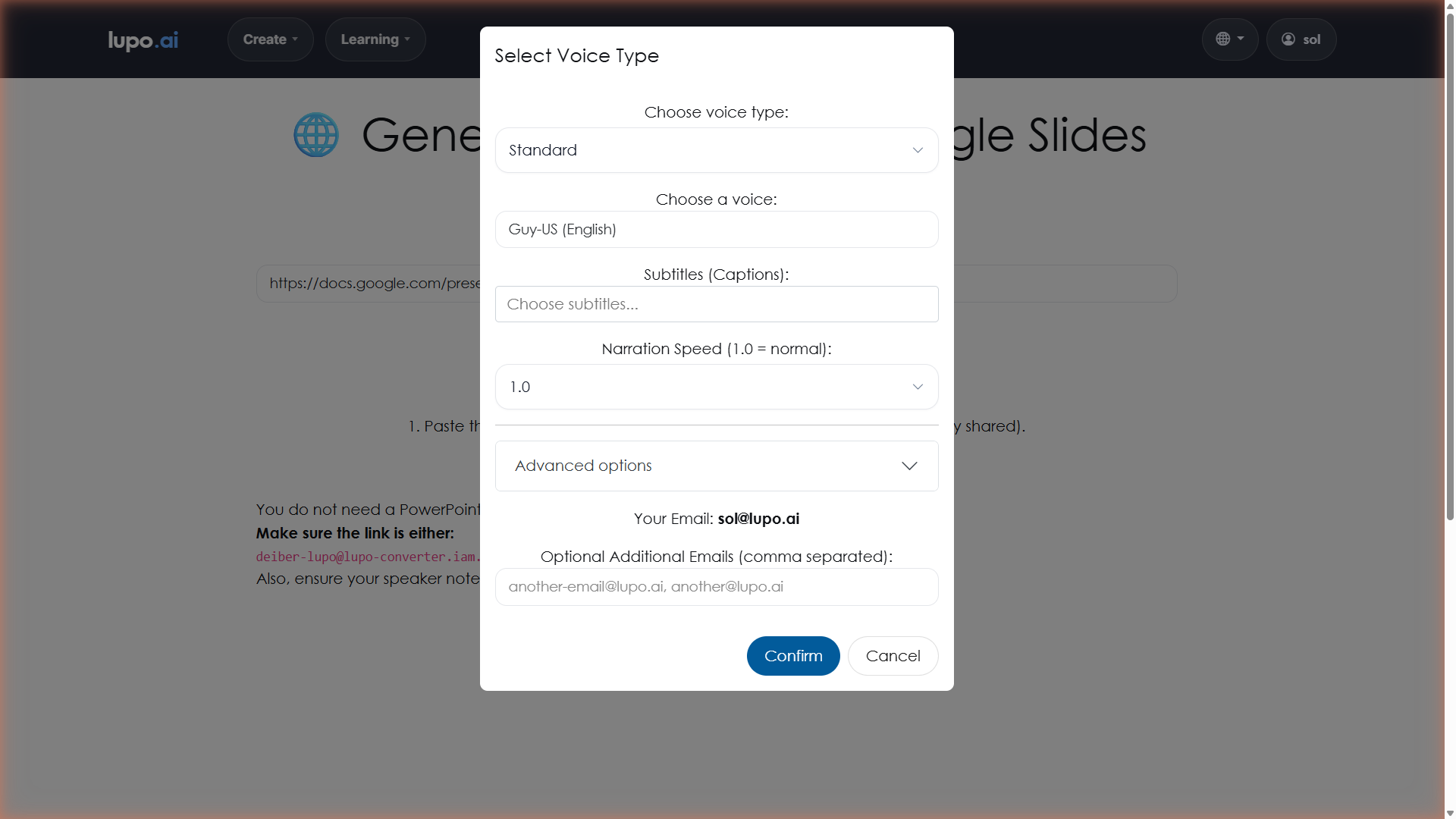
The voice dialog at a glance
Here's what's on the dialog, from top to bottom:
- Try voices — a link in the dialog's header that opens Voice Studio in a new tab, so you can listen to voices before you choose.
- Choose voice type — shown only when your account includes Premium or Enterprise voices. It offers Standard, plus whichever of Premium and Enterprise your account includes. Premium voices sound more natural but are slower to generate and may require a paid plan. More on that in Premium Narrators.
- Choose a voice — a dropdown of specific narrators. The list changes depending on the voice type you picked. More on picking a voice in Narrators.
- Translated subtitles (optional) — subtitles in the narration language are always included with the video. Pick one or more languages here to add translated subtitle tracks. Supported: English, Spanish, French, German, Chinese, Japanese, Arabic, Portuguese, Russian, Italian. More on captions in Translations.
- Narration Speed — a dropdown from 0.7 to 1.2, where 1.0 is normal, whichever voice type you picked.
- Generate voice-over if no notes are found — a checkbox, checked by default, that tells Lupo to create narration for slides whose speaker notes are empty. See Slides without speaker notes below for where it takes effect.
- Your Email — your account email, shown for reference. The finished video is sent there.
- Optional additional emails — comma-separated list of other people to copy on the final email. Handy for letting a colleague know a draft is ready.
- Confirm / Cancel — Confirm kicks off the job.
- We have premium voices available — a note at the bottom, shown only when your account has neither Premium nor Enterprise voices, with a Learn more about them link.
Accounts with the Lupo Sub Titles add-on also see a Generate Lupo Sub Titles (.lst) checkbox on PowerPoint → Video.
You'll see this dialog on the PowerPoint → Video and Google Slides → Video pages, and during Getting Started with Lupo. Lupo platform administrators also meet it on the AI PDF to Video and Animations pages. Other tools, such as PowerPoint → Narration and Re-narrate Existing Video, don't use it.
Slides without speaker notes
The Generate voice-over if no notes are found checkbox is what lets Lupo produce a video even when you haven't written speaker notes yet. If you leave it checked, any slide with empty notes gets an AI-drafted narration on the fly. Uncheck it if you want Lupo to stay silent on empty slides — useful if you're building a montage or intentionally leaving some slides without voice.
Your choice only takes effect on PowerPoint → Video. On Google Slides → Video the checkbox is switched off and can't be changed, and on the other pages unchecking it has no effect.
This is different from the dedicated Generate Narration From PowerPoint tool, which writes narrations back into a .pptx file for you to review. The checkbox in this dialog is the "just do it now" version.
When captions are worth setting
Add subtitles when:
- Your audience watches videos in a second language and the written form helps comprehension.
- You need to comply with accessibility requirements.
- You want the video to be watchable with the sound off (open offices, commuting, hearing impairment).
Captions don't change the narration — the voice still speaks whatever's in the notes. They just add on-screen text.
Where to go next
- Narrators — the actual voices, how they differ, and how to audition them.
- Emotions — how to make a single narrator sound excited, calm, or serious across different slides.
- Premium Narrators — what Premium voices get you and when to use them.
- Translations — captions, multi-language output, and how to use the subtitles picker.
- Premium Tutorial — a walkthrough of producing a video with a Premium voice from start to finish.